How to Fix a Laptop Black Screen
To fix a laptop black screen, force a full power drain by holding the power button for 30 seconds with the charger unplugged, then power back on. Here is how to fix a laptop black screen, step by step, from the fastest resets to the hardware checks that catch the stubborn cases. Most black screens come from a stuck power state, a display glitch, or a driver fault rather than a dead machine.
Confirm the Laptop Is Actually On
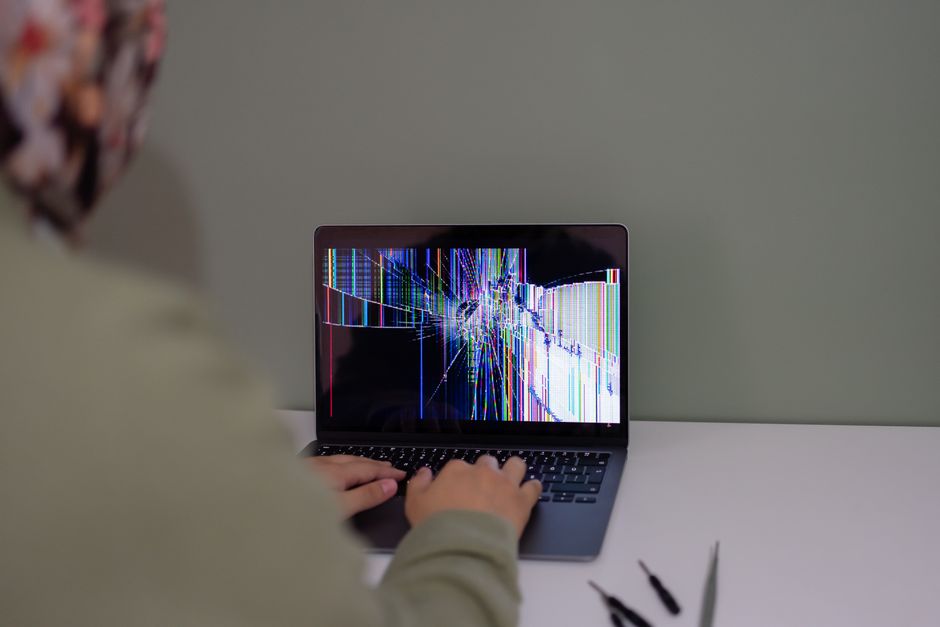
Before assuming the display is broken, figure out whether the computer is running at all. A black screen with the machine off is a power problem; a black screen with the machine running is a display problem, and the two have different fixes.
- Listen for the fans and drive. A faint whir or warmth means the laptop is powered.
- Check the keyboard and power lights. Lit indicators point to a display issue, not a dead system.
- Tilt the screen under a bright light. A very faint image means the backlight failed while the panel still works.
If you see a dim ghost of the desktop, the backlight is the culprit, not the whole screen. That narrows the repair considerably.
Force a Hard Reset

A hard reset clears a frozen power state, which is the single most common reason a laptop boots to black. It costs nothing and fixes a large share of cases.
- Unplug the charger and remove any USB drives, docks, or external monitors.
- Hold the power button for 30 seconds to drain residual power from the board.
- Reconnect the charger only, then press power once.
- If the laptop has a removable battery, take it out during the drain, then reseat it before powering on.
Tip: Removing external monitors matters. The laptop can send its picture to a disconnected second screen, leaving the built-in panel black even though everything works.
Wake the Display and Switch Outputs
Sometimes the system is running fine but sending video to the wrong place, or the screen brightness dropped to zero. These fixes force the picture back to the panel.
- Press the brightness-up key several times in case brightness was set to the lowest level.
- Press the display-switch shortcut — often a function key with a monitor icon, or Windows key + P — to cycle output back to the laptop screen.
- Tap Caps Lock and watch for its light. If the light toggles, Windows is alive and the issue is purely graphical.
If the Caps Lock light responds but the screen stays black, the display driver or GPU is the suspect, covered next.
Repair Graphics Drivers From Safe Mode
A corrupted or crashed graphics driver produces a black screen after the login sound or logo. Restarting the driver or booting into Safe Mode gets around it.
- Try the driver restart shortcut: Windows key + Ctrl + Shift + B. This resets the graphics stack and may bring the picture back instantly.
- Force Safe Mode by cutting power during boot three times, which triggers the recovery menu.
- Choose Safe Mode from Troubleshoot, Advanced options, Startup Settings.
- Roll back or reinstall the display driver in Device Manager once you can see the desktop.
Warning: Cutting power mid-boot to reach recovery is safe occasionally, but do not make it a habit. Repeated hard cuts can corrupt files over time.
Test the Screen Against an External Monitor

Plugging in an external display separates a broken panel from a broken system in one move. This is the decisive test before considering a repair.
| External monitor result | What it means | Next step |
|---|---|---|
| Picture appears externally | Laptop panel or cable is faulty | Service the screen or backlight |
| External also black | System, GPU, or board fault | Try driver and hardware resets |
| Flickers on both | Loose connection or GPU issue | Reseat cables or seek repair |
If the external monitor shows a clean picture, the computer is healthy and the built-in screen needs service. That usually means a damaged panel, a loose display cable, or a failed backlight — all repairable.
Rule Out RAM and Loose Hardware
When nothing shows on any screen, loose memory is a classic cause, especially after the laptop was dropped or moved. Reseating it often revives a machine that seemed dead.
If you are comfortable opening the laptop, power it down, remove the battery where possible, open the memory panel, and firmly reseat each RAM stick. On models with two sticks, try booting with one at a time. If reseating brings the laptop back, one slot or module may be failing. If you are not comfortable inside the chassis, a repair shop can do this in minutes.
Frequently Asked Questions
Why is my laptop screen black but still running? The system is powered but sending no usable picture to the panel. Causes include zero brightness, output switched to an external display, or a crashed graphics driver. Try the brightness key, the display-switch shortcut, and a graphics-driver restart.
Can a black screen fix itself? A black screen from a temporary glitch or overheating can clear after a full power drain and cool-down. A black screen from failed hardware, like a dead backlight or loose RAM, needs a physical fix.
How do I know if it is the screen or the graphics card? Connect an external monitor. If the external shows a picture, the laptop’s own screen is at fault. If the external is also black, the graphics card, board, or system software is the problem.
Does a black screen mean my laptop is dead? Not usually. Most black screens trace back to a stuck power state, a driver crash, or a display fault, all of which are recoverable. A truly dead board is far less common than these simpler causes.
Why does my laptop go black after the login screen? That timing points to a graphics driver or a startup app crashing right after sign-in. Boot into Safe Mode and roll back or reinstall the display driver to clear it.