How to Fix a Phone Stuck on the Logo Screen
To fix a phone stuck on the logo, force a hard restart by holding the power and volume buttons until the screen goes dark and reboots. Here is how to fix a phone stuck on the logo, step by step, starting with the safest methods before anything that touches your data.
A phone that freezes on the boot logo is caught in a startup loop. The hardware is often fine. A failed update, a corrupted app, or a storage glitch usually stops the system from loading fully. Most of these cases clear up without a trip to a repair shop.
Force a Hard Restart First
A forced restart cuts power to the device and reloads the system from scratch. It fixes the majority of boot loops and risks nothing on your phone.
- Hold the power and volume down buttons together for 10 to 20 seconds on most Android phones. The screen should go black.
- Release when the logo reappears and let the phone try to boot normally.
- On an iPhone, press volume up, press volume down, then hold the side button until the Apple logo shows.
Give the phone several minutes after the restart. A first boot following an interrupted update can be slow, and pulling power again too fast only restarts the loop.
Tip: If the battery is removable, taking it out for 30 seconds does the same job as a forced restart.
Charge the Phone and Watch for Heat
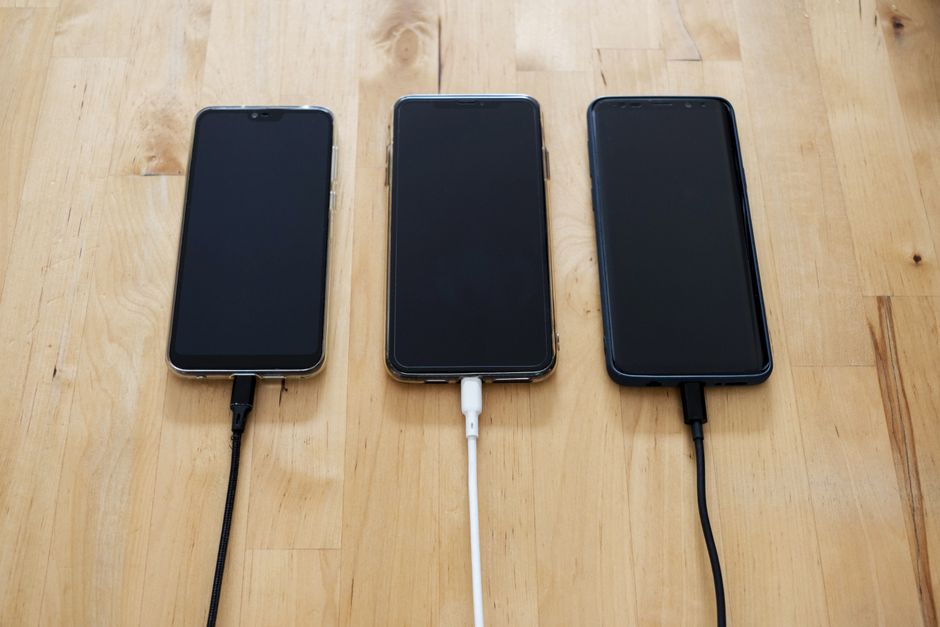
A boot loop sometimes hides a simple power problem. A battery too low to complete startup will stall on the logo every time.
Plug the phone into a wall charger, not a laptop port, and leave it for at least 30 minutes. Use a cable you know works. If the device feels hot or the charging light never appears, the issue may be the battery or charging port rather than the software.
Boot Into Safe Mode
Safe mode starts the phone with only its built in software, leaving every downloaded app disabled. If a bad app caused the loop, safe mode gets you back in so you can remove it.
- Trigger a restart, then hold the volume down button as the phone powers up on many Android models.
- Look for the words Safe mode in a corner of the screen.
- Uninstall the last app you added before the trouble started.
- Restart normally to leave safe mode.
Safe mode steps vary by brand, so check your maker’s support page if the button combo differs. iPhones do not have a true safe mode, so move on to recovery options instead.
Use Recovery Mode to Clear the Cache
Recovery mode is a separate menu that can repair the system without erasing your files. The cache wipe is the key tool here, and it leaves photos and messages intact.
- Power the phone off, then hold power and volume up until the recovery menu appears.
- Use the volume keys to highlight Wipe cache partition, then confirm with the power key.
- Select Reboot system now and wait.
Warning: Do not choose Wipe data or Factory reset at this stage. Those options erase everything on the phone.
The cache wipe clears temporary system files that can block a clean boot. It is safe, so it is worth trying before any reset.
Compare Your Options Before a Reset

When the basic fixes fail, weigh what each remaining step costs you. This table lays out the trade offs.
| Method | Data risk | Difficulty | Clears |
|---|---|---|---|
| Hard restart | None | Easy | Minor glitches |
| Safe mode | None | Easy | Bad apps |
| Cache wipe | None | Medium | System cache |
| Factory reset | Erases all | Medium | Deep corruption |
Work down the list in order. A factory reset through recovery mode almost always ends a boot loop, but it wipes the device, so treat it as the last resort.
When to Seek Repair
If the phone still hangs on the logo after a factory reset, the fault is likely hardware. A failing storage chip, a swollen battery, or water damage can all produce a permanent boot loop. At that point, a qualified technician is the right call, especially if the phone is still under warranty.
Frequently Asked Questions
Why is my phone stuck on the logo after an update? An update that was interrupted or partly installed can leave the system unable to finish booting. A forced restart followed by a cache wipe usually clears it.
Will a factory reset delete my photos? Yes. A factory reset erases all personal data, including photos, apps, and accounts. Try the cache wipe first, since it keeps your files.
How long should I wait before forcing another restart? Give the phone at least five minutes on the logo before acting. A slow first boot after an update can look like a freeze when it is still working.
Can a dead battery cause a logo loop? Yes. If the charge is too low to complete startup, the phone can stall on the logo. Charge it for 30 minutes before trying anything else.
Does safe mode delete my apps? No. Safe mode only disables downloaded apps temporarily so you can uninstall the one causing trouble. Your data stays in place.
Knowing how to fix a phone stuck on the logo saves panic and often a repair bill. Start gentle with a restart and a charge, move to safe mode and a cache wipe, and keep a factory reset as the final option.