How to Connect a Nintendo Switch to a TV
To connect a Nintendo Switch to a TV, plug the dock into power and into your TV’s HDMI port, then slide the console into the dock with the screen facing the front. Switch the TV to the right HDMI input and the game appears within seconds. Below is how to connect a nintendo switch to a tv step by step, including the cable order that prevents most blank-screen problems.
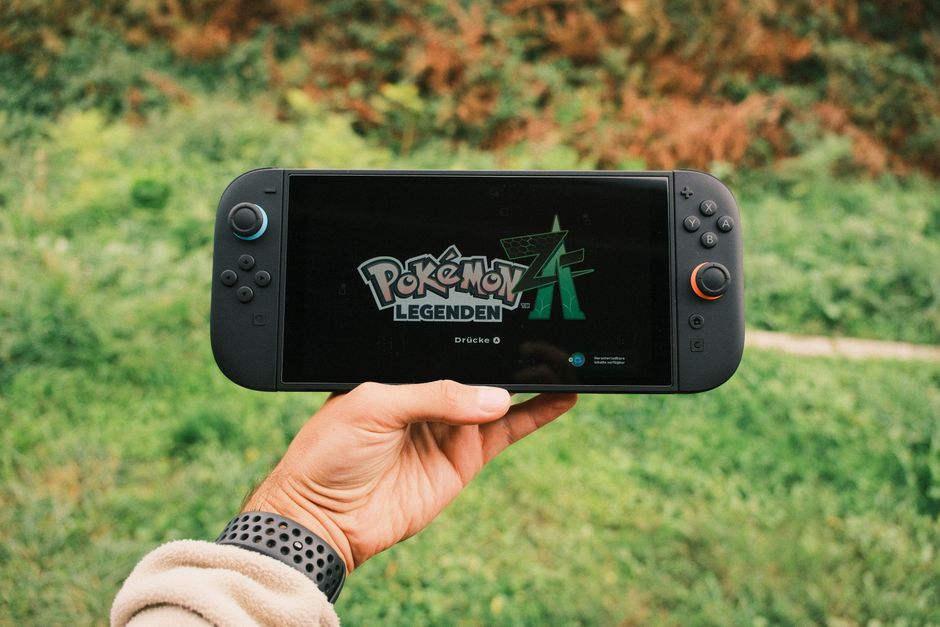
What You Need Before You Start
Four things: the Switch console, the dock, the official AC adapter, and an HDMI cable — everything included in a standard bundle. On the TV side you only need a free HDMI port.
One hard limitation up front: the Switch Lite cannot connect to a TV. It has no video output through its USB-C port and does not work with the dock. Only the standard and OLED-style models support TV play.
Warning: Use the official AC adapter with the dock. Many third-party USB-C chargers cannot deliver what TV mode needs, and the dock will simply refuse to output video even though the console charges fine.
Set Up the Switch Dock, Step by Step
The order of connections matters more than people expect. The core of how to connect a Nintendo Switch to a TV is simple: power first, then video, then the console.
- Open the back cover of the dock. It swings open to reveal the connection ports.
- Plug the AC adapter into the dock’s power port, then into a wall outlet.
- Connect the HDMI cable to the dock’s HDMI OUT port, and the other end to a free HDMI port on your TV.
- Close the cover, routing both cables through the gap.
- Turn on the TV and select the HDMI input you used — check the label near the port if you are unsure which number it is.
- Slide the console into the dock, screen facing the same direction as the dock’s front logo.
The console’s screen turns off as the picture moves to the TV. Detach the Joy-Con controllers before docking if you want to keep playing from the couch — they stay connected wirelessly.
Pick the Right TV Input and Settings
If you see a blank screen after docking, the wrong input is the most common culprit. Press the Input or Source button on your TV remote and cycle to the HDMI number the switch dock tv cable is plugged into.
Two settings on the TV side are worth a minute:
- Game mode. Most modern TVs offer a game picture mode that cuts input lag noticeably. For anything timing-sensitive, turn it on.
- HDMI labeling. Renaming the input to "Switch" in the TV’s menu makes it easy to find later, and on some TVs the game label automatically enables low-latency settings.
Fix a Switch That Will Not Show on the TV
When the TV says no signal even though the console sits in the dock, work through this list in order.
- Reconnect everything in the correct order: unplug all dock cables, then reconnect power first, HDMI second, console last.
- Check the dock’s TV output light. If it does not come on, the dock is not receiving proper power — recheck the adapter.
- Reseat the console. It should sit fully down in the connector; cases and thick skins can hold it too high to make contact.
- Swap the HDMI cable and try another TV port. Cables fail more often than docks do.
- Restart the console fully. Hold the power button on the top of the console until a menu appears, then choose to power off and start it again.
- Test the dock on another TV if possible, to isolate whether the dock or the TV is at fault.
Tip: The nintendo switch hdmi connection only works through the dock or an adapter designed for the console — plugging a plain USB-C-to-HDMI cable into the Switch does nothing on most generic cables. If you travel, look specifically for adapters advertised as Switch-compatible.
Handheld, Tabletop, or TV Mode: What Changes
| Mode | Screen | Best for |
|---|---|---|
| Handheld | Built-in screen | Portable play, solo sessions |
| Tabletop | Built-in screen on kickstand | Two players away from a TV |
| TV mode | Your television | Couch play, parties, big-screen games |
TV mode also charges the console while you play, so a long evening session ends with a full battery instead of a dead one. Performance in many games is slightly higher docked as well, since the console does not have to conserve battery.
Frequently Asked Questions
Can I connect a Switch to a TV without the dock? Yes — how to connect a Nintendo Switch to a TV without the dock comes down to a third-party adapter built for the console that provides both power delivery and HDMI output. A bare USB-C-to-HDMI cable is not enough on its own.
Why does my Switch charge in the dock but not show on the TV? Charging needs less power than video output. This usually means a weak power source, a bad HDMI cable, or a console not seated fully — check those three in that order.
Does the Switch work with any HDMI port? Any standard HDMI input on a TV or monitor works. If your display only has DVI or VGA, you would need an active adapter, and audio handling gets complicated — a proper HDMI display is the painless route.
Do Joy-Cons work while the console is docked? Yes. Slide them off the console and they connect wirelessly. You can use them as one controller per hand, sideways as two small controllers, or clipped into a grip accessory.
Why is the picture worse on my TV than on the console screen? The TV is much larger, so the same image is stretched further. Enabling game mode, using a good HDMI cable, and sitting a normal viewing distance away all help the docked picture look its best.