How to Connect Two Monitors to Your Computer
Connecting two monitors takes a few minutes: plug each display into a video port on your computer, then tell your operating system how to arrange them. Most modern laptops and desktops support dual monitors out of the box, so the main task is matching the right cable to the right port. This guide walks through the ports, the cables, and the setup steps for both Windows and Mac.

Check Your Computer’s Video Ports
Before buying anything, look at the back of your desktop or the sides of your laptop and identify the video outputs. The common ones are HDMI, DisplayPort, USB-C, and older VGA or DVI. A desktop usually has several ports on the graphics card; a laptop often has one or two.
You need one available port per monitor. If your machine has an HDMI and a USB-C port, you can drive one display from each. If it only has a single output, you will need a docking station or a USB-C hub that adds more video ports.
Match Cables to Ports
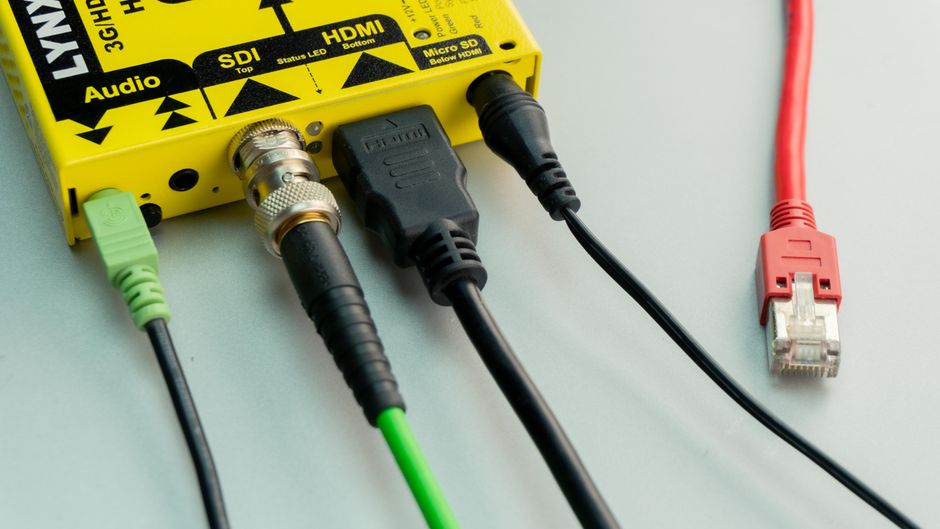
Each monitor connects with a cable that fits both the display and your computer. Check what inputs your monitors accept, since many have HDMI and DisplayPort together.
The cleanest setup uses a direct cable, like HDMI to HDMI or DisplayPort to DisplayPort. When the ports differ, an adapter or a hybrid cable bridges them, such as USB-C to HDMI. Avoid chaining several adapters together, as each connection point is a place where the signal can drop.
Connect the Monitors
With the right cables in hand, the physical connection takes about a minute:
- Power everything off first, including the computer and both monitors.
- Plug each monitor into its video port and connect the displays to power.
- Turn the monitors on, then boot the computer last.
- Wait a few seconds for your system to detect the second screen and extend the desktop across both.
Tip: If a monitor stays blank, press its input button and select the port you actually used. Many displays default to the wrong input and simply need to be pointed at the right one.
A loose cable is the other common culprit, so reseat both ends before assuming a hardware fault.
Arrange the Displays in Windows
On Windows, right-click the desktop and open Display settings. You will see numbered boxes representing each monitor. Drag them so their on-screen positions match how they sit on your desk, which keeps your mouse moving in the right direction between screens.
Choose "Extend these displays" to use both as one large workspace, or "Duplicate" to mirror the same image. Set your main screen by selecting it and ticking the box that makes it the primary display, where your taskbar and new windows appear.
Arrange the Displays on Mac
On a Mac, open System Settings and go to Displays. Your connected screens appear as tiles you can drag into position, the same way Windows handles arrangement.
Drag the white menu bar to whichever screen you want as the main one. Keep the layout set to extended rather than mirrored unless you are presenting the same content on both. macOS remembers this arrangement, so you only set it once.
Understand the Cable Types
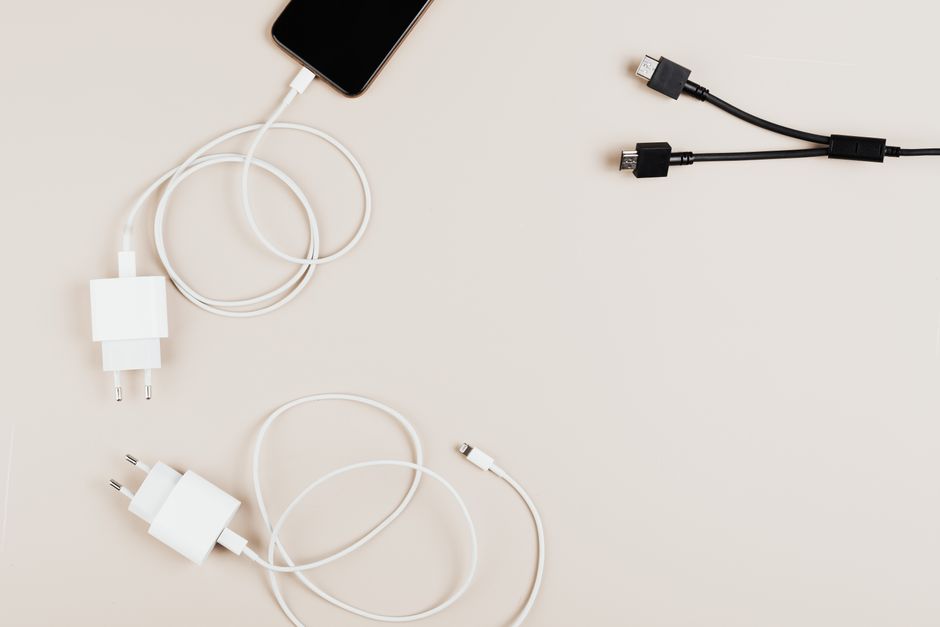
Knowing what each cable does helps you pick the right one and avoid limits on resolution or refresh rate. Here is how the common connectors compare:
| Cable | Carries audio | Best for | Notes |
|---|---|---|---|
| HDMI | Yes | Home setups, TVs | The most common; fine for everyday use |
| DisplayPort | Yes | Fast gaming monitors | Higher refresh rates and resolutions |
| USB-C | Yes | Modern laptops | One cable for video, data, and power |
| VGA / DVI | No (VGA) | Aging hardware only | Lower image quality; last resort |
USB-C only carries video when the port supports it, sometimes marked with a small DisplayPort or Thunderbolt icon. If you see no video from a USB-C port, that port likely handles data only.
Warning: Avoid chaining several adapters together. Each connection point is a place where the signal can drop, which shows up as flicker, black screens, or a monitor that refuses to reach its full refresh rate.
Decide Between a Hub and Direct Ports
If your computer has enough built-in outputs, connecting each monitor directly is always the most reliable route. Direct connections avoid the bandwidth limits and compatibility quirks that hubs sometimes introduce.
When you run out of ports, a USB-C docking station or hub adds outputs, which is common on thin laptops with a single port. Pick a dock rated for the number of displays and the resolution you need, because a cheap hub may cap two high-resolution screens at a low refresh rate. Read the dock’s specification for how many displays it drives at once, since that number is often lower than the count of ports it physically shows.
Set the Right Refresh Rate
After both screens work, check that each runs at its intended refresh rate rather than a default that Windows or macOS picked. A 144Hz gaming monitor stuck at 60Hz feels far less smooth than it should.
On Windows, open Display settings, click Advanced display, and choose the highest rate each monitor supports. On Mac, hold Option and click the Displays settings to reveal refresh options. If a high rate is missing, the cause is usually the cable or port; DisplayPort and USB-C carry high refresh rates more reliably than an older HDMI cable.
Fix Common Dual Monitor Problems
If the second monitor is not detected, reseat the cable and force a refresh. On Windows, press the Windows key plus P and pick Extend; on Mac, open Displays and click Detect Displays while holding Option.
When the resolution looks wrong or text appears stretched, set each monitor to its native resolution in display settings. A screen that flickers usually points to a failing cable or an adapter that cannot handle the refresh rate, so swap the cable before assuming the monitor is at fault.
Get the Most From Your Dual Setup
Once both screens work, small tweaks make the setup smoother. Match the scaling on each display so windows stay the same size as you drag them across, and align the monitors physically so their tops sit level.
A second screen pays off fastest when you give each one a job, like keeping reference material on one and your main work on the other. With the displays connected and arranged, your desk is ready for real multitasking.