How to Play Split Screen on Nintendo Switch
To play split screen on Nintendo Switch, choose a game that supports it, connect a controller for each player, and select the local multiplayer or split screen option in the game’s menu. Here is how to play split screen on Nintendo Switch, step by step, including which controllers to use and how the different modes affect your setup.
Split screen is handled by each game, not the console itself, so the first thing to know is that support varies title by title. Once you have a game that offers it, the setup is quick: pair the controllers, launch the mode, and each player gets their own section of the screen.
Check That Your Game Supports Split Screen
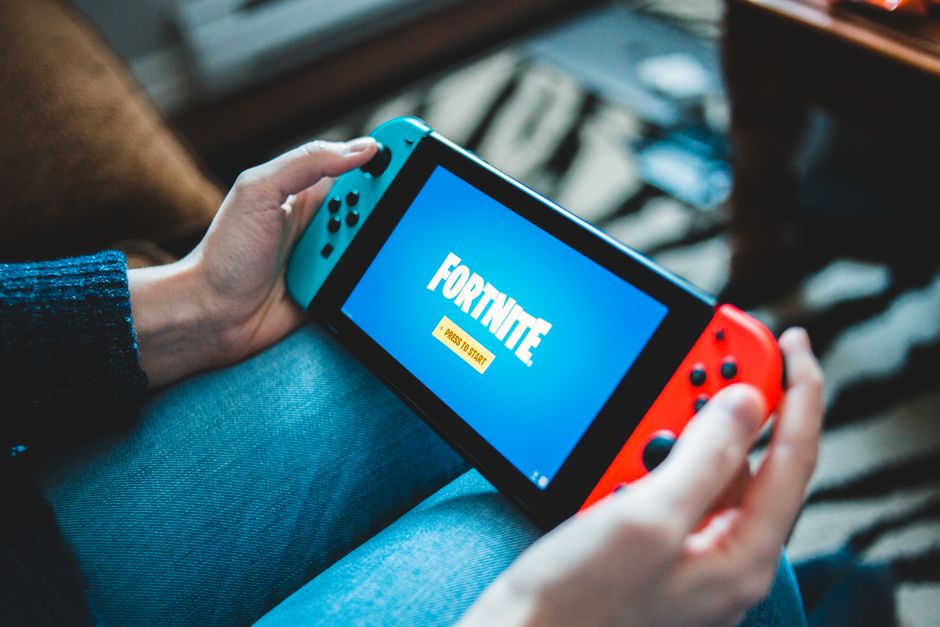
The Switch does not force split screen onto games; developers build it in. Before anything else, confirm your game actually offers it.
- Look on the box or store page for local multiplayer or split screen listed in the features.
- Open the game’s multiplayer menu and check for a shared-screen or local co-op option.
- Remember that online modes are different; split screen is specifically two or more players on one console and screen.
Many popular racing, party, and co-op titles support it, while plenty of single-player and online-focused games do not. When in doubt, the game’s own menu is the final word.
Note: Some games split the screen automatically when a second controller joins, while others need you to pick a local multiplayer mode first. Check both.
Set Up Your Controllers
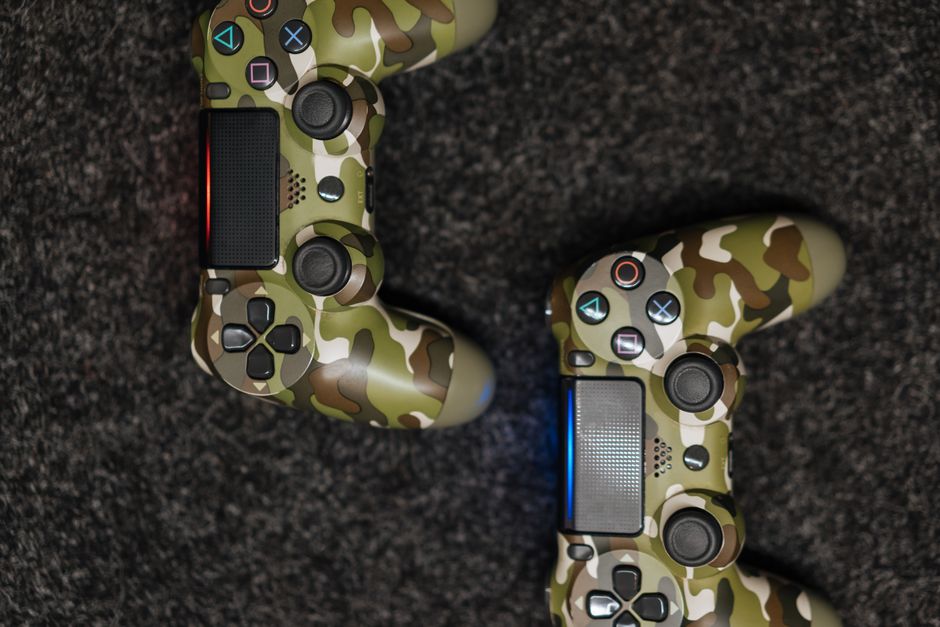
Each player needs their own controller. The Switch gives you a few ways to do this depending on your hardware.
- Decide how many players will join, since each needs a separate controller.
- Separate the Joy-Cons if you are using the pair that came with the console.
- Assign a controller to each player by pressing the sync buttons when prompted.
- Confirm each controller is registered on the controller setup screen.
A single pair of Joy-Cons can act as two individual controllers, one per player, which is the classic Switch trick for instant two-player fun. For more players or more comfortable grips, add Pro Controllers or extra Joy-Con sets.
| Controller option | Players supported | Best for |
|---|---|---|
| One Joy-Con each | 2 | Quick pick-up-and-play |
| Joy-Con pairs in grips | 2+ | More comfort per player |
| Pro Controllers | 1 each | Longer sessions, precision |
Choose the Right Play Mode
The Switch has three hardware modes, and each changes how comfortable split screen feels.
- TV mode docks the console and outputs to a television, giving the largest shared screen. This is the best choice for split screen since everyone can see their portion clearly.
- Tabletop mode props the console on its kickstand so players gather around the built-in screen. It works, but the small display makes each split portion cramped.
- Handheld mode is generally too small for split screen, though a few games still allow it.
For any serious split screen session, dock the Switch and use a TV. The extra screen size makes a big difference when the display is divided among players.
Tip: In tabletop mode, sit close and keep the player count to two. A four-way split on the handheld screen is hard for anyone to follow.
Start the Split Screen Match
With controllers paired and a mode chosen, launching the game is the final step.
- Launch your split screen game.
- Open the local multiplayer or co-op menu.
- Have each player press a button on their controller to join.
- Confirm the lobby and start the match.
Once the game starts, the screen divides automatically, usually top and bottom or in quarters for four players. Each section follows one player, so everyone controls their own view.
Fix Common Split Screen Problems
If a player cannot join or a controller is not recognized, work through these checks.
- Controller not detected? Re-sync it from the controller setup screen.
- Second player can’t join? Confirm the game supports the number of players you want.
- Screen not splitting? Make sure you selected the local multiplayer mode, not online.
- Joy-Con feels cramped? Slide it into a grip or comfort accessory.
Low controller battery causes disconnects mid-game, so charge Joy-Cons on the console or keep Pro Controllers plugged in during long sessions.
Frequently Asked Questions
Does every Nintendo Switch game have split screen? No. Split screen is a feature each developer chooses to include. Check the game’s store page or multiplayer menu to confirm it supports local shared-screen play before setting up.
Can I play split screen with one pair of Joy-Cons? Yes. A single pair separates into two individual controllers, one for each player. This is the fastest way to start a two-player split screen game on the Switch.
Is split screen better in TV mode or handheld? TV mode is far better. Docking the console outputs to a large television, so each divided section stays readable. Handheld and tabletop screens are usually too small for a comfortable split.
How many players can play split screen on Switch? It depends on the game. Many support two players, and some party and racing titles support four with enough controllers. The game’s menu shows the maximum it allows.
Why won’t my second controller join the game? Either the controller is not synced or the game does not support that player count. Re-sync the controller from the setup screen and confirm the game allows a second local player.