How to Get Voice Chat on Roblox: Enable It Step by Step
To learn how to get voice chat on Roblox, you first verify your age to prove you’re old enough, then switch on the voice chat toggle in your account settings. Once both steps are done, you can speak in any experience that supports voice, as long as your microphone is connected and permitted.
The order matters here. The toggle stays locked until your age is confirmed, which is why many players can’t find the option at all. Here’s the complete walkthrough.
Meet the Requirements First
Roblox voice chat has a few gates you have to clear. Knowing them upfront saves a lot of confusion.
- Age verification — you must confirm you meet the minimum age to unlock the feature.
- A working microphone — built into your device or plugged in.
- A supported experience — not every game or place enables voice.
Voice chat is tied to your account, so once it’s on, it follows you across supported experiences. You don’t set it up game by game.
A quiet, stable internet connection helps too. Voice runs live, so a weak signal can drop your audio or make it choppy for the people you’re talking to.
Note: The voice chat toggle simply won’t appear until your age is verified. If you can’t find the setting, an unverified account is almost always the reason.
Verify Your Age
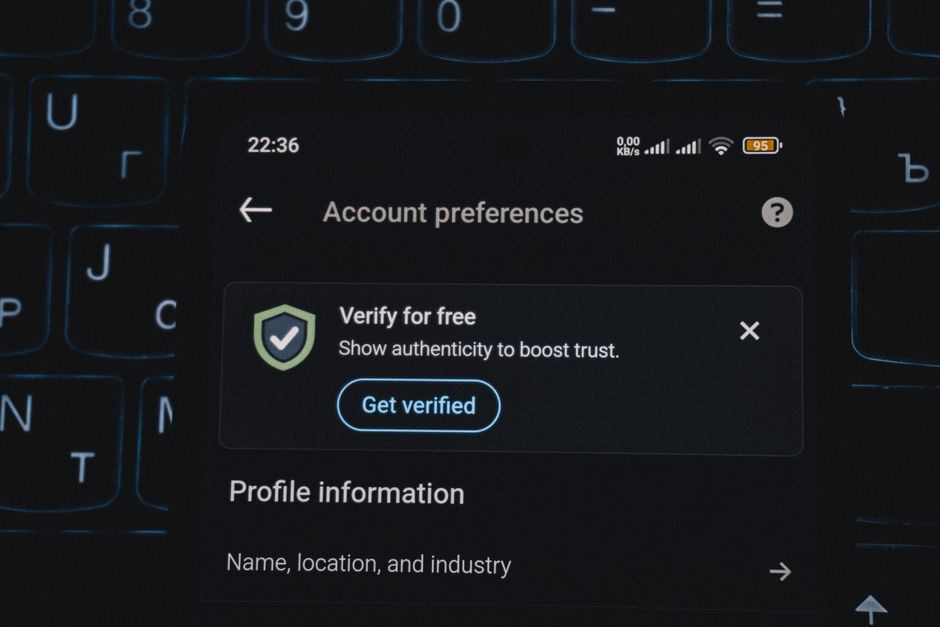
Age verification is the key that unlocks Roblox voice chat. Follow these steps:
- Open your account settings from the menu.
- Find the age verification or ID section.
- Follow the on-screen prompts to confirm your age using the method Roblox offers.
- Wait for confirmation that verification succeeded.
Warning: Verification asks for personal information to confirm your age. Only complete it through the official Roblox app or website, and never share those details with another player or a third-party site claiming to speed it up.
Once verified, the voice chat option becomes available in your settings. This is the moment the feature actually unlocks.
Enable Voice Chat in Settings
With your age confirmed, turning the feature on takes seconds. To enable voice chat Roblox users follow this path:
- Open Settings and go to the Privacy section.
- Find the voice chat option.
- Switch the toggle on to activate it.
- Confirm if a prompt asks you to agree to the terms of using voice.
That’s the account-level switch flipped. From here, the last piece is making sure your device lets Roblox use the microphone.
Turn On Your Microphone Permissions

Even with voice chat enabled, your device controls whether apps can hear your mic. Check these permissions so your voice actually goes through.
On a phone or tablet, open your device settings, find Roblox in the app list, and allow microphone access. On a computer, check the system privacy settings and confirm the browser or app has mic permission.
Inside a supported experience, look for a microphone icon near your character or in the menu. Tapping it mutes or unmutes you during play.
Give the permission a moment to take effect. If you enabled mic access while Roblox was already open, close the app fully and reopen it so the change registers.
Headsets and external mics work too. Plug one in before launching, and your device usually routes voice through it automatically. If it doesn’t, pick the right input in your system’s sound settings.
Fix Voice Chat That Isn’t Working
If Roblox voice chat is on but silent, run through these fixes.
Check the mic permission. A blocked permission at the device level is the top culprit. Confirm Roblox is allowed to use the microphone.
Confirm the experience supports voice. Not every place enables it. Try a game known to support voice to rule this out.
Unmute yourself. Look for the mic icon in-game and make sure you aren’t muted. It’s easy to toggle off by accident.
Test your hardware. Try your microphone in another app to confirm it works, then restart Roblox.
Recheck verification. If the toggle vanished, your account status may have changed. Revisit the age verification section.
Update the app. An outdated Roblox version can cause voice bugs. Install the latest update, restart, and test again in a supported experience.
Work through these in order rather than changing everything at once. Fixing one thing at a time tells you exactly which setting was blocking your voice.
Frequently Asked Questions
Why can’t I find the voice chat toggle? The toggle stays hidden until your age is verified. Complete age verification in your account settings, and the voice chat option will appear in the Privacy section afterward.
Do I need to verify my age to use voice chat? Yes. Age verification is required before Roblox unlocks voice chat. Without it, the feature stays locked no matter what else you try.
Why can others hear me but I can’t hear them? This usually points to your audio output or their mute status, not your mic. Check your volume and speakers, and confirm the other player has voice chat enabled too.
Does voice chat work in every Roblox game? No. Only experiences that support voice enable it. If a game is silent, it may not have the feature turned on, even when your account does.
My mic works in other apps but not Roblox. What’s wrong? Roblox likely lacks microphone permission on your device. Open your device settings, find Roblox, and allow mic access, then restart the app.