How to Connect a TV to WiFi: A Step-by-Step Guide
To learn how to connect a TV to WiFi, open your TV’s Settings menu, go to Network, pick your wireless network from the list, and enter the password. That single sequence gets most smart TVs online in under two minutes.
The exact wording changes between brands, but the path is nearly identical everywhere. Below you’ll find the full walkthrough, plus fixes for the moments when the connection refuses to stick.
Get Your TV Ready Before You Start
Grab two things first: your WiFi network name and its password. The password is usually printed on a sticker on the back or bottom of your router, unless you changed it.
Turn on the TV and make sure it’s a smart TV. A smart TV has built-in apps like Netflix or YouTube and can join a network on its own. An older set without those apps needs a streaming stick or box to reach the internet.
Sit close enough to your router during setup if you can. A strong signal makes the first pairing smoother, and you can test the real-world distance afterward.
Tip: Write your WiFi password down before you begin. Typing it with a TV remote one letter at a time is slow, and a wrong character is easy to miss.
Connect a Smart TV to WiFi Step by Step

Follow these steps to get your smart TV WiFi connection running:
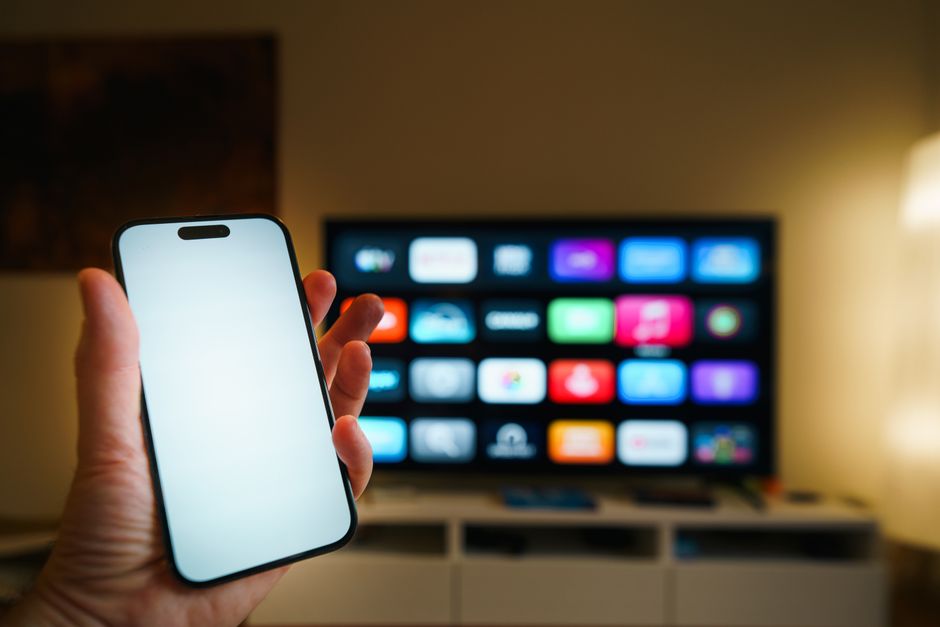
- Press the Home or Menu button on your remote to open the main screen.
- Open Settings. Look for a gear icon or a menu item labeled Settings.
- Select Network (sometimes called Network & Internet or Connection).
- Choose Wireless or WiFi instead of the wired option.
- Pick your network from the list of nearby networks that appears.
- Enter your password using the on-screen keyboard, then confirm.
- Wait for confirmation. The TV tests the link and shows a "Connected" message.
Once you connect the TV to internet access, an app like YouTube is the fastest way to confirm everything works. If a video plays without buffering, you’re done.
Fix a TV That Won’t Connect to WiFi
Most failed connections come down to a handful of causes. Work through them in order.
Wrong password. This is the top reason a connection fails. WiFi passwords are case-sensitive, so a capital letter typed in lowercase will block you every time. Re-enter it slowly.
Weak signal. If your network doesn’t appear in the list, the router may be too far away. Move the router closer, or add a WiFi extender to reach a distant room.
Router glitch. Unplug your router, wait 30 seconds, and plug it back in. Give it a full minute to restart before you try again.
TV software. An outdated system can drop connections. Check for a software update in the same Settings menu once you’re online, or connect briefly by Ethernet to download one.
Warning: If your TV connects but apps still won’t load, your internet plan or router may be the real problem. Test another device on the same network to see whether the issue is the TV or the connection itself.
Choose Between WiFi and a Wired Connection
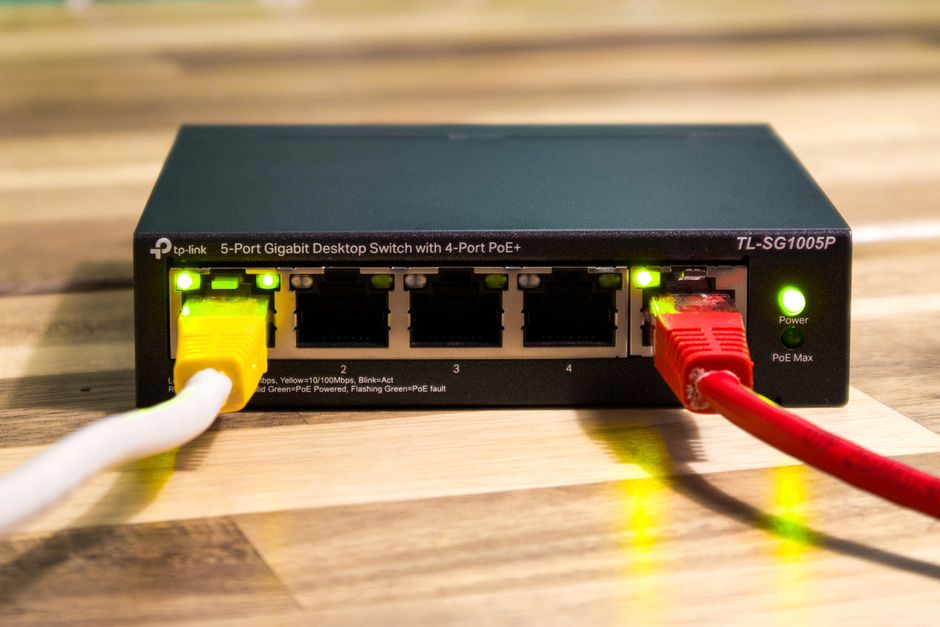
Wireless is convenient, but a cable is steadier. Here’s how the two compare so you can pick the right one for your setup.
| Feature | WiFi | Ethernet Cable |
|---|---|---|
| Setup effort | Quick, no wires | Needs a cable run |
| Stability | Good, can drop | Very steady |
| Best for | Most rooms | 4K streaming, gaming |
| Speed | Depends on signal | Consistent |
For a TV that sits near your router, an Ethernet cable removes buffering and password headaches entirely. For a wall-mounted set across the room, a smart TV WiFi connection keeps things clean and cable-free.
Keep Your Connection Stable Over Time
Place your router in an open, central spot rather than inside a cabinet. Metal and thick walls weaken the signal that reaches your TV.
Restart your router every few weeks to clear minor slowdowns. Many people leave routers running for months, and performance quietly drops.
If your home has a busy network, consider connecting your TV to the 5 GHz band when it’s offered. That band handles streaming better in crowded households, while the 2.4 GHz band reaches farther through walls.
Frequently Asked Questions
Why won’t my smart TV find my WiFi network? The router may be too far, off, or broadcasting only on a band your TV can’t see. Move closer, restart the router, and check that WiFi is switched on in the TV’s network menu.
Can I connect an old TV to WiFi? Not directly if it lacks smart features. Plug in a streaming stick or box, connect that device to your WiFi, and it adds apps and internet to any TV with an HDMI port.
Do I need to enter my password every time? No. Your TV saves the network after the first successful login and reconnects automatically each time you turn it on.
Is a wired connection really better than WiFi? For streaming 4K or heavy use, yes. A cable delivers a steadier link with no buffering, though WiFi is fine for everyday viewing in most homes.
My TV connects but keeps dropping the signal. What now? Move the router closer, switch to a less crowded WiFi band, and update the TV’s software. Interference from other devices is a common cause of drops.