How to Connect a PS5 Controller to a Phone
To connect a PS5 controller to a phone, put the DualSense into pairing mode by holding the PS button and Create button until the light bar flashes, then select it in your phone’s Bluetooth menu. Here is how to connect a PS5 controller to a phone, step by step, on both Android and iPhone. The whole process takes under two minutes once you know which buttons to hold.
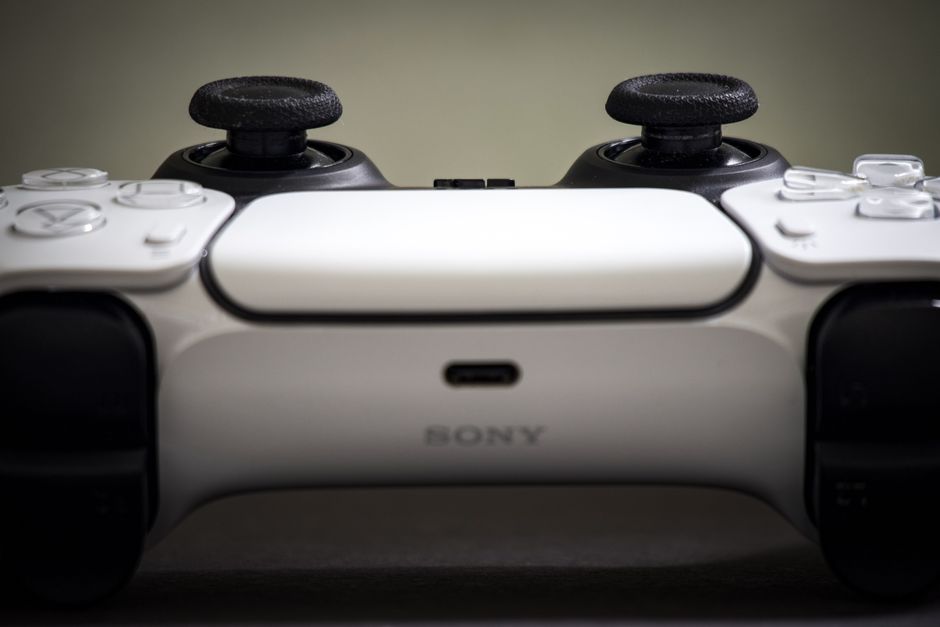
Put the DualSense Into Pairing Mode
The controller talks to your phone over standard Bluetooth, so the first job is forcing it to broadcast. A DualSense that is already linked to a PS5 will try to reconnect to the console instead, which looks like a failed pairing.
- Hold the PS button and the Create button together. The Create button sits to the left of the touchpad.
- Keep holding for about three seconds until the light bar starts flashing in a double-blink pattern.
- Release both buttons once the light bar is flashing. The controller is now discoverable.
Note: If the light bar glows steady instead of flashing, the controller connected to another device. Turn it off, then repeat the button hold.
Pair the Controller on Android
Android has supported the DualSense at the system level for a while, so most modern phones treat it as a standard game controller with no extra app.
- Open Settings and tap Connected devices (or Bluetooth, depending on your phone).
- Tap Pair new device so the phone starts scanning.
- Select "Wireless Controller" or "DualSense Wireless Controller" from the list of found devices.
- Confirm the pairing if a prompt appears. The light bar turns a solid color once connected.
Once paired, the controller reconnects automatically the next time you turn it on near the phone, as long as it is not grabbed by a PS5 first. Cloud gaming apps and most native controller-enabled games recognize the DualSense immediately after pairing.
Pair the Controller on iPhone
Apple added DualSense support in recent iOS versions, and the flow mirrors any other Bluetooth accessory.
- Open Settings and tap Bluetooth.
- Wait for the controller to appear under Other Devices while it is flashing in pairing mode.
- Tap "DualSense Wireless Controller" to connect.
- Look for it under My Devices with a "Connected" label.
After that, the controller works across Apple Arcade titles, cloud streaming apps, and any game that lists MFi or generic controller support. If a game does not respond to the controller, the game itself may lack controller support rather than the pairing being at fault.
Match the Controller to the Right Games

Not every mobile game reads a physical controller, and that trips people up more than the pairing itself. Knowing where the DualSense shines saves you from thinking the connection broke.
| Use case | Controller support | Notes |
|---|---|---|
| Cloud gaming apps | Excellent | Remote Play, Xbox Cloud, GeForce Now all map buttons natively |
| Emulators | Excellent | Full button and stick mapping in most emulators |
| Native mobile games | Varies | Only titles that advertise controller support respond |
| Casual touch-only games | None | These ignore any gamepad by design |
For the best experience, start with cloud gaming or a controller-friendly title so you can confirm the pairing works before blaming a specific app. The DualSense’s rumble and adaptive triggers usually do not carry over to phones — treat it as a standard gamepad.
Fix a Controller That Will Not Connect
When the DualSense refuses to show up or drops right after connecting, work through these in order. Most failures trace back to the controller still being bonded to a console.
- Forget the controller on your phone if it was paired before, then start fresh.
- Reset the controller using the small recessed button on the back near the top screw. Press it with a pin for a few seconds.
- Charge the controller. A low battery causes pairing attempts to fail or drop silently.
- Turn off the PS5 or move away from it so the controller stops reconnecting to the console.
- Restart your phone to clear a stuck Bluetooth stack, then try pairing again.
Warning: The reset button is deep inside a pinhole on the controller’s back. Use a thin tool like an unfolded paperclip and press gently until you feel the click.
If none of that works, test the controller on another phone or on a PC. If it fails everywhere after a reset, the fault is in the controller rather than the phone.
Frequently Asked Questions
Does a PS5 controller work on any phone? It works on most modern Android phones and recent iPhones over Bluetooth. Older devices may connect but map buttons incorrectly, and touch-only games will ignore the controller regardless.
Can I connect a PS5 controller to a phone with a cable? Bluetooth is the reliable path for phones. A USB-C cable can charge the controller from the phone, but wired input support is inconsistent across mobile games, so pairing wirelessly is the safer choice.
Why does my PS5 controller keep disconnecting from my phone? Usually a low battery or the nearby PS5 stealing the connection. Charge the controller, power down or move away from the console, and pair again.
Do adaptive triggers and rumble work on a phone? Generally no. Phones treat the DualSense as a standard gamepad, so advanced haptics and trigger resistance are ignored, though basic buttons and sticks work fully.
How do I switch the controller back to my PS5? Plug it into the console with a USB cable and press the PS button, or hold the PS button while the console is on. It rebinds to the PS5 and drops the phone connection.