How to Fix HDMI No Signal on Any Display
To fix HDMI no signal, reseat the cable at both ends, select the correct HDMI input on your display, and restart both devices while they are connected. Here is how to fix HDMI no signal, step by step, moving from the quick checks to the deeper fixes that solve the stubborn cases.
An HDMI no signal message means the display is powered on but is not receiving a usable video stream through that port. The screen works, so the fault sits in the cable, the port, the source device, or the settings. Most of the time it is something simple you can correct in a couple of minutes.
Start With the Cable and Ports
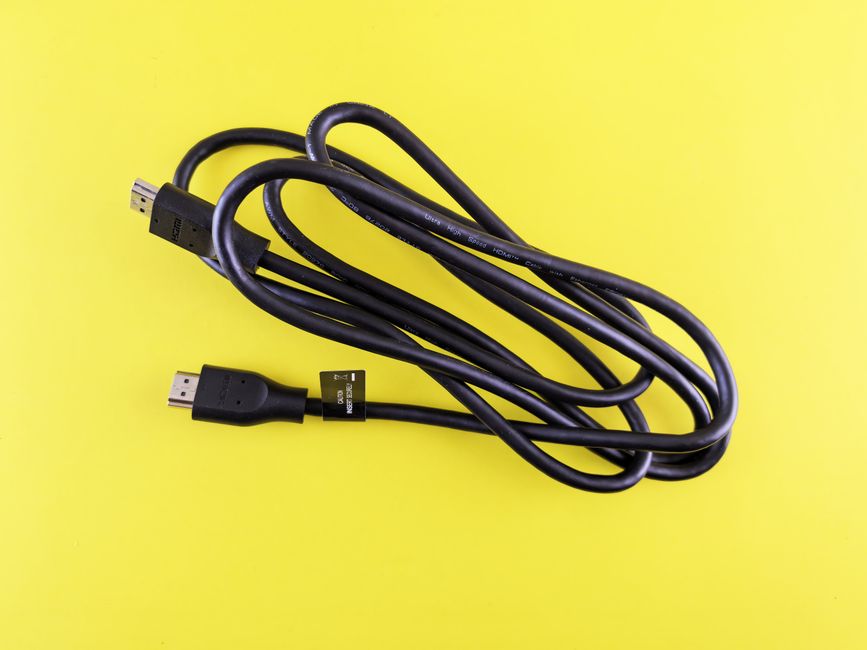
A loose or damaged cable causes the majority of HDMI no signal errors, so rule that out first.
- Unplug the HDMI cable from both the display and the source device.
- Inspect both connectors for bent pins, dust, or debris.
- Plug the cable back in firmly until it seats fully at each end.
- Try a different HDMI port on your display if it has more than one.
- Swap in another HDMI cable if you have a spare to rule the cable out.
Ports wear out and cables fail internally without any visible damage. Testing a second port and a second cable narrows the problem down fast.
Tip: Label the ports you test. It is easy to lose track of which HDMI input you have already tried on a TV with three or four of them.
Select the Correct Input Source
Displays do not always switch to the active HDMI port on their own. If your TV or monitor is showing the wrong source, you get a no signal message even with a perfect connection.
- Press the Input or Source button on your remote or monitor.
- Cycle through the HDMI options (HDMI 1, HDMI 2, and so on).
- Match the input to the port where your cable is physically plugged in.
On many monitors this control lives in the on-screen menu rather than a dedicated button. Check the small joystick or buttons on the back or underside of the panel.
Restart the Devices in the Right Order
Power cycling clears handshake errors, the digital negotiation that HDMI performs between two devices. Order matters here.
- Turn off both devices completely, not just to standby.
- Unplug them from power for about 30 seconds.
- Plug in and power on the display first, then the source device.
- Wait for the source to boot fully and check the screen.
Powering the display on first gives the source something to detect when it starts up, which helps the handshake succeed.
Warning: A full power drain matters. Simply toggling standby often leaves the faulty handshake in place, so pull the plug rather than tapping the power button.
Fix Signal Problems From a Laptop or PC
When the source is a computer, the operating system may be sending the picture to the wrong screen or at a resolution the display cannot handle.
On Windows, press the Windows key and P together to open the display projection menu, then choose Duplicate or Extend. If the second screen still reads no signal, open display settings and click Detect to force the system to find it.
A resolution mismatch can blank a display entirely. If you recently changed resolution or refresh rate, boot the source in a safe or low-resolution mode and set a value the display supports, then work back up.
Match the Devices and Settings
Some no signal errors come from a mismatch between what the source sends and what the display accepts. This table covers the common pairings.
| Symptom | Likely cause | Fix |
|---|---|---|
| No signal after resolution change | Unsupported resolution | Reset to a lower resolution on the source |
| Works then drops to no signal | Loose cable or failing port | Reseat cable, try another port |
| Black screen only on 4K | Cable rated too low | Use a high-speed HDMI cable |
| No signal from a new device | HDCP handshake failure | Power cycle both devices in order |
Older or budget cables may not carry high-resolution signals. If the problem only appears at 4K or high refresh rates, a higher-rated cable often solves it.
When the Hardware Is at Fault
If you have swapped cables, tested every port, and power cycled both devices with no luck, the port itself may be dead. Test the source device on a completely different screen to see whether the fault follows the device or stays with the display. Whichever one still fails is the piece that needs repair or replacement.
Frequently Asked Questions
Why does my HDMI say no signal but the device is on? The display is not receiving usable video on that port. This is almost always a loose cable, the wrong input selected, or a failed handshake, all of which you can fix without any tools.
Can a bad HDMI cable cause a no signal error? Yes. Cables fail internally with no visible damage, and low-rated cables cannot carry 4K or high refresh signals. Swapping in a known-good cable is one of the fastest tests you can run.
How do I fix HDMI no signal on my TV specifically? Press the Source or Input button and select the exact HDMI port your cable uses, then power cycle the TV and source. Mismatched inputs are the single most common TV cause.
Does restarting really fix HDMI no signal? Often, yes. HDMI devices negotiate a connection each time they power on, and a failed negotiation causes no signal. A full power cycle forces that handshake to run again cleanly.
What if only one HDMI port shows no signal? That points to a dead or damaged port. Move your cable to another HDMI input on the same display and keep using that one, or have the port serviced if you need it.