How to Connect Headphones to a TV
To connect headphones to a TV, pair a Bluetooth pair through the TV’s audio settings, or plug wired headphones into the headphone jack or an audio adapter. Here is how to connect headphones to a TV using each method, plus a fix for the audio delay that trips up wireless setups. Which route you use depends on the ports your TV has and whether your headphones are wireless or wired.
Check What Your TV Offers
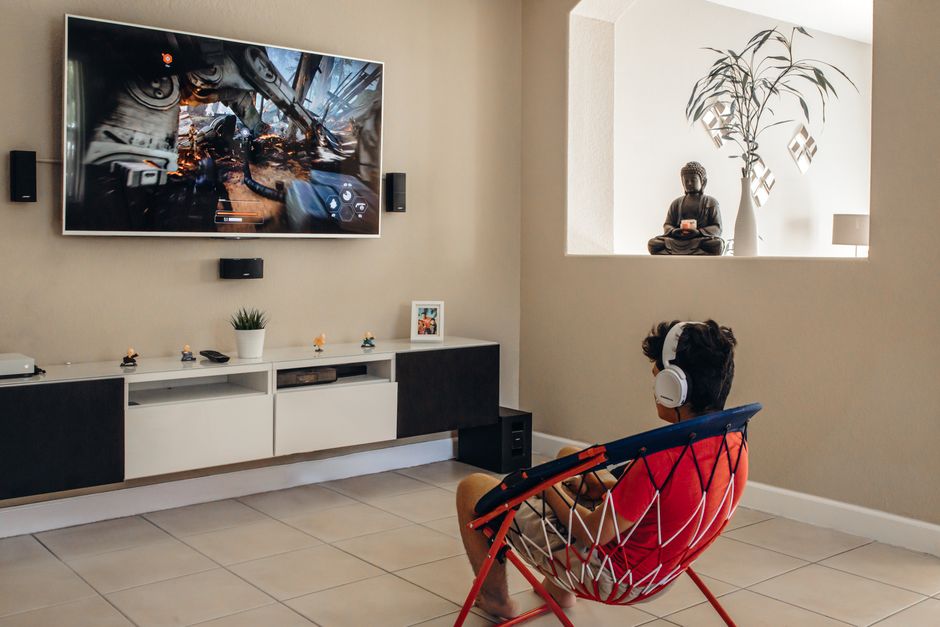
Start by finding out which connections your TV supports, since that decides your options. Modern smart TVs usually pair Bluetooth headphones directly, while older sets rely on physical ports.
Look on the back and sides of the TV for a 3.5mm headphone jack, red and white RCA audio outputs, or an optical audio port. Then check the settings menu for a Bluetooth or wireless audio option. Knowing what you have decides how to connect headphones to a TV and saves you from buying an adapter you do not need.
Note: Not every TV has a headphone jack anymore. Many newer models drop it in favor of Bluetooth and optical output, so check before assuming a cable will work.
Connect Bluetooth Headphones

Bluetooth is the cleanest option because it needs no cables and lets you move around the room. The pairing takes under a minute once your headphones are ready to be found.
- Put the headphones in pairing mode, usually by holding the power button until the light blinks.
- Open the TV settings menu and find the sound or audio section.
- Select the Bluetooth or wireless audio option and turn it on.
- Choose your headphones from the list of nearby devices.
- Confirm the pairing and wait for the TV to show them as connected.
- Play something to check that sound routes to the headphones.
Once paired, the headphones usually reconnect on their own when both are powered on. Some TVs mute the built-in speakers automatically, while others let you run both at once.
Tip: If your TV has no Bluetooth, a small Bluetooth transmitter plugged into the optical or headphone output adds it. This is the most common way to give an older TV wireless headphone support.
Connect Wired Headphones
Wired headphones give you instant, lag-free sound with no pairing. The connection depends on which port your TV has available.
- Find the headphone jack on the TV, a 3.5mm port often labeled with a headphone icon.
- Plug the headphones straight in if the jack fits your plug.
- Use an adapter for other ports, such as an RCA-to-3.5mm or optical-to-3.5mm converter, if there is no headphone jack.
- Adjust the volume on the TV or headphones until the level is comfortable.
A wired connection carries no audio delay, which makes it the safest choice for anything where sound must match the picture exactly. The trade-off is the cable tethering you to the set.
Fix Audio Delay on Wireless Headphones
Bluetooth can introduce a slight lag where the sound trails the picture, most noticeable during speech. A few adjustments usually bring the two back in sync.
- Enable low-latency mode if your TV and headphones both support it in the audio settings.
- Use the TV’s audio sync or lip-sync setting to nudge the sound earlier until it matches the video.
- Keep the headphones close to the TV, since distance and obstacles worsen the lag.
- Switch to a wired connection for content where perfect timing matters most.
Most of the time a low-latency mode or the built-in sync slider clears the problem. If neither is available, a wired connection removes the delay entirely.
Compare Your Connection Options

Still weighing which route to take? This comparison lays out the trade-offs so you can match the method to your setup.
| Method | Cables | Audio delay | Best for |
|---|---|---|---|
| Bluetooth | None | Slight, adjustable | Moving around, no wires |
| Headphone jack | Short cable | None | Quick, lag-free listening |
| Optical or RCA adapter | Adapter and cable | None | TVs without a headphone jack |
| Bluetooth transmitter | Adapter, then wireless | Slight | Older TVs going wireless |
Bluetooth wins on freedom of movement, while any wired route wins on perfect timing. Pick based on whether you value cutting the cord or keeping sound locked to the picture.
Get Comfortable Sound Settings
Once you know how to connect headphones to a TV, spend a moment on the audio settings so the experience feels right. Set a comfortable maximum volume, especially with headphones, to protect your hearing during long sessions.
If both the TV speakers and headphones play at once and you only want private listening, look for an option to mute the internal speakers. Some TVs also let you set headphones as the default output, so they take over automatically each time you connect.
Frequently Asked Questions
Can I connect Bluetooth headphones to any TV? Only if the TV has Bluetooth built in, which most recent smart TVs do. For a TV without it, a Bluetooth transmitter plugged into the audio output adds wireless support.
Why is the sound delayed in my wireless headphones? Bluetooth adds a small processing lag. Turn on a low-latency mode if available, or use the TV’s audio sync setting to shift the sound until it matches the picture.
My TV has no headphone jack. What now? Use the optical or RCA audio output with the right adapter, or add a Bluetooth transmitter. Both let you connect headphones even without a dedicated jack.
Will the TV speakers turn off when I connect headphones? It depends on the TV. Many mute the speakers automatically, while others play both at once. Check the audio menu for an option to switch the internal speakers off.
Can two people use headphones on one TV? Yes, some TVs pair two Bluetooth headphones at once, and a splitter works for two wired pairs. Check your TV’s audio settings to see how many wireless devices it supports.