How to Fix a Slow Laptop
To fix a slow laptop, start by closing background apps, freeing up disk space, and trimming the programs that launch at startup — this alone brings back most lost speed in minutes. If the machine is still sluggish, the cause is usually an aging hard drive or too little memory. Here is how to fix a slow laptop, step by step, from quick software cleanups to the two hardware upgrades that make the biggest difference.

Close What Is Running in the Background
A laptop slows to a crawl when too many programs fight for the same memory and processor. The fastest win is finding and closing the heaviest offenders.
- Open the task manager — press Ctrl+Shift+Esc on Windows, or open Activity Monitor on a Mac.
- Sort processes by memory or CPU to see which apps eat the most.
- Close programs you are not using, especially browser tabs and chat apps that quietly run in the tray.
- Restart the laptop to clear leftover processes that a simple close leaves behind.
Browsers are the usual culprit. A dozen open tabs, each with its own scripts and video, can use more memory than every other program combined. Close what you do not need and the difference is immediate.
Tip: A full restart once a day clears memory leaks that pile up over long sessions. Many people only sleep the laptop for weeks, which lets background clutter accumulate.
Free Up Disk Space
A drive that is nearly full slows the whole system, because the operating system needs free room to work. Aim to keep a healthy chunk of the drive empty rather than filling it to the last gigabyte.
- Empty the recycle bin or trash, which often holds more than people expect.
- Uninstall programs you no longer open through the settings menu.
- Clear temporary and cache files with the built-in disk cleanup tool.
- Move large photo and video libraries to an external drive or cloud storage.
Downloads folders are a common hiding place for gigabytes of forgotten installers and files. Sort that folder by size and delete what you will never touch again.
Trim Startup Programs
Many apps add themselves to startup, so they launch the moment you power on and stay running forever. This is a leading reason a laptop feels slow right after login.
- Open the startup tab in Task Manager on Windows, or Login Items in system settings on a Mac.
- Review the list of programs set to run at boot.
- Disable anything nonessential — updaters, chat clients, and helper tools you can open manually.
- Leave security and driver software enabled, since those need to run early.
Disabling startup items does not uninstall them. Each app still opens normally when you click it, but it no longer loads uninvited and steals resources at boot.
Scan for Malware and Update Software
Hidden malware can quietly consume the processor and network, dragging performance down for no obvious reason. Run a full scan with your security software and remove anything it flags.
Outdated software matters too. An old operating system or driver can run poorly on hardware it was never optimized for. Install pending updates, restart, and see whether the sluggishness eases before spending on new parts.
Upgrade the Hardware That Matters
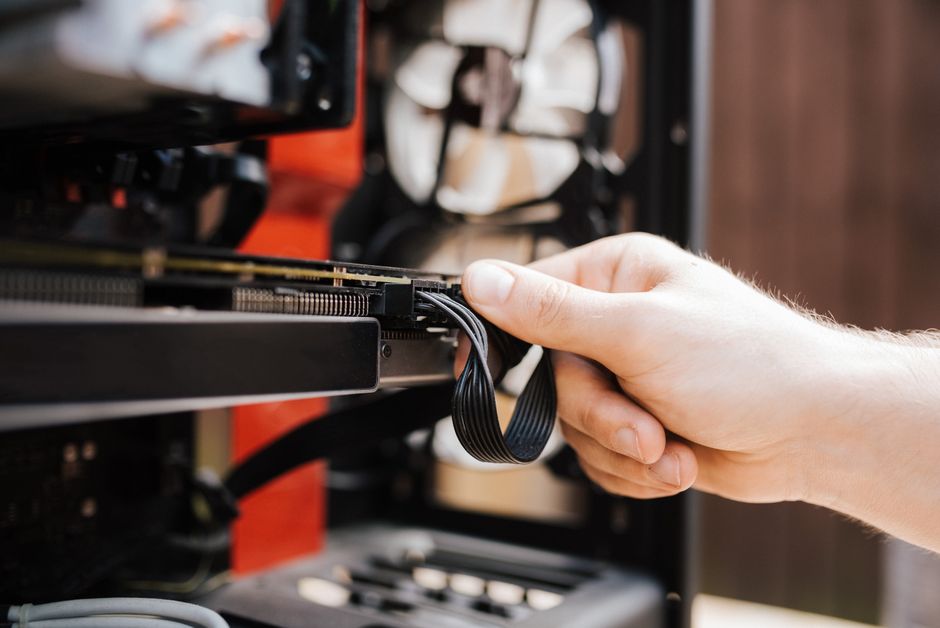
When cleanups are not enough, two upgrades transform an old laptop far more than any other. Here is how they compare.
| Upgrade | What it fixes | Best when |
|---|---|---|
| Solid-state drive | Slow boot and load times | Laptop still uses a spinning hard drive |
| More memory | Stalling with many apps open | You multitask or keep many tabs |
Swapping a mechanical hard drive for a solid-state drive is the single biggest speed boost for an older laptop. Boot times drop from a minute to seconds, and programs open almost instantly. Adding memory helps most if the laptop freezes whenever several apps run at once.
Warning: Some thin laptops solder memory and storage to the board, making upgrades impossible. Check whether your model has replaceable parts before buying anything.
Manage Heat and Power Settings
A laptop that overheats deliberately slows itself to cool down, a process that feels like a mysterious performance drop. Dust clogging the vents is the usual cause.
Clean the vents with compressed air and use the laptop on a hard, flat surface so air can flow underneath. Beds and cushions block the intake and trap heat.
Finally, check the power plan. A battery-saver mode limits processor speed to stretch runtime. When you need full performance, switch to a balanced or high-performance profile while plugged in.
Frequently Asked Questions
Why did my laptop suddenly get so slow? A sudden slowdown often points to a runaway background process, a nearly full drive, or malware. Open the task manager, check what is using the most resources, and start there.
Will adding memory fix a slow laptop? It helps a lot if the laptop stalls with many programs open, but it does little for slow boot times. For faster startup and loading, a solid-state drive is the better upgrade.
How much free disk space should I keep? Leave a comfortable margin of empty space rather than filling the drive completely. A drive with almost no room forces the system to work harder and slows everything down.
Does resetting the laptop make it faster? A full reset that reinstalls the operating system clears years of clutter and often restores near-original speed. Back up your files first, because a reset erases them.
Can too many browser tabs slow a laptop? Yes, significantly. Each tab uses memory and can run scripts and video in the background. Closing unused tabs is one of the quickest ways to recover speed.