How to Fix a Loud Laptop Fan
The quickest way to fix a loud laptop fan is to clear the vents of dust, close the apps pushing the processor hard, and move the laptop onto a hard flat surface so air can flow. Here is how to fix a loud laptop fan, step by step, from fast software checks to a proper vent cleaning. A fan gets loud because it spins faster to dump heat, so nearly every fix comes down to lowering heat or restoring airflow.
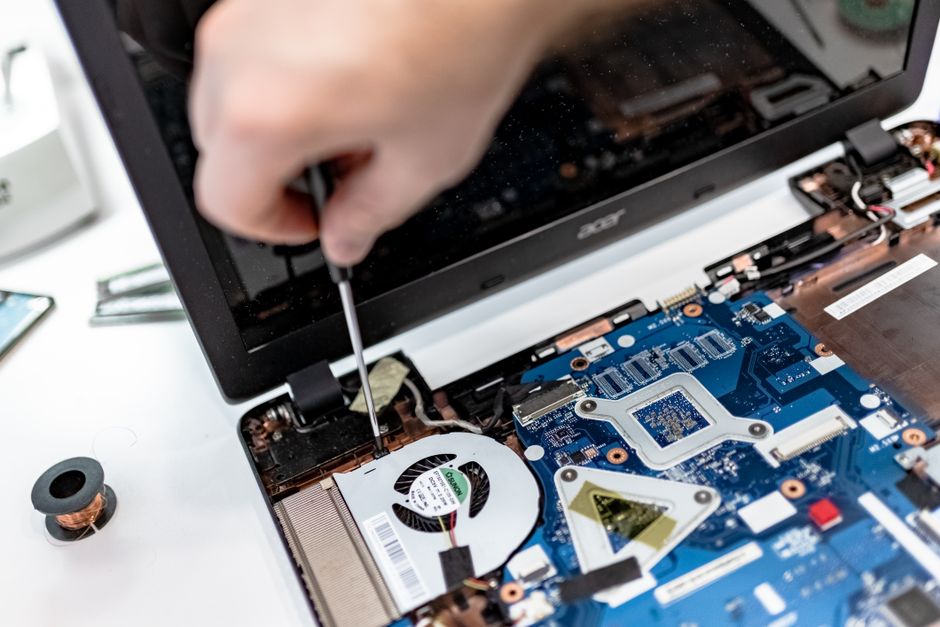
Find Out Why the Fan Is Loud
A laptop fan speeds up when the components inside get hot, so how to fix a loud laptop fan almost always means removing heat or restoring airflow. The heat usually comes from one of three sources: a program working the processor hard, dust choking the vents, or the laptop sitting on a surface that blocks its air intake.
Listen to when the noise happens. A fan that roars only during games or video editing is doing its job. A fan that runs loud while you check email or sit idle points to a background app or a dust problem worth chasing down.
Note: A steady hum is normal. Sudden loud bursts, rattling, or grinding sounds mean either a heavy app just launched or the fan itself needs cleaning.
Close the Apps Driving the Fan

When one program pins the processor at full load, the fan reacts within seconds. Finding and quitting that app is the fastest way to quiet things down.
- Open Task Manager on Windows or Activity Monitor on a Mac.
- Sort the list by CPU usage so the hungriest process sits at the top.
- Close the top offenders you do not need right now, such as stuck browser tabs, background updaters, and video calls left running.
- Listen for the fan to slow as the load drops off.
A single runaway app or a wall of open browser tabs can spin a fan as hard as a demanding game. Quitting what you are not using often fixes the noise on its own.
Free Up the Air Vents
A laptop pulls cool air through intake vents and pushes hot air out the exhaust. Block either one and the trapped heat forces the fan to work overtime.
- Find the vents along the sides, back, or bottom of the laptop.
- Set the laptop on a hard, flat surface like a desk instead of a bed, couch, or lap.
- Clear anything covering the vents, including papers, cases, and soft blankets.
- Raise the back slightly with a stand or a small prop to open up the airflow underneath.
Tip: Soft surfaces are the top cause of a loud fan. A cushion or blanket sinks into the bottom vents and starves the intake, so the fan screams to compensate.
Clean the Fan and Vents
Dust builds up on the fan blades and inside the vents over months. That buildup insulates heat and blocks air, so the fan spins louder to move the same air.
- Shut down and unplug the laptop before you start.
- Hold the fan blades still with a toothpick if you use canned air, so they do not spin too fast.
- Blow short bursts of canned air into the vents to push the dust out.
- Wipe the outer vents with a soft brush to catch anything loosened.
Warning: Never let the fan spin freely from a blast of canned air. Spinning the blades faster than they were built for can wear out the small motor over time.
Adjust Settings to Keep It Quiet

Software settings decide how hard the laptop works, and easing them lowers heat before the fan ever needs to react.
- Switch to a balanced or efficiency power mode instead of maximum performance.
- Cap the frame rate in games so the graphics chip is not pushed to its ceiling.
- Disable startup apps you do not need, so fewer tasks run in the background.
- Keep the system and drivers updated, since updates often improve how the laptop manages power and heat.
Match the Noise to the Fix
Fan noise shows up in a few patterns, and each one points to a different cause.
| What you hear | Likely cause | Fix |
|---|---|---|
| Loud only during games or editing | Normal heavy load | Improve airflow, use a cooling pad |
| Loud while idle | Background app or dust | Check Task Manager, clean vents |
| Loud with little air coming out | Clogged fan and vents | Blow out dust with canned air |
| Louder on a bed or lap | Blocked bottom vents | Move to a hard flat surface |
| Rattling or grinding | Debris or a worn fan bearing | Clean it, and service it if it persists |
For most laptops, how to fix a loud laptop fan comes down to the airflow and dust steps above, not a failing part. If the fan still grinds or rattles after a clean, the bearing may be wearing out and the fan itself may need replacing, which is a hardware repair rather than a settings tweak.
Frequently Asked Questions
Why is my laptop fan suddenly so loud? A sudden change usually means a background app spiked the processor or dust finally choked the vents. Check Task Manager for a heavy process, then move the laptop to a hard surface with clear airflow.
Is a loud laptop fan dangerous? The noise itself is not harmful, and a loud fan is often just doing its job under load. It becomes a concern only when it signals sustained heat, which over time wears components.
Can I turn my laptop fan down manually? Some laptops offer fan control through the maker’s app or the BIOS. Lower fan speeds run quieter but let the laptop get hotter, so use them carefully.
Does dust really make the fan louder? Yes. Dust coats the blades and clogs the vents, forcing the fan to spin faster and louder to move the same air. Blowing it out often restores the quiet the laptop had when new.
Why is my fan loud even when nothing is open? A background process, a pending update, or a stuck app is likely still working the processor. Open Task Manager to find it, and clean the vents if the noise continues.