How to Fix a Laptop Overheating
The fastest way to fix a laptop overheating is to clear the air vents of dust, move the laptop onto a hard flat surface, and close the heavy apps driving the CPU. Here is how to fix a laptop overheating, step by step, from quick airflow fixes to deeper cleaning and settings changes. Most overheating traces back to blocked vents, clogged fans, or a runaway program working the processor hard.
Free Up the Air Vents First
A laptop cools itself by pulling air across hot components and pushing it out the vents. Block those vents and heat has nowhere to go, so this is the first thing to check.
- Find the intake and exhaust vents along the sides, back, or bottom.
- Move the laptop onto a hard, flat surface like a desk instead of a bed, couch, or lap.
- Clear anything covering the vents, including papers, cases, and soft blankets.
- Lift the back slightly with a stand or a small prop to improve airflow underneath.
Tip: Soft surfaces are the number one cause of overheating. A blanket or cushion sinks into the bottom vents and chokes the airflow the fans depend on.
Find and Close the Heavy Apps

When one program pins the processor at full load, the laptop heats up fast and the fans roar. Finding and quitting that app often drops the temperature within a minute.
- Open Task Manager (or Activity Monitor on a Mac).
- Sort processes by CPU usage to see what is working hardest.
- Close the top offenders you do not need right now, especially stuck browser tabs and background updaters.
- Watch the fan noise drop as the load eases.
A single misbehaving app or a pile of open browser tabs can heat a laptop as much as a demanding game. Quitting what you are not using is the cheapest fix there is.
Clean the Fans and Vents
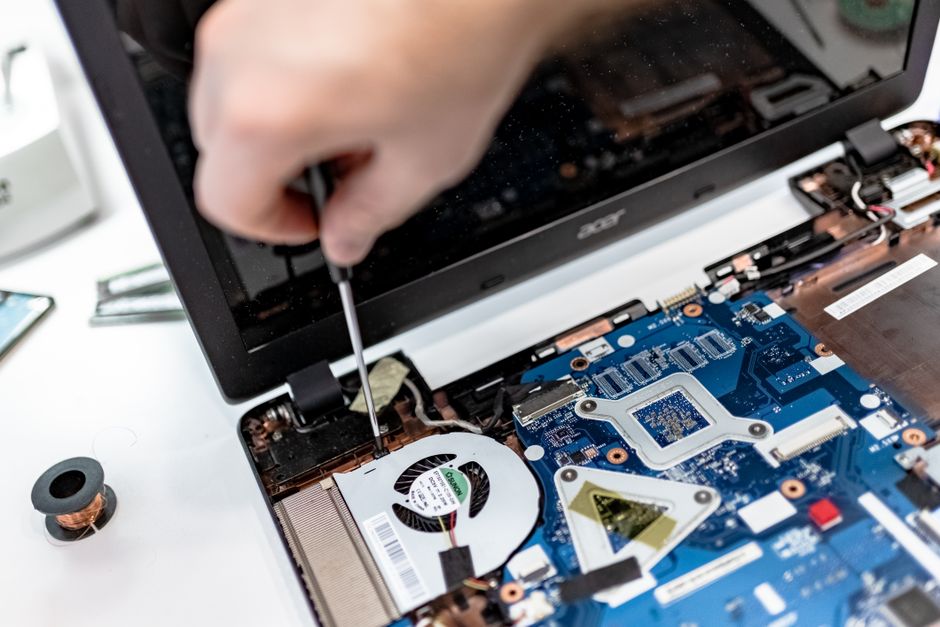
Dust builds up inside the vents and on the fan blades over months, insulating the components and strangling airflow. Clearing it restores cooling that a clean laptop had when new.
- Shut down and unplug the laptop before cleaning.
- Hold the fan still with a toothpick if you use canned air, so the blades do not spin too fast.
- Blow short bursts of canned air into the vents to push dust out.
- Wipe the exterior vents with a soft brush to catch loosened debris.
Warning: Hold the fan blades still while blowing air through them. Letting the fan spin freely from the air blast can damage the small motor over time.
Match the Cause to the Fix
Overheating shows up in a few patterns, and each points to a different fix. This table helps you target the real cause.
| Symptom | Likely cause | Fix |
|---|---|---|
| Hot only during games or editing | Normal heavy load | Improve airflow, use a cooling pad |
| Hot even when idle | Background app or dust | Check Task Manager, clean vents |
| Fans loud but little airflow | Clogged fans and vents | Clean with canned air |
| Bottom scorching on soft surfaces | Blocked bottom vents | Move to a hard flat surface |
| Sudden shutdowns under load | Serious heat buildup | Clean, cool, and reduce load immediately |
If the laptop shuts itself off under load, that is a thermal safety cutoff — treat it as urgent and cool the machine before more use. Repeated thermal shutdowns can shorten the hardware’s life.
Adjust Settings to Run Cooler

Software settings shape how hard the laptop works, and easing them lowers heat without new hardware. These changes trade a little peak performance for a much cooler machine.
- Lower the power mode to a balanced or efficiency profile instead of maximum performance.
- Cap the frame rate in games so the graphics chip is not pushed to its limit.
- Disable startup apps you do not need, so fewer background tasks run.
- Keep the system and drivers updated, since updates often improve power and thermal behavior.
Lowering the screen brightness and unplugging unused USB devices also trims heat a little. Together these settings keep temperatures down during long sessions.
Consider a Cooling Pad and Ventilation
If the laptop runs hot even after cleaning, an external cooling pad adds airflow the built-in fans cannot. A pad with fans sits under the laptop and pushes cool air into the intake vents, which helps most during gaming or video editing. Beyond the pad, keep the room itself reasonably cool and give the laptop breathing room on all sides rather than boxing it in against a wall or inside a tight shelf. Good ambient airflow makes every other fix work better, because the fans can only exhaust into the air around them.
Frequently Asked Questions
Why is my laptop overheating all of a sudden? A sudden change usually means a background app spiked the CPU or dust finally choked the vents. Check Task Manager for a heavy process, and move the laptop to a hard surface with clear airflow.
Is it safe to keep using an overheating laptop? Short term, yes, but sustained heat wears components and can cause thermal shutdowns. Cool it down, clear the vents, and reduce the load before continuing heavy work.
Does dust really cause overheating? Yes. Dust coats the fans and vents, insulating heat and blocking airflow. Blowing it out with canned air often restores the cooling the laptop had when it was new.
Should I use a cooling pad? A cooling pad helps if the laptop runs hot during games or editing even after cleaning. It adds airflow the built-in fans cannot, lowering temperatures during long, heavy sessions.
Why does my laptop overheat only on my lap or bed? Soft surfaces sink into the bottom vents and block the intake airflow. Move the laptop to a hard, flat surface like a desk, and the fans can breathe again.