How to Clean a Laptop Screen
To clean a laptop screen, power it off, wipe gently with a dry microfiber cloth, then use a lightly dampened cloth with distilled water or a screen-safe solution for stubborn marks. Here is how to clean a laptop screen, step by step, without scratching the panel or forcing liquid into the seams. The safe method takes five minutes and needs only a soft cloth and the right liquid.
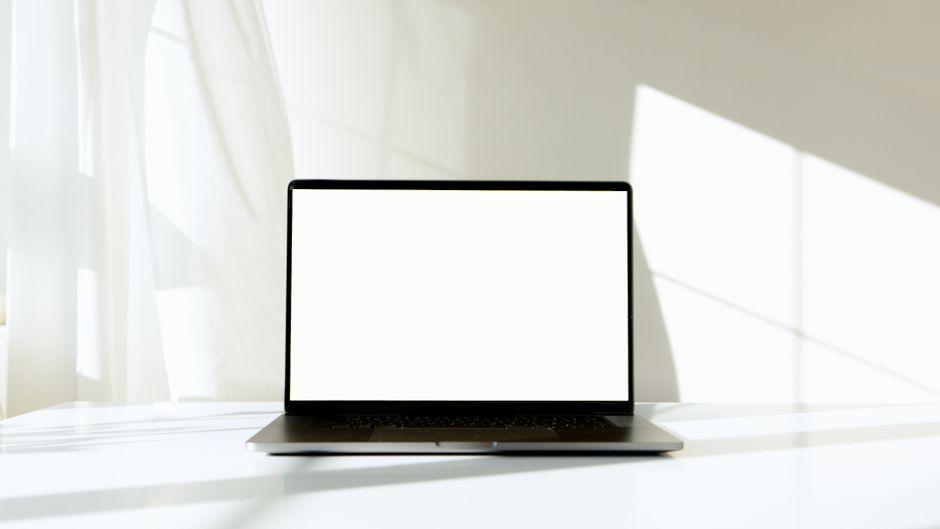
Gather the Right Supplies
Using the wrong material is how most screens get scratched or hazed, so start with safe tools. The panel has a delicate coating that harsh cloths and household cleaners strip away.
- Microfiber cloth: the only surface that should touch the screen. Two are ideal, one dry and one damp.
- Distilled water: tap water leaves mineral spots as it dries.
- Screen-safe cleaning solution or a homemade 50/50 mix of distilled water and white vinegar for greasy marks.
- Canned air, optional, for dust trapped near the hinge and edges.
Warning: Never use paper towels, tissues, or old T-shirts. Their fibers are abrasive enough to leave fine scratches you only notice under bright light.
Power Down Before You Start
Turning the laptop off is not just for safety — a dark screen makes smudges far easier to see, so you clean every spot in one pass. It also prevents you from pressing keys or triggering the touchscreen mid-wipe.
- Shut down the laptop completely, not just sleep.
- Unplug the charger to remove any shock risk while working near the panel.
- Let the screen cool for a minute if it was running warm.
A powered-off black screen shows dust and fingerprints that vanish against a bright desktop. This alone makes the job faster and more thorough.
Do a Dry Wipe First
Most of the grime on a screen is loose dust, and lifting it dry prevents you from grinding particles into the coating when the cloth is wet. Skipping this step is the fastest way to create scratches.
- Fold the dry microfiber cloth into a flat pad.
- Wipe in one direction with light pressure, top to bottom or side to side.
- Use straight strokes, not circles, so you push dust off the edge rather than around.
- Shake or refold the cloth as it picks up debris.
If the screen looks clean after the dry pass, stop here. Only move to liquid for fingerprints, oil, or dried spots that a dry cloth cannot lift.
Tackle Smudges With a Damp Cloth
When dry wiping is not enough, a barely damp cloth handles grease and stuck-on marks. The key is moisture control: the cloth should feel slightly cool, never wet enough to drip.
- Spray solution onto the cloth, never directly onto the screen.
- Wring the cloth until no liquid drips from it.
- Wipe gently in one direction over the smudged areas.
- Follow immediately with the dry cloth to remove streaks before they set.
Tip: Spraying the cloth instead of the screen keeps liquid away from the bezel seams, where it can seep inside and damage the panel or backlight.
Know What Not to Use
The wrong cleaner can permanently cloud the anti-glare coating, and the damage is not reversible. Avoiding these is as important as the cleaning itself.
| Avoid | Why it harms the screen |
|---|---|
| Window cleaner with ammonia | Strips the anti-glare and anti-fingerprint coating |
| Pure rubbing alcohol at high strength | Can dry out and craze the coating over time |
| Paper towels and tissues | Wood fibers scratch the soft surface |
| Soaking-wet cloths | Liquid seeps into the bezel and damages electronics |
| Scrubbing hard on one spot | Pressure can create permanent dead pixels or lines |
When in doubt, distilled water on microfiber is the safest cleaner for any laptop screen. It handles most marks without risking the coating.
Handle Touchscreens and Coatings Carefully
Touchscreen and glossy panels tolerate a little more moisture than matte anti-glare screens, but the same rules apply. Check your laptop maker’s guidance if the screen has a special coating, since a few recommend water only. For textured matte displays, let the dry cloth do most of the work, because liquid can settle into the surface texture and streak. Clean the screen every week or two to keep buildup light, which means you rarely need the damp step at all.
Frequently Asked Questions
Can I use regular water to clean my laptop screen? Distilled water is better than tap water because tap water leaves mineral spots as it dries. Distilled water avoids that residue, so reach for it or a screen-safe solution instead.
Is it safe to use rubbing alcohol on a laptop screen? Only diluted and sparingly. A heavily diluted mix can lift grease, but high-strength alcohol can dry out and craze the coating over repeated use, so distilled water is the safer default.
How do I clean my screen without leaving streaks? Wipe with a damp microfiber cloth in one direction, then immediately follow with a dry microfiber cloth. Streaks come from letting the moisture air-dry on the glass.
What is the safest cloth for cleaning a laptop screen? A clean microfiber cloth. It lifts dust and oil without scratching, unlike paper towels, tissues, or clothing, which contain abrasive fibers.
How often should I clean my laptop screen? Every one to two weeks keeps buildup light and usually needs only a dry wipe. Cleaning that often means you rarely have to use liquid at all.