How to Fix Bluetooth Headphones Not Connecting
Most Bluetooth connection failures are solved by three moves: toggle Bluetooth off and on, restart the headphones, and delete the old pairing so you can pair again from scratch. Work through those first — they clear the majority of cases in under five minutes. This guide covers how to fix bluetooth headphones not connecting on phones, laptops, and desktops, from the quick resets to the stubborn edge cases.
Run the 60-Second Fixes First
Before touching any settings menus, rule out the simple stuff. Each of these takes seconds and fixes a surprising share of failures.
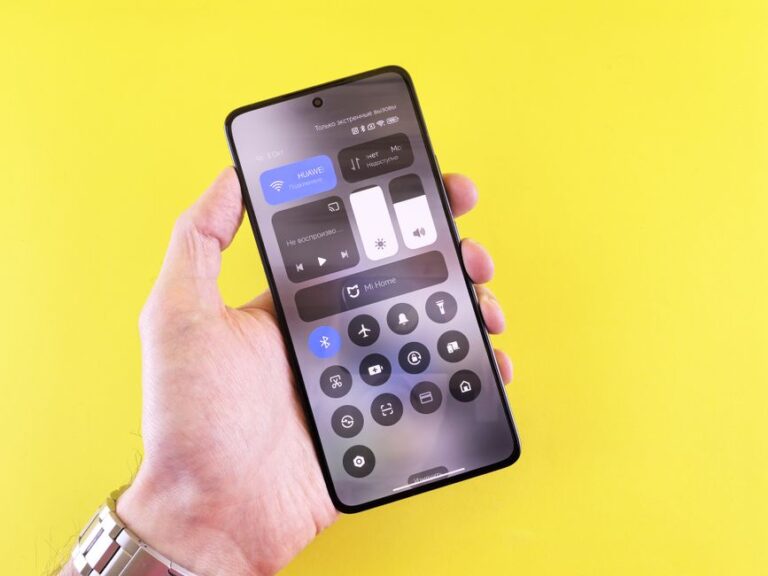
- Toggle Bluetooth off and on in your phone or computer settings, then wait a few seconds before reconnecting.
- Turn the headphones fully off and on. A long press of the power button, not just pausing playback.
- Charge the headphones. Low battery is a classic cause of connections that fail silently or drop right after pairing.
- Move the devices closer together and remove obstacles between them.
- Restart the phone or computer. The Bluetooth stack on the device side can hang, and a reboot resets it.
If the headphones connect to a different device instead, turn Bluetooth off on that device. Many headphones automatically grab the last device they paired with, which looks identical to a failed connection from where you sit.
Forget the Device and Pair From Scratch
A corrupted pairing record is the most common deeper cause when bluetooth headphones wont connect at all. Deleting it forces both sides to negotiate a clean connection.
- Open Bluetooth settings on your phone or computer.
- Find your headphones in the device list and choose Forget, Remove, or Unpair.
- Put the headphones into pairing mode — usually a long press on the power or dedicated Bluetooth button until the LED changes its blink pattern.
- Select the headphones when they appear in the list of available devices.
Note: Pairing mode and "powered on" are different states. If the headphones do not show up in the list, they are almost certainly on but not in pairing mode. Hold the button longer than feels necessary.
Clear the Headphones’ Own Pairing Memory
Headphones store their own list of paired devices, and that list can fill up or get corrupted. A factory reset wipes it clean. The exact button combination varies by brand — check the manual or the manufacturer’s support page for your model — but the usual patterns are a long hold of the power button, or holding power and a volume button together until the LED flashes.
After the reset, the headphones forget every device they ever knew. Pair them again as if they were new. This step resolves most cases where headphones connect to one device fine but refuse another.
Fix Headphones Not Pairing on Windows
When headphones connect to your phone but not your PC, the computer’s Bluetooth stack or driver is the suspect.
- Remove the headphones from Settings under Bluetooth and devices.
- Run the Bluetooth troubleshooter from the Windows settings search — it restarts the radio and services automatically.
- Open Device Manager, expand Bluetooth, and check for warning icons on the adapter.
- Update or reinstall the adapter driver. Right-click the adapter, choose to update, or uninstall it and reboot so Windows reinstalls it fresh.
- Pair again with the headphones in pairing mode.
The Mac version of how to fix Bluetooth headphones not connecting is similar: remove the device from Bluetooth settings, reboot, and pair again. Desktop machines with cheap USB Bluetooth dongles are also worth testing with the dongle moved to a different port.
Rule Out Interference and Range Problems
Bluetooth shares the crowded 2.4 GHz band with Wi-Fi routers, microwaves, and wireless peripherals, and it does not punch through walls or bodies well.
| Symptom | Likely cause | Fix |
|---|---|---|
| Pairs fine, drops constantly | Interference or weak signal | Move away from the router; keep phone on the same side of your body |
| Not visible in device list | Not in pairing mode, or paired elsewhere | Hold the pairing button longer; disable Bluetooth on other devices |
| Connects, but no audio | Wrong output device selected | Pick the headphones manually in sound output settings |
| Fails only near a PC | USB interference from ports and hubs | Move the dongle to a port away from other USB devices |
If connections only fail in one room or near one gadget, interference is the story. If they fail everywhere, how to fix Bluetooth headphones not connecting comes back to the pairing resets above.
Frequently Asked Questions
Why do my headphones show as paired but not connected? The pairing record exists on both sides, but the live connection failed. Tap the device name in Bluetooth settings to connect manually; if that fails repeatedly, forget the device and pair again.
Why are my headphones not pairing with a second device? Many models hold a live connection with only one device at a time unless they support multipoint. Disconnect or turn off Bluetooth on the first device, then pair the second.
Do Bluetooth headphones stop pairing when the battery is low? They can. Radio performance degrades before the battery dies outright, so pairing attempts fail or drop. Charge fully before troubleshooting anything else.
Can a phone software update break Bluetooth connections? Occasionally, yes. If problems started right after an update, forget the device, restart the phone, and pair fresh — and check whether the manufacturer has since shipped a fix.
How do I know the headphones themselves are broken? Test them against two or three different devices. If every device fails to pair after a factory reset of the headphones, the fault is in the headphones, and it is time to use the warranty.