How to Connect a Webcam to a Laptop
To connect a webcam to a laptop, plug its USB cable into an open port and wait for the laptop to install the driver automatically, then select the webcam inside your video app. Here is how to connect a webcam to a laptop, step by step, including how to make apps use the external camera instead of the built-in one. The hardware side takes seconds; the real work is pointing your software at the right camera.
Plug In and Let It Install
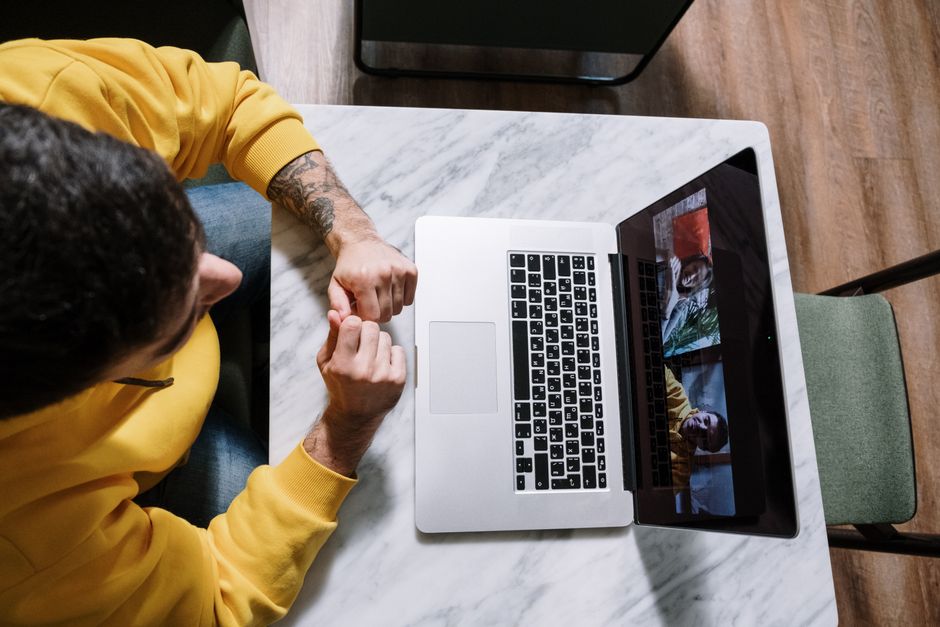
Most webcams are plug-and-play, meaning the laptop recognizes them and installs a generic driver the moment they connect. No disc or setup is needed for the basic camera to work.
- Connect the webcam’s USB cable to an open USB port on the laptop.
- Wait for the install notification. The laptop detects the device and sets up a driver in the background.
- Watch for the webcam’s indicator light to confirm it has power.
- Position the webcam on the top of your screen or on its stand once it is recognized.
Tip: Plug the webcam directly into the laptop rather than through an unpowered USB hub. Hubs can starve the camera of power and cause dropouts.
Confirm the Laptop Sees the Camera

Before opening a meeting, verify the system recognizes the new hardware. This separates a connection problem from an app-settings problem later.
- Open the Camera app on your laptop.
- Look for a camera-switch button and toggle it to the external webcam.
- Check Device Manager under Cameras or Imaging devices if the app shows nothing.
- Confirm the webcam is listed without a warning icon.
If the webcam appears in Device Manager but not in your apps, the issue is app settings, not the connection. That points you straight to the next step.
Set the Webcam as the Default Camera
The most common frustration is a video app that keeps using the built-in camera. You fix this inside each app, because most software picks a camera per-program rather than system-wide.
- Open your video app’s settings — the section is usually called Video, Camera, or Devices.
- Find the camera dropdown menu.
- Select the external webcam by name instead of the built-in one.
- Check the preview to confirm the right camera is live before joining a call.
Repeat this in each app you use, since choosing the webcam in one program does not always carry over to another. Some apps also let you set a default device that applies to future calls.
Fix a Webcam the Laptop Ignores
When the laptop does not react at all, work through the physical and driver causes in order. Most no-detection cases come down to the port, the cable, or a driver.
- Try a different USB port, ideally one directly on the laptop body.
- Swap the cable if the webcam uses a detachable one, since cables fail often.
- Restart the laptop with the webcam plugged in to force a fresh detection.
- Update or reinstall the driver in Device Manager, or install the maker’s software if the camera needs it.
- Check privacy settings and allow apps to access the camera.
Warning: Camera privacy settings can silently block every app. If the webcam works in Device Manager but no app can see it, check that camera access is turned on for apps.
Compare Connection Types
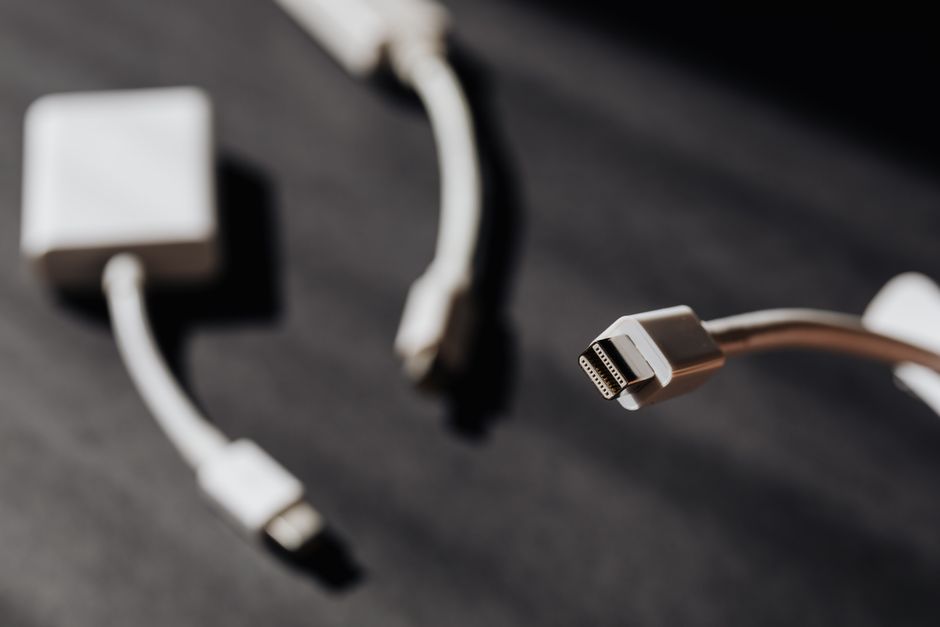
Not every webcam connects the same way, and the port matters for performance. This table sorts the common options.
| Connection | Typical use | Notes |
|---|---|---|
| USB-A | Most standard webcams | Universal, plug-and-play on nearly any laptop |
| USB-C | Newer and higher-resolution webcams | Needs a USB-C port or an adapter |
| Wireless or app-based | Phone-as-webcam setups | Relies on software, not a direct cable |
| Capture card | Cameras with HDMI output | Turns a dedicated camera into a webcam input |
For the simplest setup, a USB webcam plugged straight into the laptop is the most reliable choice. Wireless and capture-card routes add flexibility but also more points of failure.
Improve the Picture Once Connected
After the webcam works, a few tweaks make it look far better than the built-in camera, which is usually why people add one. Face a window or a light source so your face is lit from the front, not backlit. Raise the webcam to eye level with a small stand or by mounting it on the screen top, which flatters the angle. If your webcam has its own app, use it to adjust exposure, focus, and framing. These settings live with the camera, so they carry across every video app you use.
Frequently Asked Questions
Why won’t my laptop recognize my external webcam? Usually a port, cable, or driver issue. Try another USB port, swap the cable, restart the laptop, and update the driver in Device Manager. Also confirm camera access is enabled in privacy settings.
How do I make apps use my webcam instead of the built-in camera? Open each app’s video or camera settings and select the external webcam from the camera dropdown. This is set per-app, so you may need to repeat it in every program you use.
Do I need to install software for a webcam? Most webcams are plug-and-play and work with the automatic driver. Some cameras need the maker’s app for advanced features like adjusting exposure or enabling higher resolutions.
Can I use a webcam through a USB hub? You can, but plug it into a powered hub or directly into the laptop. Unpowered hubs may not supply enough power, causing the camera to drop out or fail to appear.
Why is my webcam detected but showing a black screen? The camera is connected but blocked. Check that app camera access is enabled in privacy settings, close other apps that may be holding the camera, and select the webcam inside the app.