How to Connect Bluetooth Headphones to Any Device
Connecting Bluetooth headphones means putting them into pairing mode, then selecting them in your device’s Bluetooth menu. The headphones broadcast a signal, your phone or computer finds it, and the two link up so audio plays wirelessly. The exact button varies by brand, but the process is nearly identical across phones, laptops, and tablets. This guide covers pairing on every major device and fixing the connection when it refuses to cooperate.
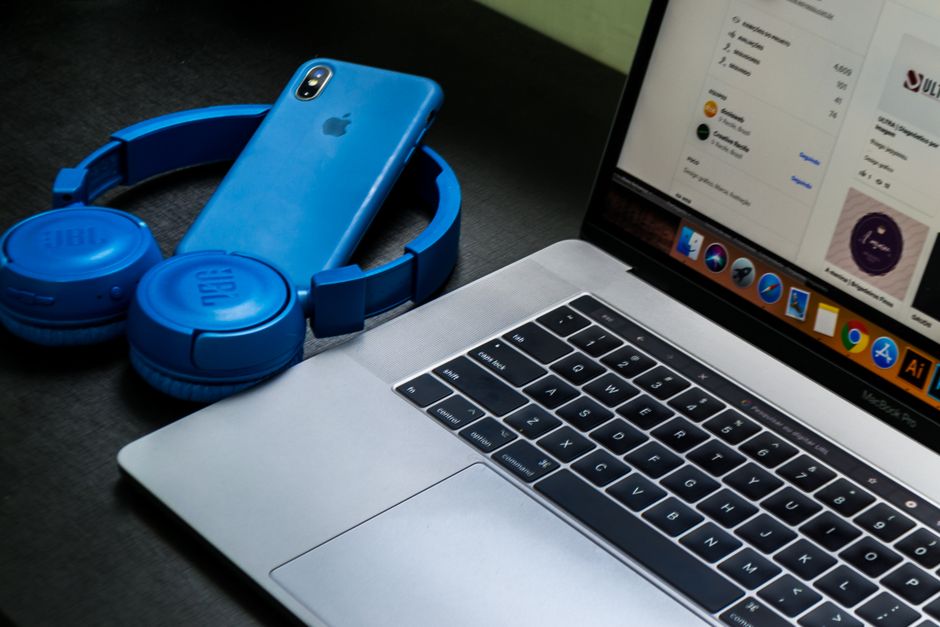
Put the Headphones in Pairing Mode
Nothing connects until the headphones are discoverable, and this is the step most people miss. On the first use, many headphones enter pairing mode automatically when you power them on. After that, you trigger it manually:
- Make sure the headphones are charged and powered off.
- Hold the power button for about five to seven seconds.
- Watch for the indicator light to flash blue and red, or blink rapidly.
- Release the button once the light is blinking, which means the headphones are broadcasting.
Tip: Some models use a dedicated Bluetooth button instead of the power button. If holding power does nothing, check the quick-start card for the pairing control.
Connect to an Android Phone
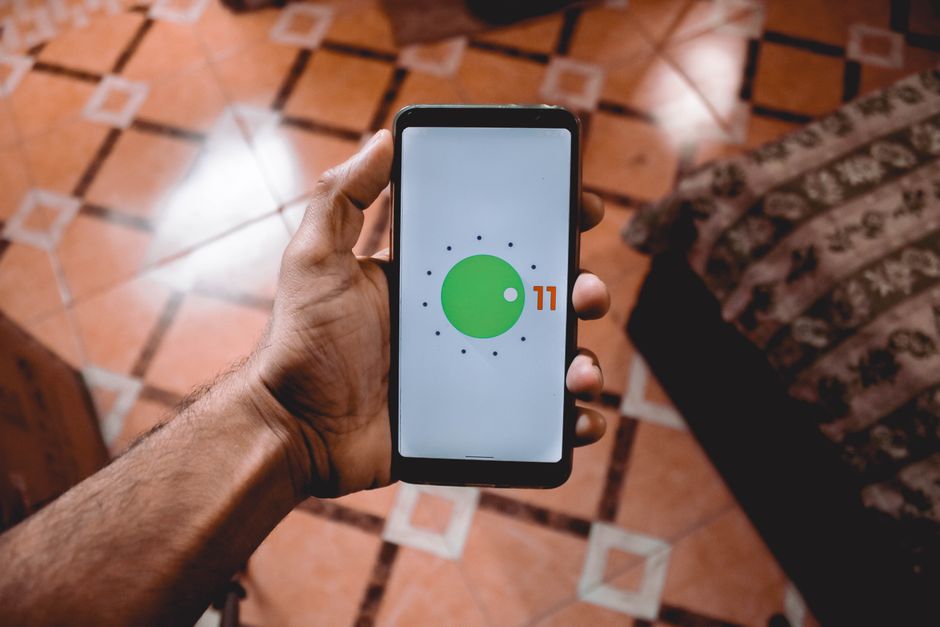
On Android, swipe down from the top of the screen to open the quick settings, then press and hold the Bluetooth icon to open its full menu. Make sure Bluetooth is switched on, and your phone will begin scanning for nearby devices.
Your headphones should appear in the list of available devices by their model name. Tap that name, and Android completes the pairing in a second or two. Once connected, the headphones usually reconnect on their own whenever you turn them on near the phone, so you only do this once.
Connect to an iPhone or iPad
On an iPhone or iPad, open Settings and tap Bluetooth, then confirm the toggle is green. With the headphones in pairing mode, they appear under Other Devices on the screen.
Tap the headphone name and the pairing finishes almost instantly. If you use AirPods or other Apple-designed headphones, holding them near an unlocked iPhone often brings up a connect card automatically, skipping the settings menu entirely. For everything else, the Bluetooth menu is the reliable route.
Connect to a Windows Laptop
On Windows, open Settings, go to Bluetooth and devices, and switch Bluetooth on if it is not already. Click Add device, then choose Bluetooth from the pop-up.
With your headphones blinking in pairing mode, their name shows up in the list. Click it, wait for the confirmation, and Windows sets them as an audio output. If sound keeps coming from the laptop speakers, click the speaker icon in the taskbar and select the headphones as the output device.
Connect to a Mac
On a Mac, open System Settings and click Bluetooth in the sidebar. Turn it on, and nearby devices in pairing mode appear under Nearby Devices.
Find your headphones by name and click Connect. macOS switches audio to the headphones automatically in most cases. If it does not, open the Sound settings and choose the headphones under Output, which forces the Mac to route sound to them.
Where to Find the Bluetooth Menu on Each Device
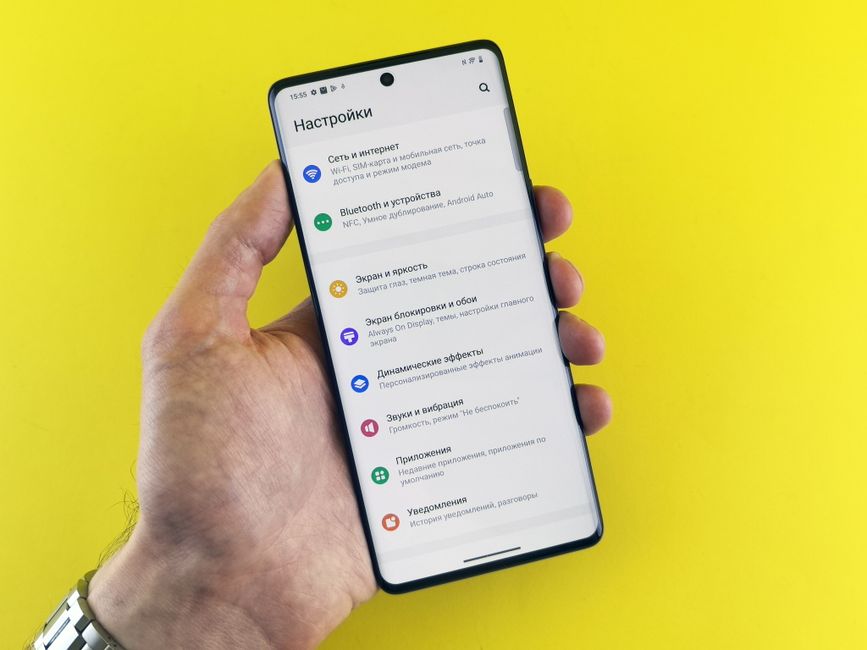
The steps differ slightly per platform, so here is a quick reference for where the pairing menu lives:
| Device | Where to pair |
|---|---|
| Android | Swipe down → hold the Bluetooth icon |
| iPhone / iPad | Settings → Bluetooth |
| Windows | Settings → Bluetooth and devices → Add device |
| Mac | System Settings → Bluetooth |
In every case the headphones must be blinking in pairing mode first, or they will not show up in the list.
Pair With More Than One Device
Many newer headphones support multipoint, which keeps them connected to two devices at once, such as a laptop and a phone. This lets you take a call on your phone while working on the laptop without repairing each time.
If your headphones support it, enable multipoint in the companion app or hold a specific button combination listed in the manual. Without multipoint, headphones connect to only one device at a time, and you switch by disconnecting from the first device before pairing the second.
Fix Headphones That Will Not Connect
When headphones refuse to pair, the fix is usually simple. First, confirm they are actually in pairing mode with the light blinking, not just powered on. Second, move closer to the device, since Bluetooth range drops sharply through walls and furniture.
If they still will not connect, remove or forget the headphones from your device’s Bluetooth list and pair them fresh. A stale pairing record is a frequent cause of a device that sees the headphones but fails to link.
Warning: A headphone already paired to another nearby device may connect there instead. Turn off Bluetooth on your other phone or laptop before pairing, or the headphones may silently grab the wrong connection.
Turning Bluetooth off and back on, or restarting both devices, clears most remaining glitches.
Fix Audio That Cuts Out
Headphones that connect but drop audio point to interference or a low battery. A charge below twenty percent causes some models to stutter, so charge them and test again.
Interference from other wireless devices, microwaves, or crowded Wi-Fi bands also breaks the signal. Move away from those sources, and keep the connected device on the same side of your body as the headphones, since your body physically blocks the low-power Bluetooth signal. If cutouts persist only in one app, restarting that app often restores a clean stream.
Enjoy Your Wireless Audio
Once paired, Bluetooth headphones reconnect automatically each time you power them on near a known device, so the setup is a one-time task per device. Keep them charged and they will link within seconds every session.
If you use several devices, learning your headphones’ multipoint or quick-switch method saves the small friction of repairing. With the connection stable, you have clean wireless sound for music, calls, and games wherever you go.