How to Stop Apps From Running in the Background on Android
To stop apps from running in the background on Android, open Settings, go to the app’s info page, and restrict its background activity or force stop it. Here is how to stop apps from running in the background on Android, step by step, so you can save battery, cut mobile data use, and free up memory for the apps you actually use.
Background apps keep working even when you are not looking at them, syncing data, checking for updates, and sending notifications. Some of that is useful, but many apps run far more than they need to. Restricting them reclaims battery and data without uninstalling anything.

Find Out Which Apps Drain the Most
Before restricting anything, see which apps are the real culprits. Android tracks battery use per app, and the biggest drainers are the ones worth targeting.
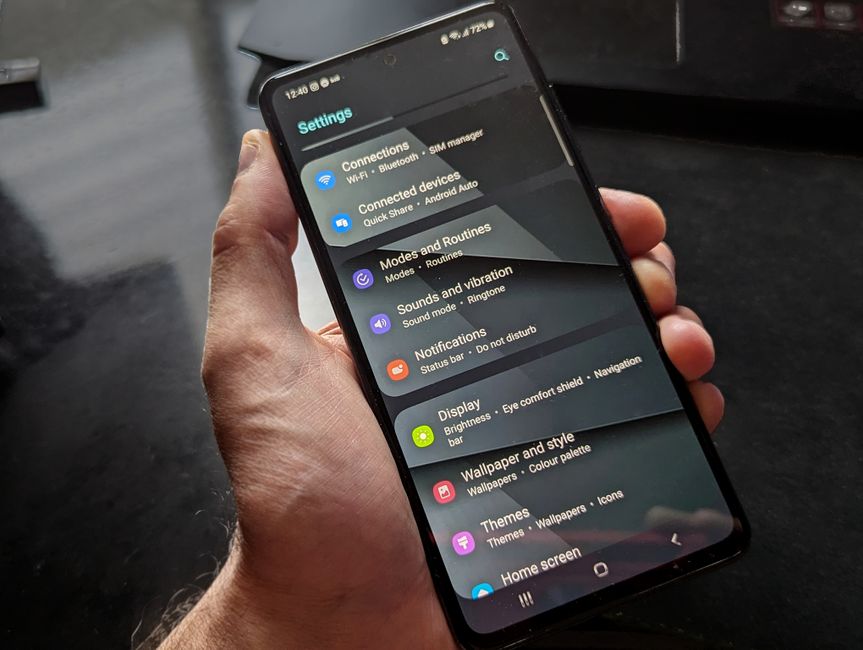
- Open Settings on your Android device.
- Tap Battery or Battery and device care.
- Open Battery usage to see a ranked list of apps.
- Note the apps at the top that you rarely use actively.
The apps consuming the most power while you are not using them are your priority. A game you played once or a shopping app you rarely open has no reason to run constantly.
Tip: Sort by background usage where your device offers it. An app that uses lots of power in the background is a better target than one you use heavily on screen.
Restrict Background Activity for One App

The cleanest method is to restrict a single app’s background behavior. This stops it from working when closed while leaving it fully usable when you open it.
- Open Settings and tap Apps.
- Select the app you want to restrict.
- Tap Battery on the app’s info page.
- Choose Restricted or turn off Allow background activity.
Menu names vary between Android versions and phone brands, but the option is always on the app’s own battery or details page. Once restricted, the app cannot run freely in the background and will not drain power when idle.
Warning: Restricting background activity can delay notifications for messaging and email apps. Leave those you rely on for alerts unrestricted.
Force Stop a Misbehaving App
When an app is acting up right now, force stopping it kills it immediately. This is a one-time action rather than a permanent setting.
- Open Settings and go to Apps.
- Select the app you want to close.
- Tap Force stop.
- Confirm when the warning appears.
Force stop ends the app until you open it again. It is ideal for an app that is frozen, overheating your phone, or draining battery unexpectedly. The app returns to normal the next time you launch it.
Compare the Methods
Each approach fits a different situation. This table lays out when to use which.
| Method | Effect | Best for |
|---|---|---|
| Restrict background | Permanent limit on idle activity | Rarely used, battery-hungry apps |
| Force stop | Immediate one-time close | Frozen or misbehaving apps |
| Disable notifications | Stops alerts, not all activity | Apps that ping too often |
| Turn off background data | Blocks mobile data when idle | Saving your data allowance |
Turn Off Background Data to Save Your Allowance
Battery is not the only thing background apps consume. Many use mobile data to sync even when you are not looking, quietly eating your monthly allowance.
- Open Settings and tap Apps, then your chosen app.
- Tap Mobile data or Data usage.
- Turn off Background data.
With background data off, the app only uses data while open. This is especially useful for streaming, social, and shopping apps that sync large amounts in the background.
Use Built-In Battery Savers
Android includes system-wide tools that limit background activity across many apps at once. Turning on Battery Saver or an adaptive battery feature lets the system automatically restrict apps you rarely use.
Adaptive battery learns your habits and puts apps you seldom open into a low-power state without you managing each one. It is the easiest option if you would rather not restrict apps individually.
Frequently Asked Questions
Does stopping background apps really save battery? Yes. Apps running in the background consume power to sync, check for updates, and send notifications. Restricting the ones you rarely use noticeably extends battery life on most Android phones.
Will restricting an app break it? No, the app still works normally when you open it. Restriction only limits what it does while closed, though it may delay notifications from messaging and email apps you leave restricted.
What is the difference between force stop and restrict? Force stop closes an app once, right now, until you reopen it. Restrict is a permanent setting that limits the app’s background activity every time it is idle.
Should I stop all apps from running in the background? No. Messaging, email, and alarm apps need background access to deliver alerts on time. Target only the apps you rarely open or that use a lot of power while idle.
How do I stop apps from using mobile data in the background? Open the app’s info page, tap Mobile data or Data usage, and turn off Background data. The app will then use data only while it is open on your screen.