How to Update Apps on a Smart TV the Easy Way
To update apps on a smart TV, open the built-in app store, find the app or an updates section, and select Update. Here is how to update apps on a smart TV, step by step, across the major platforms, plus how to turn on automatic updates so you rarely have to think about it again.
Outdated apps are behind most streaming glitches, from black screens to logins that fail for no clear reason. Updating an app installs bug fixes, new features, and security patches, and it usually clears the exact problem that sent you looking for a fix. The menus differ by brand, but the idea is the same everywhere.
Check Which Platform Your TV Uses
The steps depend entirely on your TV’s operating system, not the brand name on the box. Identify your platform first, since two TVs from the same maker can run different software.
- Samsung TVs run Tizen.
- LG TVs run webOS.
- Sony, Hisense, and TCL models often run Google TV or Android TV.
- Roku TVs run the Roku operating system.
- Fire TV models run Amazon’s Fire OS.
Look for the app store name on your home screen or in settings. That tells you which set of steps below to follow.
Update Apps Manually
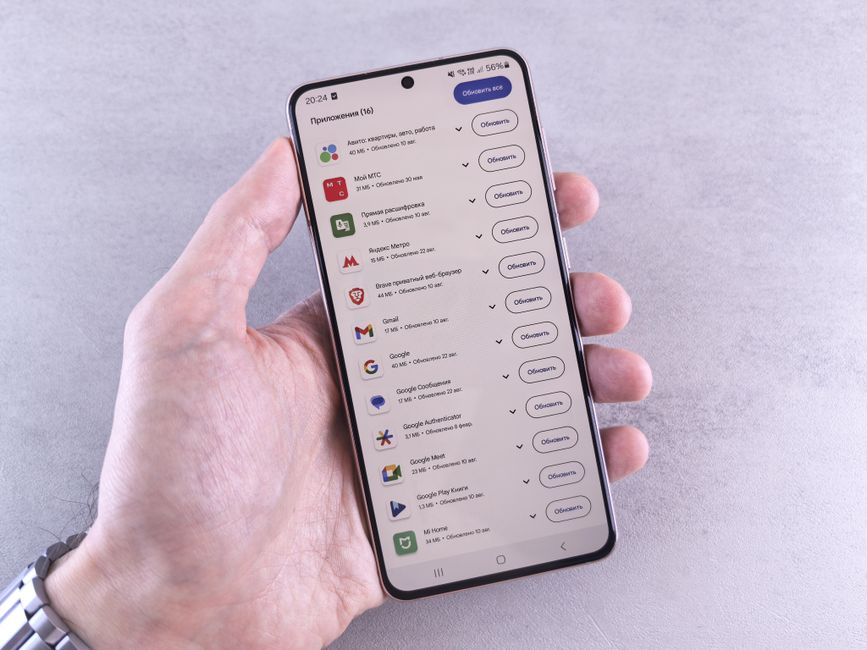
Manual updates give you control and are the fastest way to fix one misbehaving app. The path varies slightly by platform.
- Open the app store on your TV (Apps, Content Store, Google Play, or the Channel Store).
- Search for the specific app or look for a section labeled Updates or My Apps.
- Select the app, then choose Update if the option appears.
- Wait for the download to finish and let the app reopen.
On Roku, updates install automatically, but you can force a check by highlighting a channel, pressing the Star button, and selecting Check for updates. On Fire TV, open Settings, then Applications, then Manage Installed Applications to update individually.
Tip: If you only see an Open button and no Update, that app is already current. There is nothing more to do for it.
Turn On Automatic Updates
Automatic updates keep every app current in the background, usually overnight. Setting this once saves you from repeating the manual process.
- Open your TV’s app store or settings menu.
- Find a Settings or gear icon inside the store.
- Look for Auto Update or Automatically update apps.
- Switch the toggle on and confirm.
On Google TV and Android TV, this lives inside the Google Play Store settings. On Samsung and LG, it sits in the app store’s own settings menu. Once enabled, apps refresh themselves whenever the TV is idle and connected to the internet.
Note: Automatic updates need the TV connected to Wi-Fi and, on many models, left in standby rather than fully powered off.
Fix Apps That Won’t Update
When an update stalls or an app refuses to refresh, the cause is usually storage, network, or outdated system software. Work through these in order.
| Problem | Likely cause | Fix |
|---|---|---|
| Update button missing | App already current | No action needed |
| Update fails midway | Weak or dropped Wi-Fi | Restart router, move closer, retry |
| Not enough space error | Full internal storage | Delete unused apps, then update |
| App crashes after update | Corrupted cache | Clear cache or reinstall the app |
A full restart fixes more than people expect. Unplug the TV for 30 seconds, plug it back in, and let it boot fully before trying again.
Update the TV System Software Too
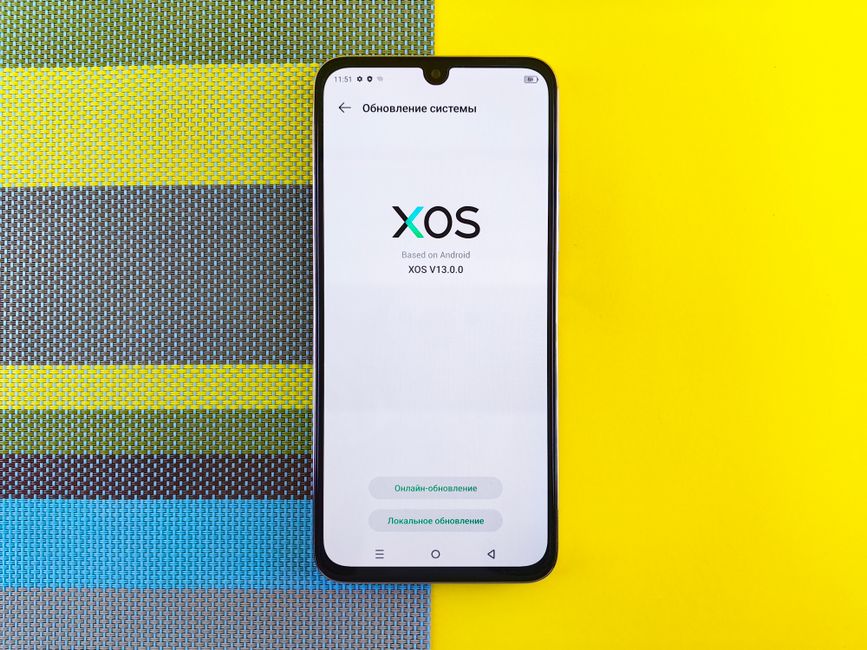
Individual apps sometimes cannot update until the TV’s own software is current. The system update lives in a different menu from the app store.
Open Settings, look for a Support, System, or About section, and choose the software update option. Let the TV download and install any available update, then return to the app store. A fresh system version often unblocks apps that were stuck.
Keeping both the apps and the system current is the real fix for most streaming problems. One without the other leaves gaps that cause crashes and login loops.
Reinstall as a Last Resort
If an app still misbehaves after updating, delete it and install a clean copy. Highlight the app, choose Remove or Uninstall, then download it again from the app store. A reinstall pulls the newest version and wipes any corrupted data left behind by a failed update.
Frequently Asked Questions
Why won’t my smart TV apps update? The usual reasons are weak Wi-Fi, full storage, or outdated TV system software. Restart the TV, free up space by removing unused apps, and install any pending system update, then try again.
Do smart TV apps update automatically? On most platforms they can, once you enable auto-update in the app store settings. Roku updates channels automatically by default, while Samsung, LG, and Google TV require you to turn the setting on.
How do I know if an app needs an update? Open the app store and look for an Updates or My Apps section. Any app showing an Update button has a newer version available; an Open button means it is already current.
Will updating an app delete my login or settings? No. A normal update keeps your account and preferences. Data is only cleared if you uninstall the app or clear its cache manually.
What if my TV is too old to update an app? Older TVs eventually stop receiving app updates when the hardware no longer meets requirements. In that case a streaming stick or box running current software is the simplest way to keep using the app.