How to Connect Your Phone to a TV
Connecting your phone to a TV lets you play videos, photos, and games on the big screen, and there are two main routes: a wireless cast or a physical cable. Casting sends the picture over Wi-Fi with no wires, while a cable gives a rock-solid connection for anything that needs zero lag. Which one you use depends on your phone, your TV, and what you want to watch. This guide covers every method for both Android and iPhone, plus fixes for when the screen will not appear.
Choose Between Wireless and Wired
Before you start, decide which approach fits your situation. Wireless casting is the most convenient, needs no cables, and works well for streaming video and photos. It does introduce a small delay, so it is less ideal for fast games.
A wired connection using an adapter and an HDMI cable is more reliable and has almost no lag, which suits gaming and presentations. It does tie your phone to the TV with a cable. If you mainly stream shows, go wireless; if you want mirroring for games or work, a cable is the stronger choice.
Cast Wirelessly From Android
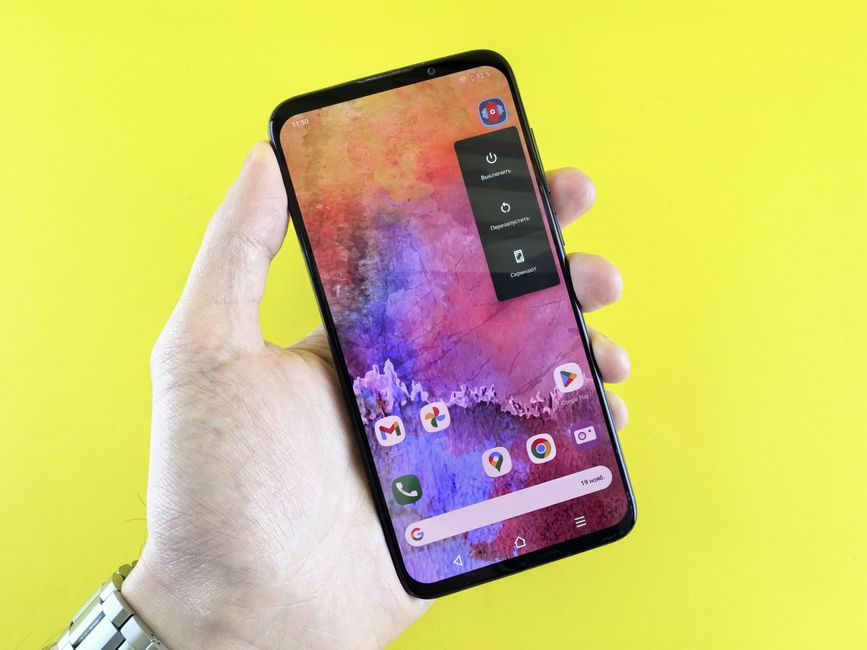
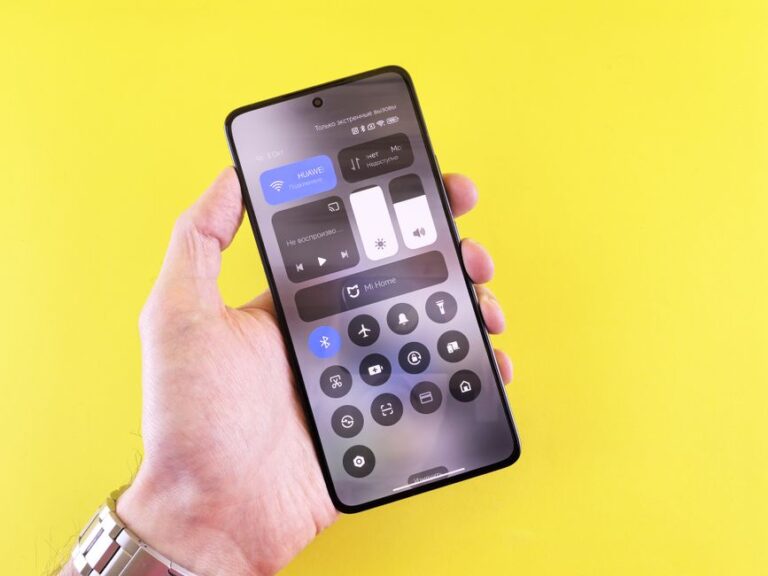
Most Android phones support screen casting to a smart TV or a Chromecast on the same Wi-Fi network. Swipe down from the top of the screen to open quick settings and look for a tile called Cast, Screen Cast, or Smart View on Samsung phones.
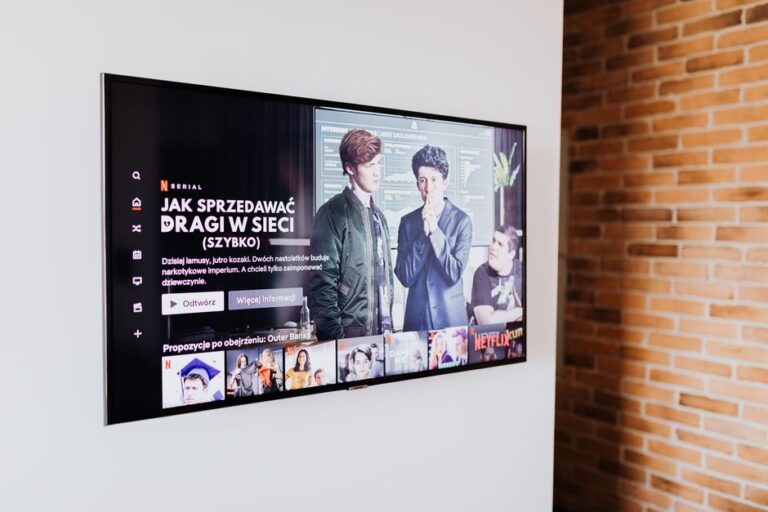
Tap that tile, and your phone scans for compatible TVs on the network. Select your TV from the list, and after a moment your phone’s screen appears on it. For individual apps like YouTube or Netflix, a small cast icon inside the app sends just that video to the TV while your phone stays free to do other things.
Cast Wirelessly From an iPhone
iPhones use AirPlay to cast to an Apple TV or an AirPlay-compatible smart TV on the same network. Open Control Center by swiping down from the top-right corner, then tap Screen Mirroring.
Your iPhone lists available AirPlay devices; choose your TV. If a code appears on the TV screen, type it into your iPhone to confirm the connection. Once linked, your entire iPhone screen mirrors to the TV. Inside streaming apps, the AirPlay icon casts a single video, which often plays at higher quality than full-screen mirroring.
Connect With a Cable
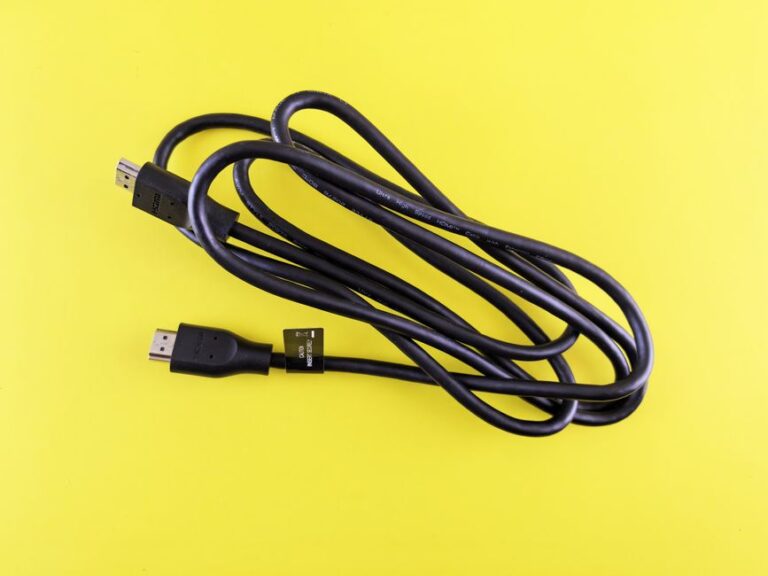
A wired connection needs an adapter that matches your phone’s port plus a standard HDMI cable. For an iPhone, use a Lightning to HDMI adapter, or a USB-C to HDMI adapter on newer iPhones and iPads. For Android, a USB-C to HDMI adapter or cable works if the phone supports video output.
Plug the adapter into your phone, connect an HDMI cable from the adapter to the TV, and select the matching HDMI input on the TV with its remote. Your phone screen appears immediately, mirrored with no delay. This method also keeps your phone charging if the adapter has a power passthrough port, which prevents the battery from draining during a long session.
Set the Right TV Input
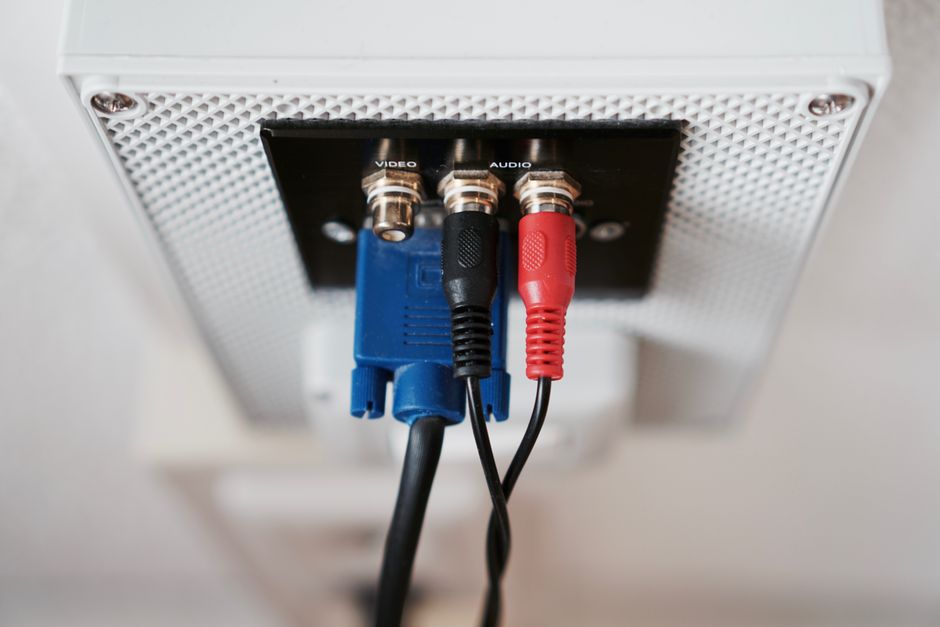
Whether wired or wireless, the TV must be on the correct input to show your phone. Press the Input or Source button on the TV remote and cycle to the HDMI port you used, or to the built-in casting screen for wireless.
If you cast wirelessly and nothing shows, confirm the TV and phone are on the exact same Wi-Fi network, since many homes have separate 2.4GHz and 5GHz networks that do not see each other. Switching your phone to match the TV’s network resolves a large share of casting failures.
Fix a Screen That Will Not Appear
When casting fails, work through the common causes. Make sure both devices share one Wi-Fi network, restart the TV’s casting feature, and toggle your phone’s Wi-Fi off and on. A quick restart of both the phone and the TV clears most stubborn connection glitches.
For a wired setup that shows no picture, reseat the adapter and cable at both ends, and try a different HDMI cable, since cables fail more often than adapters. Confirm the TV input matches the port you plugged into. If an iPhone shows a warning about an unverified accessory, use an official or certified adapter, as some cheap ones block video output entirely.
Improve Streaming Quality
If the picture looks choppy while casting, the Wi-Fi signal is usually the bottleneck. Move your router closer, or connect the TV to a 5GHz network for more bandwidth. Closing other apps on your phone frees up resources for a smoother stream.
For the best quality, cast from within a streaming app using its built-in cast icon rather than mirroring your whole screen. App-based casting sends the video directly to the TV at full resolution, while full-screen mirroring compresses everything and often looks softer.
Enjoy Your Content on the Big Screen
With your phone connected, you can turn a small display into a shared screen for movies, family photos, or games in minutes. Wireless casting suits everyday streaming, while a cable delivers the lag-free connection that gaming and presentations need.
Once you know which method your phone and TV support, the setup becomes second nature: cast from the quick settings, or plug in an adapter and pick the HDMI input. Either way, your phone’s content moves to the big screen with just a few taps.