How to Connect a Wireless Keyboard
To connect a wireless keyboard, either plug its USB receiver into your computer and switch the keyboard on, or put the keyboard in pairing mode and select it from your device’s Bluetooth menu. Which method you use depends on whether the keyboard came with a small USB dongle or relies on Bluetooth.
Both routes take under two minutes. The steps below cover USB receivers and Bluetooth separately, plus how to fix a keyboard that pairs but won’t type.
Know Which Type You Have
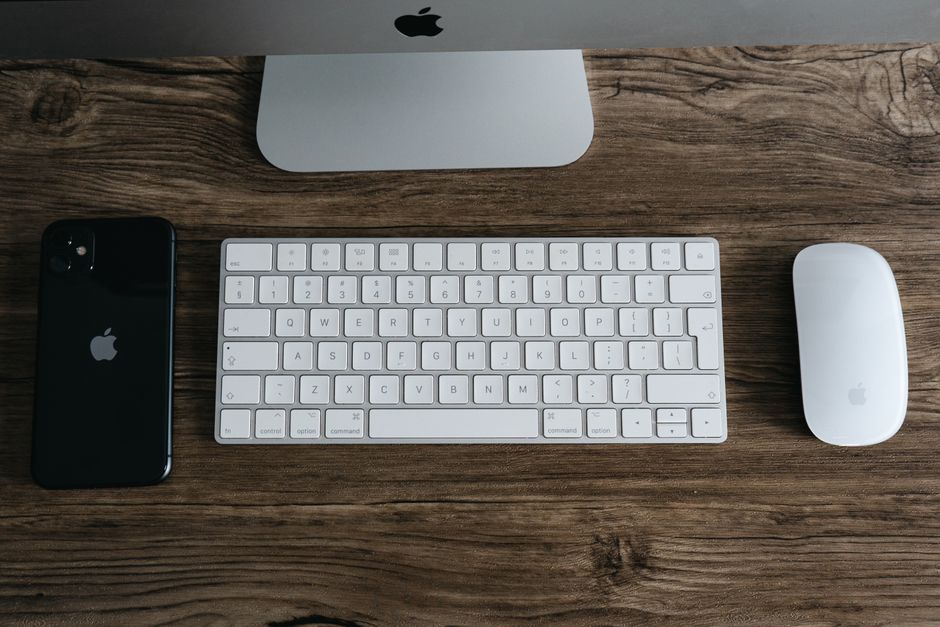
Wireless keyboards connect one of two ways, and the box or the underside of the keyboard tells you which.
- USB receiver (dongle): a tiny USB stick that ships in the box, sometimes tucked into the battery compartment. Best for desktops and gaming.
- Bluetooth: no dongle needed, pairs straight to a laptop, tablet, or phone.
- Both: many keyboards support each method and let you switch with a button.
Tip: If your keyboard has both, use the USB receiver for a desktop PC and Bluetooth for a tablet or a laptop that is short on USB ports.
Connect With a USB Receiver
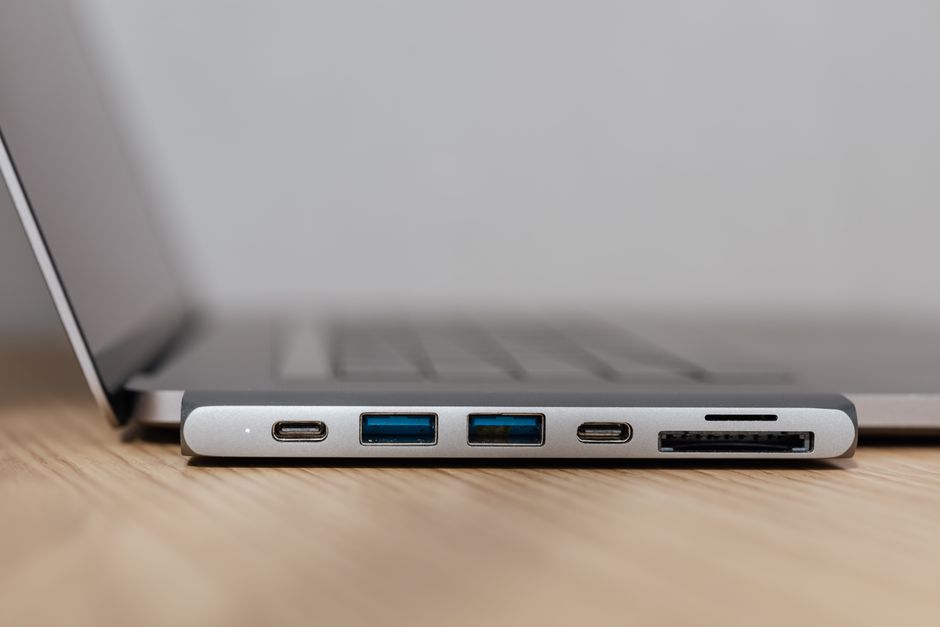
This is the simplest method and rarely needs any setup.
- Insert fresh batteries or charge the keyboard if it is rechargeable.
- Plug the USB receiver into an open USB port on your computer.
- Turn the keyboard on using the switch, usually on the top edge or underside.
- Wait a few seconds for the computer to detect it, then type in any text box to confirm.
If it does not respond, move the receiver to a different USB port and try again. A port on the front or back of the tower often works better than one buried behind other cables.
Connect Over Bluetooth
Bluetooth skips the dongle but needs a quick pairing step.
- Turn the keyboard on and hold the Bluetooth or "Connect" button until its light blinks. Blinking means it is discoverable.
- Open Bluetooth settings on your computer: on Windows, go to Settings > Bluetooth & devices; on Mac, System Settings > Bluetooth.
- Click "Add device" and pick your keyboard from the list.
- Type any code shown on the screen using the keyboard, then press Enter to confirm.
Once paired, the keyboard reconnects automatically whenever both it and the computer are on.
Note: The first pairing sometimes asks you to type a short number on the new keyboard to verify it is really yours. This is normal security, not an error.
USB Receiver vs. Bluetooth
Both work well, but they suit different setups. Use this comparison to decide.
| Feature | USB Receiver | Bluetooth |
|---|---|---|
| Setup effort | Plug and play | Pairing needed |
| Uses a USB port | Yes | No |
| Response speed | Very fast | Fast |
| Best for | Desktops, gaming | Laptops, tablets |
For desktop use where speed matters, the USB receiver is the more reliable choice. For portable devices with few ports, Bluetooth wins.
Fix a Keyboard That Won’t Type

If the keyboard connected but nothing appears on screen, work through these checks.
- Check the power switch. It is easy to pair a keyboard and leave it switched off.
- Replace the batteries. Weak batteries let a keyboard pair but drop keystrokes.
- Re-seat the receiver. Unplug the USB dongle, wait a few seconds, and plug it back in.
- Move closer. Obstacles and distance weaken the signal. Keep the keyboard within a few feet during setup.
- Remove and re-pair. In Bluetooth settings, forget the keyboard, then pair it again from scratch.
Warning: Keep the USB receiver away from a metal desk stand or a running hard drive. Both create interference that causes missed or repeated keystrokes.
Switch Between Multiple Devices
Many modern wireless keyboards can pair with two or three devices at once and jump between them. Look for number keys labeled 1, 2, and 3 near the top, or a dedicated switch button.
Press and hold the key for a slot to pair a new device to it, then tap that key later to hop back. This lets one keyboard serve a desktop, a laptop, and a tablet without repairing each time.
Frequently Asked Questions
My keyboard has both a dongle and Bluetooth. Which is better? Use the USB receiver for a desktop where a spare port is easy to spare, since it needs no pairing and responds instantly. Use Bluetooth for a laptop or tablet where ports are scarce. Many keyboards let you switch between the two with a button.
Why does my wireless keyboard lag or miss keys? Weak batteries are the most common cause, followed by interference and distance. Replace the batteries, move the receiver to a front USB port, and keep the keyboard clear of other wireless gadgets.
Do I need to install software or drivers? For basic typing, no. Windows and Mac recognize standard wireless keyboards automatically. You only need the maker’s app if you want to customize special keys or macros.
How do I connect the keyboard to a new computer? For a USB receiver, move the dongle to the new machine and switch the keyboard on. For Bluetooth, put the keyboard back in pairing mode and add it from the new computer’s Bluetooth menu.
Connecting a wireless keyboard is quick once you know whether it uses a dongle or Bluetooth. Plug in the receiver for instant desktop use, or pair over Bluetooth for anything portable, and keep fresh batteries on hand so a strong connection never turns into missed keystrokes.