How to Reset Your Graphics Card
Resetting your graphics card can fix a black screen, stuttering, visual glitches, or a game that suddenly runs poorly, without restarting your whole computer. A reset restarts the graphics driver, clears its current state, and often restores normal display behavior in seconds. There are several ways to do it, from a one-key shortcut to reinstalling the driver from scratch. This guide covers each method in order, from the fastest to the most thorough, for Windows PCs.
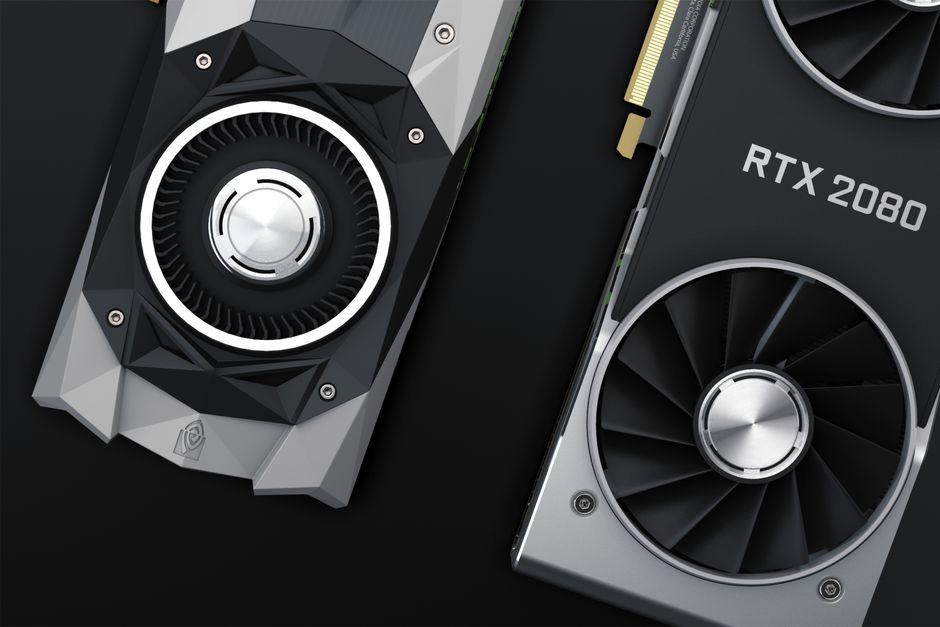
Know When a Reset Helps
A graphics reset targets specific problems, so it helps to recognize them. If your screen goes black but the computer is clearly still running, if graphics tear or flicker, or if a game’s frame rate collapses for no reason, the graphics driver has likely entered a bad state.
These symptoms differ from a fully frozen computer, where nothing responds at all; that usually needs a full restart instead. When the rest of the system works but the display misbehaves, a graphics reset is the right tool and far quicker than rebooting. Start with the simplest method below and move on only if it does not help.
Use the Keyboard Shortcut
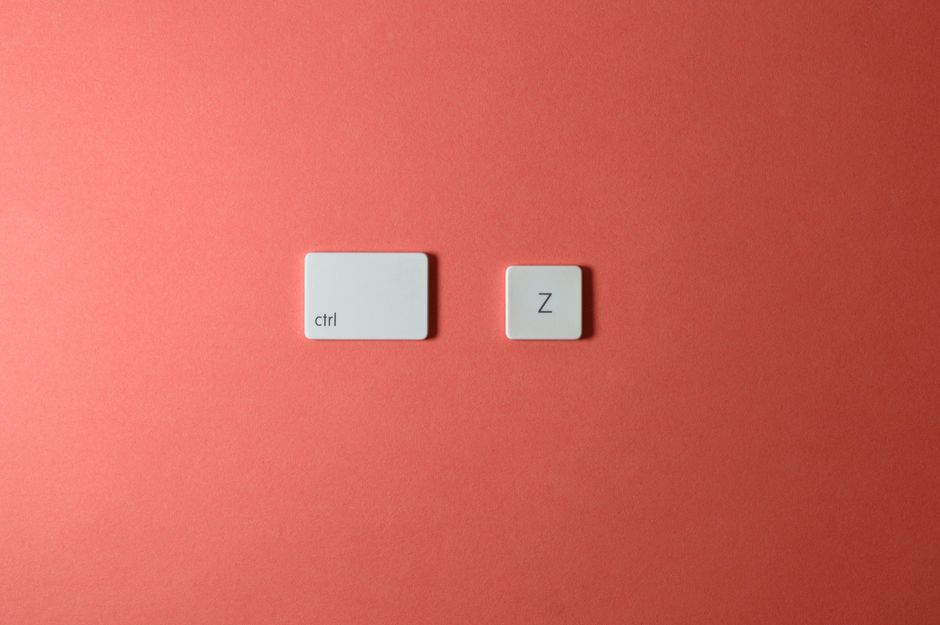
Windows has a built-in shortcut that restarts the graphics driver instantly, and most people do not know it exists. Press the Windows key, Ctrl, Shift, and B together at the same time.
The screen flashes black for a second and you hear a short beep, which means the driver has restarted. Anything you had open stays open, since this only resets the graphics subsystem and not your programs. This is the fastest fix for a frozen or glitching display, and it is always worth trying first because it takes one second and risks nothing.
Restart the Driver in Device Manager
If the shortcut does not fully resolve the problem, you can disable and re-enable the graphics card through Device Manager, which forces a cleaner restart of the hardware.
Right-click the Start button and open Device Manager, then expand Display adapters to see your graphics card. Right-click it, choose Disable device, and confirm; the screen may go blank briefly. Right-click again and choose Enable device. This cycle reinitializes the card and clears state that the keyboard shortcut sometimes leaves behind. Your normal resolution returns once the card re-enables.
Roll Back a Recent Driver Update
If your graphics trouble started right after a driver update, the new driver is the likely cause, and rolling back returns you to the version that worked. This is a common fix after an automatic update introduces a bug.
In Device Manager, right-click your graphics card and choose Properties, then open the Driver tab. If Roll Back Driver is available, click it and follow the prompts to restore the previous version. Restart when asked. If the option is greyed out, no previous driver is stored, and you should move on to a clean reinstall instead.
Reinstall the Graphics Driver
When simpler resets fail, reinstalling the driver clears out corrupted files and gives the card a fresh start. This is the most reliable software fix for persistent graphics problems.
Open Device Manager, right-click your graphics card, and choose Uninstall device; if offered, tick the box to remove the current driver software. Restart the computer, and Windows loads a basic display driver automatically. Then download the latest driver directly from your card maker’s website and install it. Starting from the official current driver avoids the mismatched or half-installed files that cause many display issues.
Do a Clean Driver Install
For stubborn problems, a clean install goes further than a normal reinstall by wiping every trace of the old driver first. Leftover files from previous drivers are a frequent, hidden cause of glitches.
Many graphics driver installers offer a clean install or custom install option that removes old files before adding the new ones; choose it when available. Dedicated removal utilities also strip out every remnant of a graphics driver before you reinstall, which is the most thorough approach. After a clean install, reboot and test, since this resolves conflicts that a standard reinstall leaves behind.
Check for Overheating and Hardware Issues
If resets and reinstalls do not hold and the problems keep returning, the card may be overheating or physically struggling. Dust-clogged fans and heat cause crashes that look like driver faults.
Open your PC and gently clear dust from the graphics card’s fans and heatsink with compressed air, since heat is a common cause of repeat crashes. Confirm the card is seated firmly in its slot and its power cables are connected. Monitoring software shows the card’s temperature; if it runs very hot under load, improving airflow or cleaning the cooler often stops the crashes that no software reset could fix.
Prevent Future Graphics Problems
A few habits keep the graphics card stable. Update your driver periodically from the official source rather than letting it drift far out of date, but avoid rushing to brand-new releases that occasionally ship with bugs.
Keep the inside of your PC reasonably dust-free so the card stays cool, and make sure the case has decent airflow. Avoid running overclocks beyond what the card handles reliably, since aggressive settings cause exactly the crashes and glitches that send people looking for a reset. Steady maintenance means far fewer resets over the life of the card.
Get Back to a Stable Display
Most graphics glitches clear up with the Windows key, Ctrl, Shift, B shortcut or a quick disable-and-enable in Device Manager, both of which take seconds. Work through the methods in order, and you will fix the majority of display problems without a full reboot.
When trouble persists, a clean driver reinstall resolves nearly all software causes, and a check for dust and heat handles the rest. With these tools, a misbehaving graphics card is almost always something you can reset and recover yourself.