How to Connect a Keyboard to a Phone
To connect a keyboard to a phone, pair a wireless keyboard through Bluetooth in your phone’s settings, or plug a wired keyboard into the charging port with the right adapter. Here is how to connect a keyboard to a phone both ways, plus fixes for pairing that will not cooperate. Most phones treat an external keyboard exactly like a computer does, so typing works the moment it connects.
Choose Bluetooth or a Wired Connection
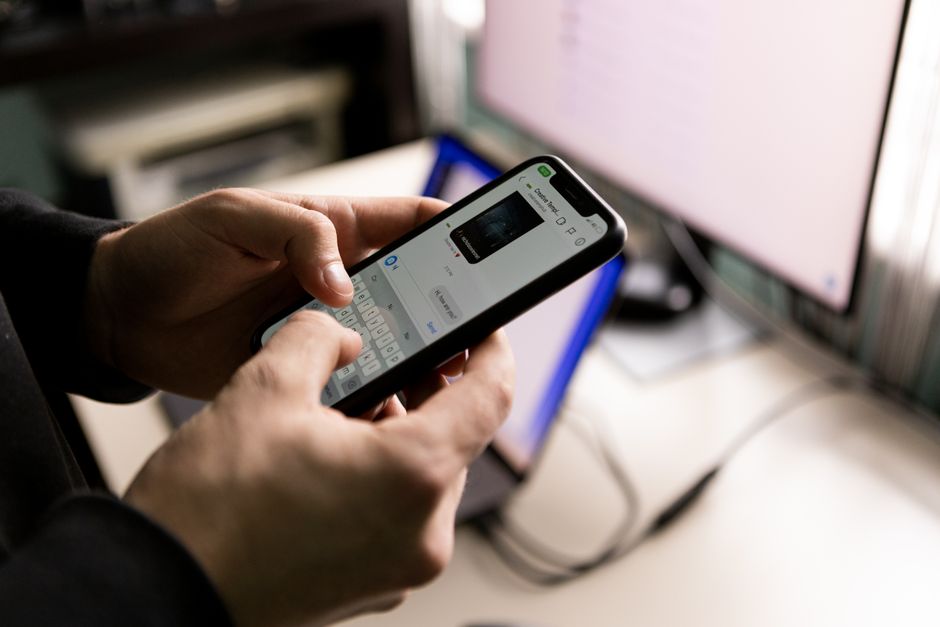
Two routes get a keyboard onto a phone. A Bluetooth keyboard links wirelessly and works with nearly any modern phone. A wired keyboard plugs into the USB-C or Lightning port, usually through a small adapter, and needs no pairing at all.
Bluetooth is the flexible choice for everyday use, since it frees you from cables and works across rooms. A wired connection is the reliable backup when Bluetooth acts up or when you want zero input lag for fast typing. Either way, knowing how to connect a keyboard to a phone starts with picking the method that matches your gear.
Note: Both Android and iPhone support external keyboards system-wide. Once connected, the on-screen keyboard steps aside and your physical keys work in any app.
Connect a Bluetooth Keyboard Step by Step

A Bluetooth keyboard is the most common way people type on a phone. The pairing takes under a minute once the keyboard is ready to be found.
- Turn on the keyboard and put it in pairing mode. Most have a Bluetooth button or switch that blinks a light when it is discoverable.
- Open Settings on your phone and tap Bluetooth.
- Switch Bluetooth on if it is not already active.
- Find your keyboard in the list of nearby or available devices.
- Tap the keyboard’s name to begin pairing.
- Type the code on the keyboard if the phone shows one, then press Enter.
- Wait for "Connected" to appear beside the keyboard’s name.
Once it pairs, open a notes app and type a line to confirm the keys register on screen. From now on the keyboard reconnects on its own whenever both devices are on and in range.
Tip: If the keyboard was paired to a laptop or tablet before, disconnect it there first. Many keyboards hold only one connection at a time and keep reaching for the old device.
Connect a Wired Keyboard
A wired keyboard skips Bluetooth entirely and works the instant it is plugged in. You need an adapter that matches your phone’s port, since most keyboards end in a full-size USB plug.
- Get the right adapter for your phone, either USB-C to USB-A or Lightning to USB-A.
- Plug the adapter into the phone’s charging port.
- Connect the keyboard’s USB cable into the adapter.
- Start typing in any app, since no pairing screen appears.
A wired setup is handy for long typing sessions because it never drops out and never needs charging. The trade-off is the cable and the busy port.
Fix a Keyboard That Will Not Connect
If pairing stalls or the keys go dead, work through these checks in order. Most connection problems clear up within a step or two.
Confirm Bluetooth is on. A wireless keyboard will not appear if Bluetooth is switched off, so check that first in Settings.
Charge or replace the batteries. A keyboard with no power cannot broadcast a signal. Charge it or swap in fresh batteries, then try again.
Re-enter pairing mode. If the keyboard does not show in the list, press its Bluetooth button again to make it discoverable.
Forget and re-pair. In Bluetooth settings, tap the keyboard, choose Forget This Device, and pair it from scratch.
Restart the phone. A quick reboot clears the small glitches that block new connections.
Check the adapter for wired setups. A charge-only adapter will not pass data. Make sure yours supports data, and try a different cable if the keyboard stays dead.
Compare Bluetooth and Wired Keyboards
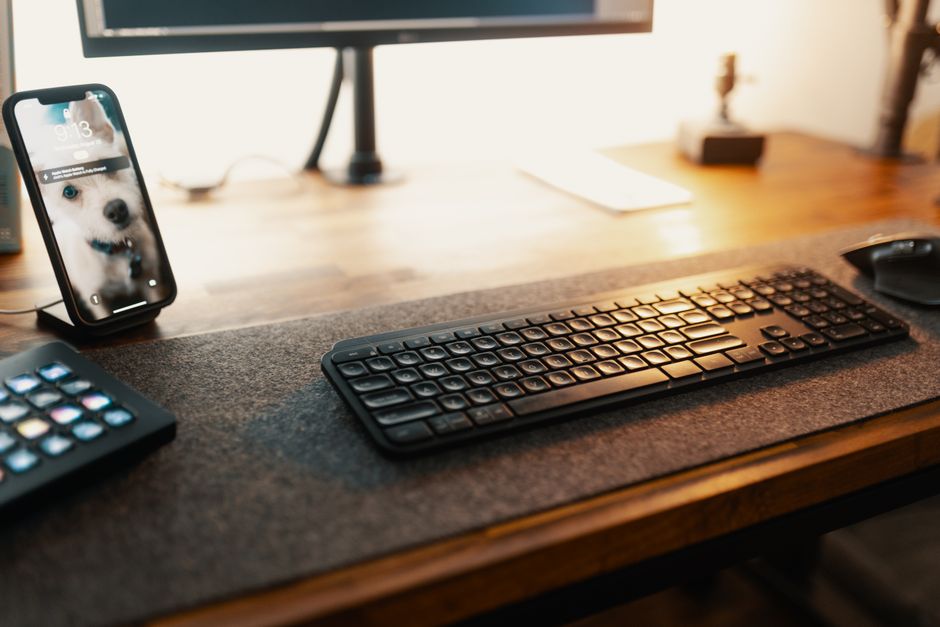
Still deciding which route fits you? This comparison lays out the trade-offs side by side.
| Feature | Bluetooth Keyboard | Wired Keyboard |
|---|---|---|
| Pairing | Needed once | None required |
| Power source | Own battery | From the phone |
| Cable | None | Adapter and cable |
| Reliability | Can drop out | Rock solid |
| Best for | Everyday wireless typing | Long, lag-free sessions |
A Bluetooth keyboard wins on convenience and a clean desk. A wired keyboard wins on stability and needs no charging. Pick based on whether you value going cable-free or want a connection that never wavers.
Get the Most From Typing on a Phone
Once the keyboard is connected, a few habits make phone typing feel closer to a laptop. Prop the phone at eye level so your neck stays comfortable during longer sessions.
That comfort matters, because once you know how to connect a keyboard to a phone you will likely reach for it often. Learn the shortcuts your keyboard supports, since many handle copy, paste, and app switching just like on a computer. If you type in more than one language, set the keyboard layout in your phone’s settings to match the physical keys.
Frequently Asked Questions
Can any keyboard connect to a phone? Most standard Bluetooth keyboards work with any modern phone, and most USB keyboards work with the right adapter. Only a few keyboards locked to a single brand’s ecosystem may refuse to pair.
Why won’t my phone find my Bluetooth keyboard? The keyboard may not be in pairing mode, its battery may be dead, or it is still linked to another device. Put it in pairing mode, charge it, and disconnect it elsewhere first.
Do I need an app to use a keyboard with my phone? No. Both Android and iPhone support external keyboards built in, so typing works in any app once the keyboard connects.
Will a wired keyboard charge my phone? No, it usually draws a little power from the phone instead. For long sessions, use a keyboard that has its own power or take breaks to recharge.
How do I switch back to the on-screen keyboard? Turn off or unplug the physical keyboard, and the on-screen keyboard returns on its own. You can also disconnect it in Bluetooth settings.