How to Connect a Keyboard to an iPad: Full Setup Guide
To learn how to connect a keyboard to an iPad, you have two paths: pair a wireless keyboard through Bluetooth in Settings, or snap a compatible case-style keyboard onto the iPad’s magnetic connector so it works instantly. Both take under a minute once you know the steps.
Which method you use depends on the keyboard you own. A standalone Bluetooth model needs pairing; a case built for your iPad often just clicks on. Here’s how to do each, plus fixes for pairing that won’t cooperate.
Pick the Right Keyboard for Your iPad
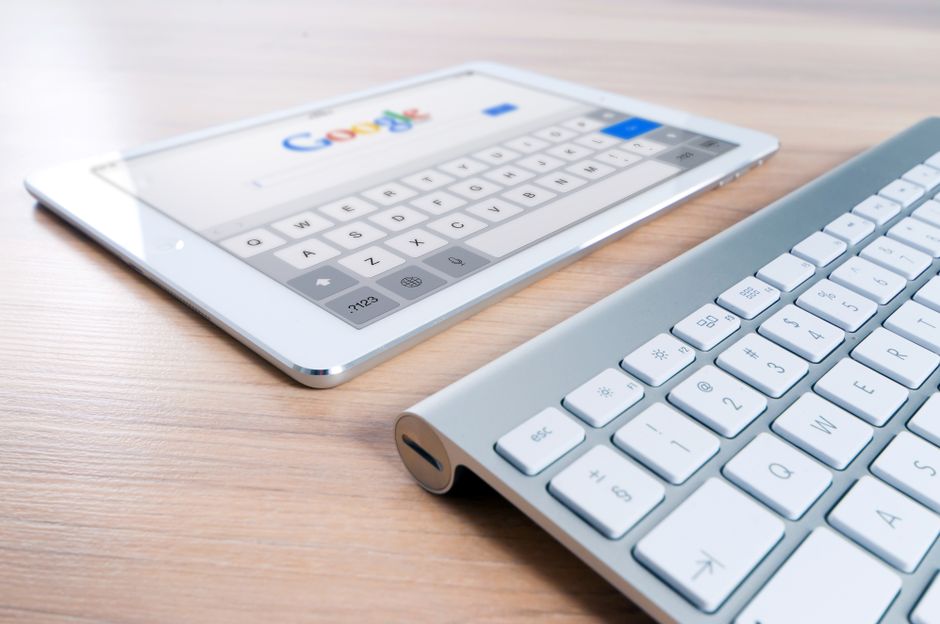
Two keyboard styles fit an iPad. A Bluetooth keyboard is a separate device that connects wirelessly and works with almost any iPad. A folio or case keyboard attaches through a magnetic connector on the iPad’s edge and doubles as a stand and cover.
The Bluetooth route is flexible and cheaper, letting you use nearly any wireless keyboard. The case route is neater, since it powers the keyboard through the iPad and needs no pairing at all.
Note: Case-style keyboards are built for specific iPad sizes. A folio made for one iPad won’t line up with the connector on another, so match the case to your exact model.
Connect a Bluetooth Keyboard Step by Step
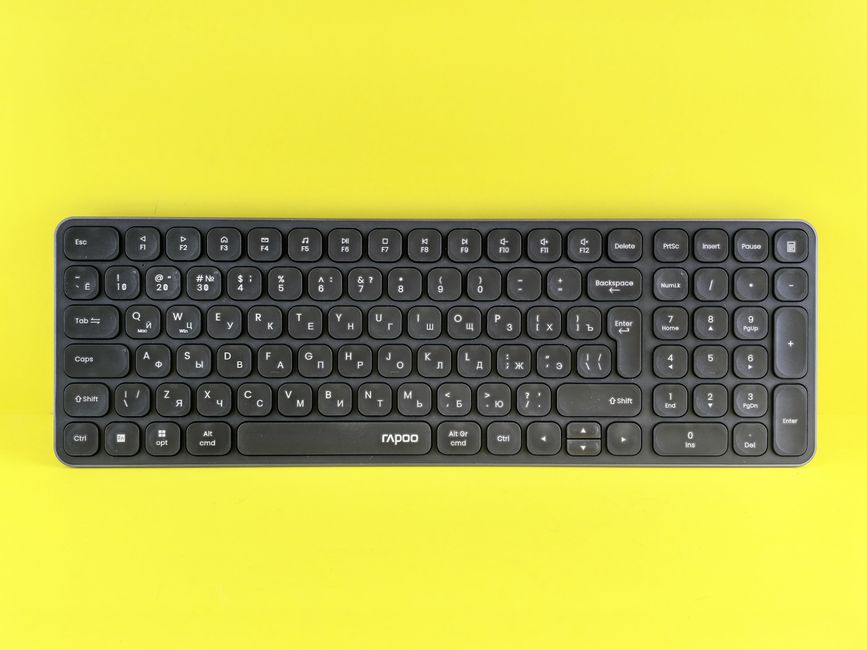
To set up an iPad Bluetooth keyboard, follow these steps:
- Turn on your keyboard and set it to pairing mode. Most have a Bluetooth button or switch that blinks a light when ready.
- Open Settings on your iPad and tap Bluetooth.
- Switch Bluetooth on if it isn’t already.
- Find your keyboard in the list of nearby devices under Other Devices.
- Tap the keyboard’s name to start pairing.
- Enter the code if the iPad shows one, typing it on the keyboard and pressing Enter.
- Wait for "Connected" to appear next to the keyboard’s name.
Once you pair the keyboard, open Notes and type a line to confirm it works. Your keys should register on screen right away.
Tip: If your keyboard was paired to another device, disconnect it there first. Many keyboards only hold one connection at a time and will keep trying to reach the old device.
Attach a Case-Style Keyboard
A folio or case keyboard skips Bluetooth entirely. Line up the keyboard’s connector with the magnetic contacts on the edge or back of your iPad and press until it clicks into place.
The iPad recognizes it immediately, with no pairing screen and no battery to charge. The connector both holds the keyboard and powers it from the iPad.
To remove it, pull the two apart at the connector. The magnets release with a gentle tug, and the iPad switches back to the on-screen keyboard on its own.
Most case keyboards also fold into a stand, propping the iPad at a typing angle. Adjust it before you settle in so the screen sits where your eyes want it.
Fix a Keyboard That Won’t Connect

If pairing a keyboard iPad setup stalls, work through these steps.
Confirm Bluetooth is on. No wireless keyboard will appear if Bluetooth is switched off. Check it in Settings first.
Charge or replace batteries. A dead keyboard won’t broadcast a signal. Charge it or swap in fresh batteries, then retry.
Re-enter pairing mode. If the keyboard doesn’t show in the list, press its Bluetooth button again to make it discoverable.
Forget and re-pair. In Bluetooth settings, tap the keyboard, choose Forget This Device, and pair it fresh.
Restart the iPad. A quick reboot clears glitches that block new connections.
Compare Bluetooth and Case Keyboards
Still deciding which style suits you? This comparison lays out the trade-offs.
| Feature | Bluetooth Keyboard | Case Keyboard |
|---|---|---|
| Pairing | Needed once | None required |
| Power source | Own battery | From the iPad |
| Works with | Almost any iPad | Matched models only |
| Extra function | Keyboard only | Stand and cover too |
A Bluetooth keyboard wins on flexibility and price. A case keyboard wins on convenience, since it charges itself and protects the screen. Pick based on whether you travel light or want an all-in-one setup.
Think about how you’ll use the iPad most. If you type long documents at a desk, a case keyboard’s built-in stand pays off daily. If you only need a keyboard now and then, a wireless one you can tuck away makes more sense.
Frequently Asked Questions
Why won’t my iPad find my Bluetooth keyboard? The keyboard may not be in pairing mode, its battery may be dead, or it’s still linked to another device. Put it in pairing mode, charge it, and disconnect it elsewhere first.
Do I need a special keyboard made for iPad? No. Most standard Bluetooth keyboards work with an iPad. Only case-style folio keyboards need to match your exact iPad model.
Can I use my keyboard’s function keys on an iPad? Many keys like volume, brightness, and Home work, though results vary by keyboard. Keyboards built for iPad support the most shortcuts.
How do I switch back to the on-screen keyboard? Disconnect or turn off the physical keyboard, and the on-screen keyboard returns automatically. With a case, just detach it from the connector.
My keyboard connects but some keys don’t type. What now? Check that your language and layout settings match the keyboard in the iPad’s General settings. A mismatched layout can map keys to the wrong characters.