How to Connect Two Bluetooth Speakers
The fastest way to connect two Bluetooth speakers is a built-in pairing mode from the same brand, where you hold a dedicated button on both units until they link, then connect your phone to the pair. Here is how to connect two Bluetooth speakers, step by step, using brand modes, phone features, and app-based grouping. Which method works depends on your speakers and your phone, so this guide covers each path.
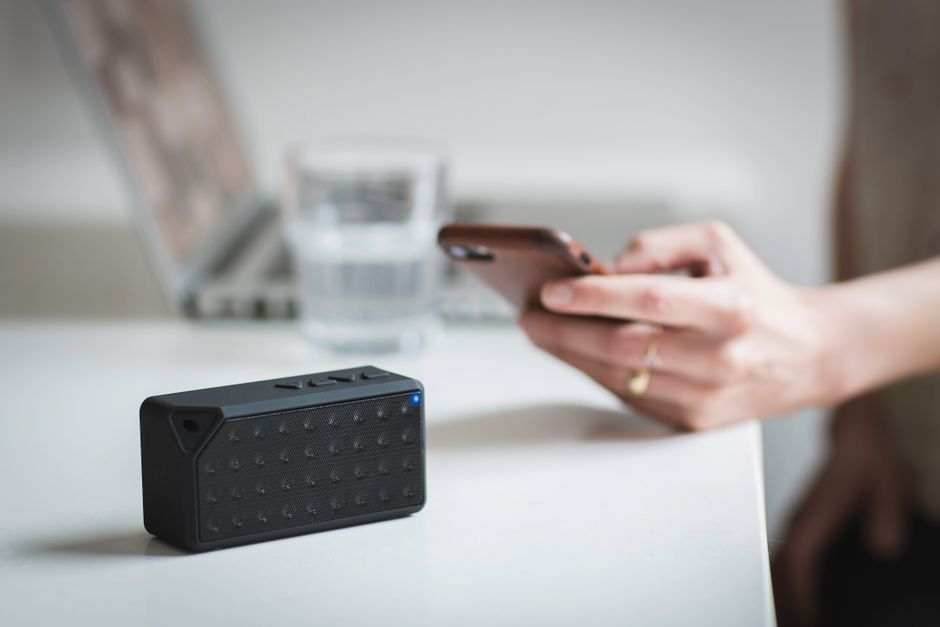
Understand Your Three Options First
There is no single universal button that links any two speakers, so pick the method that matches your gear. Getting this right saves you from fighting a feature your hardware does not support.
- Same-brand pairing mode (Party, Stereo, or Link): the most reliable route for two matching speakers.
- Phone dual-audio feature: some phones stream to two speakers at once regardless of brand.
- Brand companion app: groups multiple speakers of the same ecosystem for whole-room sound.
Two speakers from different brands almost never pair directly with each other — you need the phone or an app to bridge them.
Link Two Speakers of the Same Brand
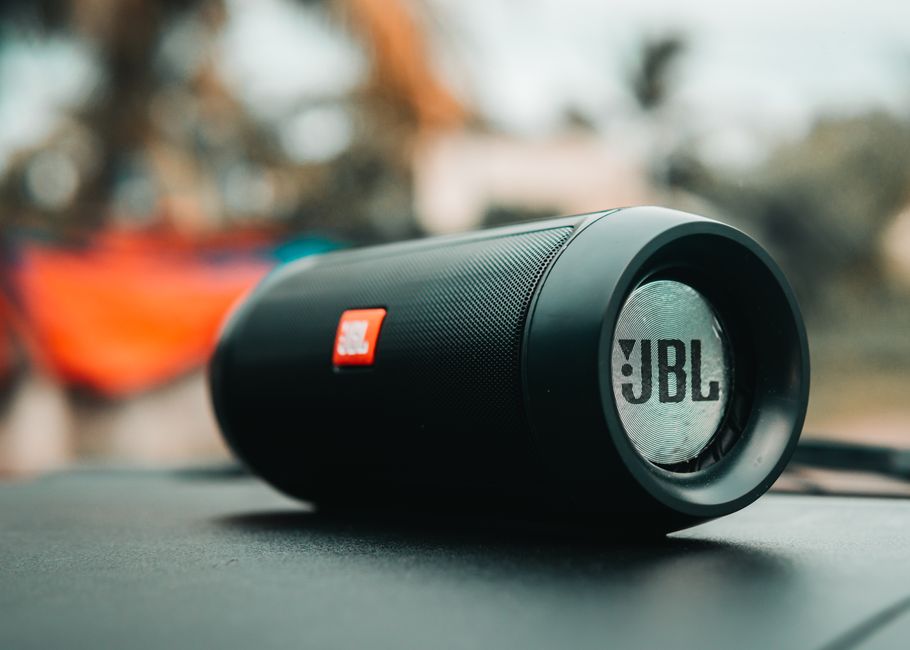
Most portable speaker brands include a mode that chains two identical units into a stereo pair or a louder mono group. The button names differ, but the flow is nearly identical.
- Power on both speakers and place them within a few feet of each other for setup.
- Press the pairing or party button on the first speaker until its light signals it is waiting for a partner.
- Press the same button on the second speaker so the two find each other. A tone or synced light confirms the link.
- Connect your phone to the primary speaker over Bluetooth as normal.
- Play audio. Sound now comes from both units together.
Tip: For true stereo, most brands let you assign one speaker as left and the other as right in their app. A mono party mode just plays the same channel louder from both.
Use Your Phone’s Dual Audio Feature
Several phone makers build a feature that sends one audio stream to two Bluetooth devices at the same time. When available, it ignores brand entirely, which is its big advantage.
- Pair both speakers separately with your phone first, one at a time.
- Open Bluetooth settings and look for a dual audio, dual output, or media-sharing toggle.
- Enable the feature and select both speakers as active outputs.
- Start playback and confirm audio reaches both.
Check your phone’s Bluetooth or sound settings for the exact wording, since it varies by manufacturer. If your phone lacks the feature, fall back to the brand method above or an app.
Group Speakers Through a Brand App
Speaker ecosystems that rely on Wi-Fi or a companion app handle multi-speaker sound through software rather than a physical button. This is common with smart speakers and higher-end wireless systems.
- Install the brand’s app and add both speakers to the same account and network.
- Open the multi-room or group section of the app.
- Create a group and add both speakers to it.
- Choose the group as your playback target and start audio.
App groups often allow more than two speakers and let you sync sound across separate rooms, which button-based pairing cannot do.
Compare the Methods at a Glance

Each approach fits a different setup. This table helps you jump straight to the one your equipment supports.
| Method | Works across brands? | Best for | Limitation |
|---|---|---|---|
| Same-brand pairing mode | No | Two matching portable speakers | Both speakers must be the same brand |
| Phone dual audio | Yes | Mixed speakers, quick setup | Only some phones include it |
| Brand app grouping | No | Whole-home, smart speakers | Requires app and shared network |
If your two speakers are different brands and your phone has no dual-audio toggle, there is no clean way to run both from Bluetooth at once. In that case, a small analog splitter with wired speakers is the workaround.
Fix Speakers That Will Not Pair Together
When the two units refuse to link or the audio lags between them, these steps clear the common faults. Sync and range issues cause most of the trouble.
- Update both speakers through the brand app if firmware updates are offered.
- Reset the pairing by turning both speakers off, then repeating the link process from scratch.
- Keep the speakers close during setup, then separate them once linked.
- Reduce interference by moving away from Wi-Fi routers and microwaves on the crowded 2.4 GHz band.
- Charge both speakers. A weak battery drops the secondary connection first.
Warning: Slight audio delay between two speakers is normal on some setups, especially across brands. True stereo pairs from the same brand keep the tightest sync.
Frequently Asked Questions
Can I connect two Bluetooth speakers from different brands? Not directly to each other. You need a phone with a dual-audio feature to stream to both at once, since cross-brand pairing modes are not compatible.
Does connecting two speakers make the sound louder or stereo? Both are possible. A party or mono mode plays the same channel from both for more volume, while a stereo pairing splits left and right channels for a wider soundstage.
Why do my two speakers play slightly out of sync? Small delays come from processing differences and Bluetooth latency, and they are more noticeable across brands. Matched speakers from the same brand in a dedicated stereo mode stay tightest.
Do I need Wi-Fi to connect two Bluetooth speakers? Not for Bluetooth pairing modes or phone dual audio. You only need Wi-Fi when grouping smart speakers through a brand app that relies on a network.
How many speakers can I connect at once? Bluetooth pairing modes usually cap at two. App-based multi-room systems can group many more speakers across several rooms on the same network.