How to Connect AirPods to a PS5 (Two Reliable Methods)
The PS5 does not support Bluetooth audio out of the box, so you cannot pair AirPods to it directly. To learn how to connect AirPods to a PS5, you need a small USB Bluetooth transmitter that plugs into the console, or you can route sound through the PS Remote Play app on your phone. Here is how to connect AirPods to a PS5, step by step.
Sony blocks standard Bluetooth headphones on the console to protect audio latency during online play. That restriction is why a plain pairing attempt from the Settings menu never lists your AirPods. The two workarounds below get around it cleanly.
Method 1: Use a USB Bluetooth Adapter
A USB Bluetooth audio transmitter is the most stable way to get AirPods working with a PS5. It plugs into a USB port and tricks the console into treating your earbuds like a wired headset. Choose an adapter that advertises low-latency support so voices stay in sync with the picture.
- Plug the adapter into a free USB-A or USB-C port on the front or back of the PS5.
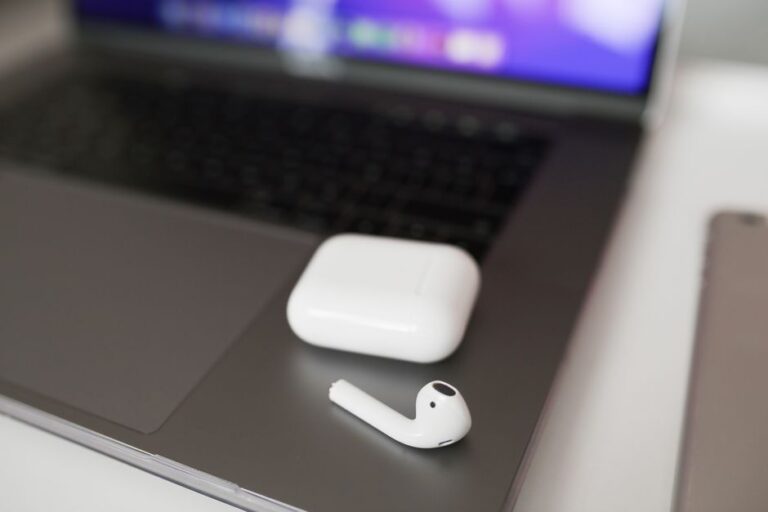
- Open the charging case with your AirPods inside and hold the small button on the back until the light blinks white. This puts them in pairing mode.
- Press the pairing button on the adapter until its light flashes, signaling it is searching for a device.
- Wait for the two lights to settle into a solid state, which means the adapter and AirPods have linked.
- Set the audio output on the PS5 by going to Settings, then Sound, then Audio Output, and select the USB headset as your device.
Tip: Pick an adapter with aptX Low Latency if you plan to use voice chat, since it keeps talk and game sound aligned.
Once linked, game audio and party chat both flow to your AirPods. If chat does not work, check that the adapter model supports a microphone channel, because some cheaper units only handle output.
Method 2: Route Audio Through PS Remote Play
Another route to how to connect AirPods to a PS5 skips extra hardware entirely. If you would rather not buy an adapter, the free PS Remote Play app lets your phone act as the middle layer. Your AirPods pair with the phone the normal way, and the app streams the console’s video and sound to that same device.
- Install PS Remote Play on your iPhone or iPad from the App Store.
- Pair your AirPods to the phone through the standard Bluetooth settings screen.
- Sign in to the app with the same account you use on your PS5.
- Connect to your console, which must be powered on or in rest mode on the same network.
- Start any game, and the audio will play through your AirPods automatically.
This route adds a little input lag because the signal travels over your network, so it suits slower single-player titles more than fast shooters. It works well when you want quiet late-night sessions without extra gear.
Comparing the Two Options
Each method trades convenience for quality in a different way. The table below sums up the practical differences so you can pick the one that fits your setup.
| Factor | USB Bluetooth Adapter | PS Remote Play App |
|---|---|---|
| Extra cost | Small one-time purchase | Free |
| Audio delay | Very low | Noticeable |
| Voice chat | Supported on many units | Supported |
| Best for | Action and online games | Casual and single-player |
For most players who game on a TV in front of the console, the adapter is the better long-term choice. If your goal is how to connect AirPods to a PS5 for online sessions, the low-latency adapter wins. The app is a smart backup when you travel or share the living room.
Fixing Common Audio Problems
If sound cuts out or the AirPods refuse to link, a few quick checks solve most issues. Start simple before assuming the adapter is faulty.
- Re-seat the adapter in a different USB port, since front ports sometimes deliver weaker power.
- Reset your AirPods by holding the case button for about fifteen seconds until the light flashes amber, then white.
- Move closer to the console, because thick furniture and other wireless gear can weaken the signal.
- Update the PS5 system software, as newer firmware improves USB audio handling.
Warning: Do not expect AirPods to appear under the console’s own Bluetooth Accessories menu. They will only show up through the adapter or the phone, never as a native device.
If chat audio still fails, confirm the microphone level under Settings, then Sound, then Microphone, and raise the input volume so teammates can hear you.
Frequently Asked Questions
Can I connect AirPods to a PS5 without any adapter? Not for TV play. The console has no built-in Bluetooth audio support, so a USB adapter or the Remote Play app is required.
Will the AirPods microphone work for party chat? It can, but only if your USB adapter includes a dedicated microphone channel. Many budget models output sound only.
Do AirPods Pro work better than standard AirPods? Both connect the same way. AirPods Pro simply add noise cancellation, which helps in loud rooms but does not change the setup steps.
Why is there a delay between the picture and the sound? Delay usually comes from a non-low-latency adapter or from the Remote Play stream. A low-latency adapter reduces it to near zero.
Does this method work on the PS4 too? Yes. The PS4 shares the same Bluetooth restriction, so the same USB adapter and app approach both apply.