How to Mirror an iPhone to a TV
To mirror an iPhone to a TV, open Control Center, tap Screen Mirroring, and select an AirPlay-compatible TV or Apple TV on the same Wi-Fi network. Your phone’s display then appears on the big screen within a few seconds. Here is how to mirror an iPhone to a TV, step by step, using every method that works, from wireless AirPlay to a wired HDMI cable.
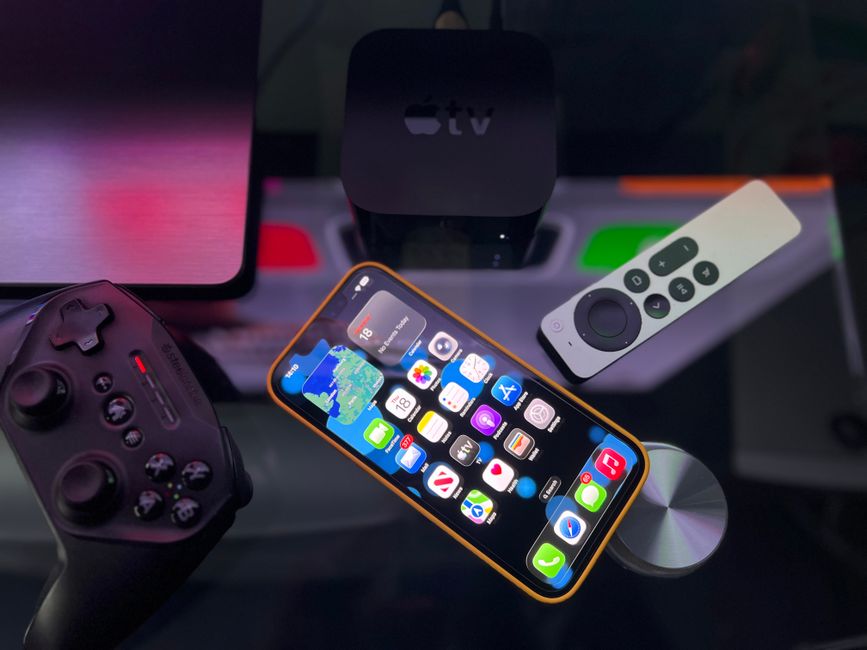
The Fastest Way: AirPlay Screen Mirroring
If your TV supports AirPlay or you own an Apple TV box, wireless mirroring takes under a minute. Both devices must sit on the same Wi-Fi network first, or the TV will not show up in the list.
- Swipe to open Control Center. On newer iPhones swipe down from the top-right corner; on models with a Home button swipe up from the bottom.
- Tap Screen Mirroring, the icon that looks like two overlapping rectangles.
- Choose your TV from the list of available devices.
- Enter the AirPlay code if one appears on the TV screen, then type it into your iPhone.
- Watch your screen appear on the TV, matching your phone in real time.
To stop, open Control Center again, tap Screen Mirroring, and choose Stop Mirroring. The connection ends immediately and your TV returns to its previous input.
Tip: Rotate your iPhone sideways for video and games. Mirroring follows the phone’s orientation, so landscape mode fills far more of the TV than a narrow portrait strip does.
Mirror to a Smart TV Without an Apple TV
Many smart TVs from major brands now build AirPlay in directly, so you do not need extra hardware. Look for AirPlay in the TV’s settings menu under Apple AirPlay or a Connections section, and make sure it is switched on.
Once enabled, the TV behaves just like an Apple TV box in the Screen Mirroring list. The steps above work exactly the same. The single most common failure point is the network: the iPhone and the TV have to be on the same Wi-Fi band and router. A phone on a guest network or a 5 GHz band while the TV sits on a separate connection will never see each other.
If your TV has no built-in AirPlay, a plug-in streaming stick that supports AirPlay adds the feature for a small cost. It plugs into a spare HDMI port and joins your Wi-Fi.
Use a Wired HDMI Connection
A cable is the most reliable route when Wi-Fi is crowded or the TV is old. This is how to mirror an iPhone to a TV with no network at all, and it avoids the slight lag wireless can introduce.
- Get an official Lightning or USB-C to HDMI adapter that matches your iPhone’s port.
- Plug the adapter into the iPhone, then connect a standard HDMI cable from the adapter to the TV.
- Attach a charging cable to the adapter’s second port so the phone does not drain while mirroring.
- Switch the TV to the matching HDMI input using the Source or Input button on the remote.
- Watch your iPhone screen appear automatically — no menus or codes required.
Warning: Cheap third-party adapters often fail to mirror protected video from streaming apps, showing a black screen with audio only. An official or fully certified adapter avoids this copy-protection block.
Wireless or Wired: Which to Choose
Each method has a clear best use. Pick based on what you are doing on the screen.
| Method | Best for | Trade-off |
|---|---|---|
| AirPlay wireless | Photos, browsing, casual video | Needs strong Wi-Fi |
| Smart TV built-in AirPlay | Everyday use, no extra gear | TV must support it |
| Wired HDMI | Gaming, presentations, weak Wi-Fi | Needs a cable and adapter |
For fast-moving games where timing matters, the wired route wins because it has almost no delay. For sharing a photo album on the couch, wireless AirPlay is faster to start and less cluttered.
Fix an iPhone That Will Not Mirror
When the TV never appears or the screen stays blank, work through these checks in order.
- Confirm both devices share one Wi-Fi network. This solves most cases on its own.
- Toggle Wi-Fi off and on on the iPhone, then reopen Screen Mirroring.
- Restart the TV or Apple TV. A quick power cycle clears a stuck AirPlay service.
- Update the iPhone software, since an outdated version can drop AirPlay support for newer TVs.
- Move closer to the router if the connection keeps dropping mid-session.
- Try the wired HDMI method to rule out a Wi-Fi problem entirely.
If audio plays but the picture is black, the cause is almost always a non-certified adapter blocking protected content. Swap to an official adapter and the video returns.
Frequently Asked Questions
Can I mirror an iPhone to any TV? Almost. Modern TVs with AirPlay work wirelessly, and any TV with a spare HDMI port works with a wired adapter. Only a very old TV with no HDMI would need a different converter.
Why does my TV not show up in Screen Mirroring? The two devices are usually on different Wi-Fi networks or bands. Put both on the same router connection, then reopen Control Center and check the list again.
Does mirroring an iPhone use a lot of battery? Wireless mirroring drains the battery steadily because Wi-Fi stays active. Keep the phone on a charger during long sessions, or use the wired adapter’s pass-through charging port.
Can I mirror while keeping the phone screen off? No. Mirroring copies the live display, so the iPhone screen stays on. You can lower its brightness to save power without affecting the TV picture.
Is AirPlay the same as casting? They are similar but not identical. AirPlay is Apple’s own system for iPhones and iPads, while casting usually refers to other platforms. For an iPhone, AirPlay is the native, built-in choice.