How to Fix a Laptop That Won’t Charge
If your laptop won’t charge, start by checking the physical connection: try a different wall outlet, inspect the cable for damage, and make sure the plug is fully seated in the charging port. Most charging failures come from a loose cable, a tripped outlet, or a dirty port, not a dead battery.
Work through the steps below in order. Each one rules out a common cause, so you can stop as soon as the charging light comes back on.

Confirm the Power Source
A laptop that won’t charge often has nothing wrong with the laptop at all. The wall outlet or power strip is the first suspect.
- Plug the charger into a different outlet you know works, such as one you use for a lamp.
- Skip the power strip and go straight into the wall, since a surge protector can fail silently.
- Feel the power brick after a few minutes. A charger that stays completely cold may be dead.
Tip: Test the same outlet with your phone charger. If the phone charges, the outlet is fine and the problem is your laptop cable or port.
Inspect the Cable and Adapter
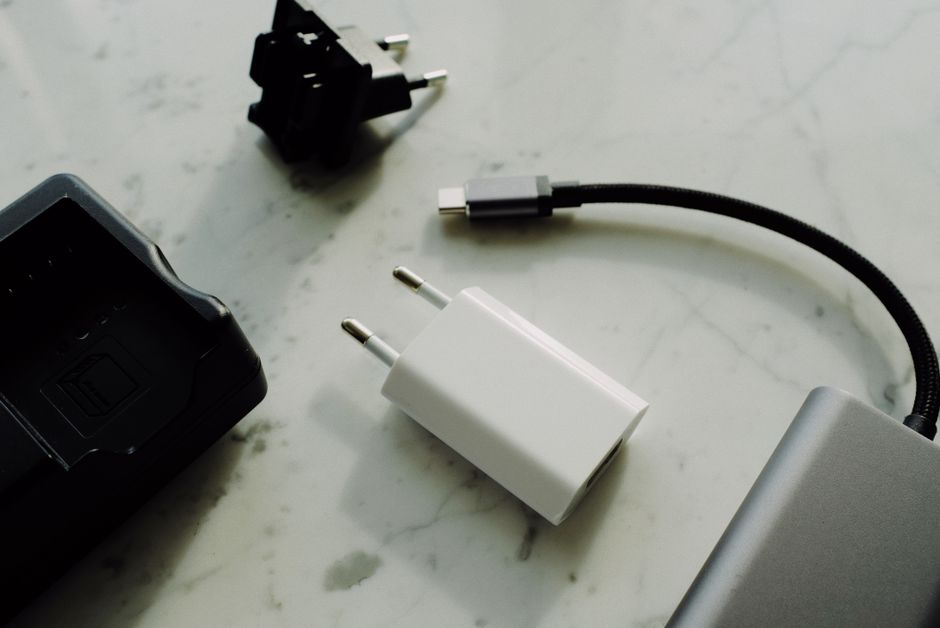
Charging cables take a lot of abuse. The thin section near each end is where they usually fail.
- Run your fingers along the cable and feel for kinks, bends, or exposed wire.
- Check the connector tip for bent pins or burn marks.
- Look at the charging brick for a status light. No light usually means the adapter has failed.
If you have access to a compatible charger, try it. When a borrowed charger works, you simply need a replacement adapter.
Warning: Only use a charger rated for your laptop. An underpowered adapter may not charge at all, and a mismatched one can damage the battery. Match the wattage printed on the original brick.
Clean the Charging Port
Dust, lint, and debris pack into the charging port over time and block a solid connection. This is common on laptops carried in bags.
- Shut down and unplug the laptop completely.
- Shine a light into the port and look for lint or grime.
- Gently clear it with a wooden toothpick or a short burst of compressed air. Never use anything metal.
- Reconnect the charger and confirm the plug clicks in snugly.
Let a Hot Laptop Cool Down
Batteries stop charging when they overheat as a safety measure. If the laptop feels warm and won’t charge, heat may be the cause.
Move it off soft surfaces like a bed or couch that block the vents, set it on a hard desk, and give it fifteen minutes to cool. Once the temperature drops, charging often resumes on its own.
Reset and Update the Software

Sometimes the hardware is fine and the operating system has lost track of the battery. A few quick software steps can fix that.
- Restart the laptop. A simple reboot clears many temporary charging glitches.
- Reinstall the battery driver on Windows: open Device Manager, expand "Batteries," right-click "Microsoft ACPI-Compliant Control Method Battery," choose Uninstall, then restart. Windows reinstalls it automatically.
- Install pending updates, since firmware fixes occasionally restore charging behavior.
Narrow Down the Cause
Once you know what changed, the fix becomes obvious. Use this table to match the symptom to the likely culprit.
| Symptom | Likely Cause | First Fix |
|---|---|---|
| No charge light anywhere | Dead adapter or outlet | Swap outlet, then charger |
| Charges only at an angle | Frayed cable | Replace the cable |
| "Plugged in, not charging" | Software or heat | Reinstall driver, cool down |
| Loose or wobbly plug | Dirty or worn port | Clean the port |
When to Get It Serviced
If you have swapped the charger, cleaned the port, and reset the software but the laptop still won’t charge, the problem is likely inside the machine. A failed charging board or a worn-out battery both require opening the laptop, which is best left to a technician.
Before you book a repair, note whether the battery holds any charge at all and whether the charge light ever flickers. Those details help a technician find the fault faster and keep the repair cost down.
Frequently Asked Questions
Why does my laptop say "plugged in, not charging"? This message usually means the charger is delivering power but the battery has stopped accepting it, often because of heat or a software glitch. Let the laptop cool, then reinstall the battery driver as described above. The message frequently clears after a restart.
Can a laptop run with a dead battery? Most laptops run on the charger alone even when the battery is completely worn out, though they shut off the moment you unplug them. If yours only works while plugged in, the battery likely needs replacing.
How long should a full charge take? A healthy laptop reaches a full charge in a couple of hours. If it charges far slower than it used to, suspect a weak adapter or an aging battery rather than a fault in the port.
Is it bad to leave a laptop plugged in all the time? Modern laptops manage charging to protect the battery, so leaving it plugged in is generally fine. For long storage, though, keeping it around half charged is kinder to the battery over time.
Most of the time, though, a laptop that won’t charge comes back to life with a different outlet, a fresh cable, or a clean port. Start with the cheap, simple checks before assuming the worst, and you will usually have it charging again in a few minutes.