How to Fix a Phone Microphone That Is Not Working
When people cannot hear you on calls, or voice recordings come out silent, your phone’s microphone is the likely culprit. The cause is often something simple: a blocked mic hole, an app without permission, or a software glitch, rather than a hardware failure. Most microphone problems clear up in a few minutes without a repair shop. This guide walks through every fix in order, from the quickest checks to the deeper software steps, for both Android and iPhone.

Find Your Phone’s Microphones
Modern phones have more than one microphone, and knowing where they sit helps you diagnose the problem. There is usually a main mic near the charging port at the bottom, a second near the earpiece or front camera for calls, and often a third by the rear camera for video.
If people hear you fine on speakerphone but not on a normal call, a specific mic is blocked or failing rather than the whole system. Locate the small pinholes on your phone so you can check each one. A quick voice memo test, played back, tells you instantly whether the main microphone is capturing sound at all.
Clean the Microphone Openings
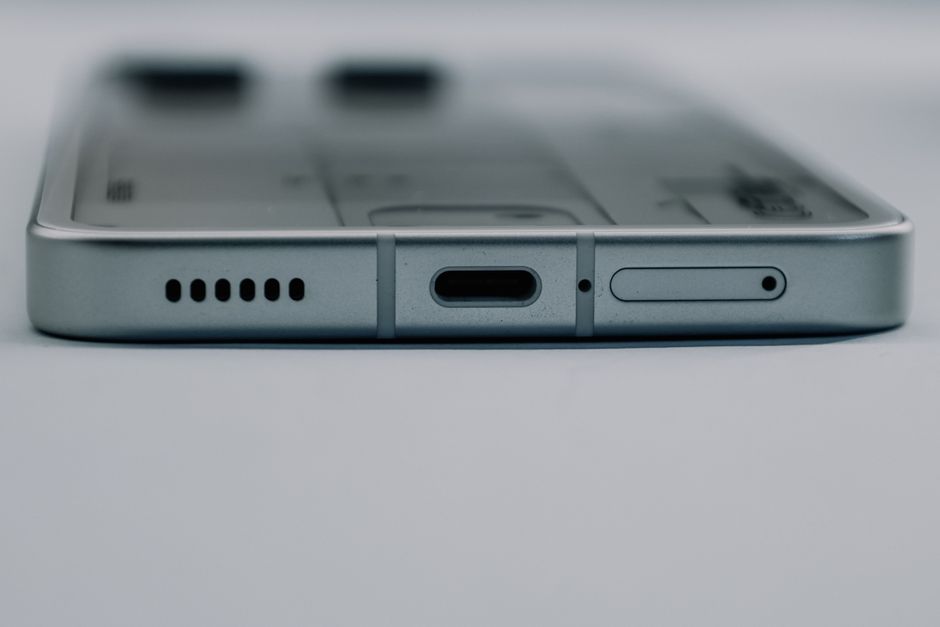
A blocked mic hole is one of the most common and easily fixed causes. Pocket lint, dust, and debris pack into the tiny openings over time and muffle or silence the microphone.
Look closely at each mic hole and clean it gently. A soft, dry toothbrush or a wooden toothpick clears debris without pushing it deeper; brush lightly across the opening rather than jabbing into it. A short puff of air from a blower helps too. Avoid liquids and sharp metal, which can damage the mic membrane. After cleaning, record a test memo to check whether the sound has returned.
Remove the Case and Screen Protector
Cases and screen protectors sometimes cover or partly block a microphone, especially cheaper or ill-fitting ones. This is easy to overlook because the phone looks fine.
Take off the case and try a call or voice recording. If your voice suddenly comes through clearly, the case was blocking the mic; trim the opening or switch to a better-fitting case. Check that a screen protector does not overlap the top microphone near the earpiece, which happens with oversized protectors and quietly muffles calls.
Check App Permissions
If the microphone works in some apps but not others, the app lacks microphone permission. Apps like messaging and video tools need explicit access to your mic.
On Android, open Settings, go to Apps, select the app, tap Permissions, and enable the Microphone. On an iPhone, open Settings, scroll to the app, and switch on Microphone. After granting access, restart the app and test. This single step fixes a large share of cases where recording works in the phone’s own voice recorder but fails in a third-party app.
Restart the Phone
A restart clears temporary software glitches that can freeze the microphone. It is quick and resolves more problems than people expect.
Power the phone fully off, wait about ten seconds, then turn it back on. This closes background processes that may have locked the microphone and refreshes the audio system. Test a call or recording afterward. If the mic works right after a restart but fails again later, a specific app is likely seizing the microphone, which the next steps address.
Disable Bluetooth and Noise Suppression
Your phone may be routing audio to a Bluetooth device you forgot was connected, so your voice goes to a distant headset instead of the phone mic. Turn Bluetooth off and test a call directly through the phone.
Some phones also have a noise-suppression or noise-cancellation setting that, on certain devices, interferes with the microphone. Look in the call or sound settings for such an option and toggle it off to see if clarity improves. Re-enable it afterward if it made no difference, since it normally helps rather than hurts.
Update or Reset Software
Outdated software can carry bugs that affect the microphone, and updates often fix them. Check for a system update in Settings and install any that are waiting.
If the mic still fails across every app after updating, a factory reset is the last software step before assuming hardware failure. Back up your data first, since a reset erases everything. A reset returns the phone to a clean state and rules out a deep software problem, leaving hardware as the only remaining explanation if the mic is still silent.
Know When It Is a Hardware Problem
If you have cleaned the mic, granted permissions, restarted, and reset the phone with no improvement, the microphone hardware has likely failed. Water damage, a drop, or simple age can break the tiny component.
At this point, a repair shop or the manufacturer can replace the microphone, which is an inexpensive part on most phones. If your phone is under warranty, contact the maker before opening it yourself, since a self-repair can void coverage. A hardware swap restores the microphone fully when software fixes have run out.
Get Your Microphone Working Again
Most microphone problems come from a blocked hole, a missing permission, or a software hiccup, all of which you can fix in minutes at no cost. Work through the steps in order, testing with a voice memo after each, and you will solve the majority of cases yourself.
When the microphone is genuinely broken, a low-cost repair brings it back. Either way, a phone that cannot hear you is almost always fixable, so there is no need to replace the whole device over a quiet mic.