How to Reset AirPods
To reset AirPods, put both earbuds in the case, hold the button on the back for about 15 seconds until the light flashes amber then white, and forget the device in your Bluetooth settings first. A reset clears the pairing and fixes most connection, audio, and charging problems in one step.
Resetting is the fix to reach for when your AirPods stop connecting, play sound in only one ear, or drop out mid-call. The process takes under a minute and works the same for AirPods, AirPods Pro, and AirPods Max.

When You Should Reset AirPods
A reset wipes the current pairing and returns the earbuds to factory state. Do it when a normal reconnect has already failed.
- They won’t connect to your phone or laptop anymore.
- Only one earbud plays sound while the other stays silent.
- Audio cuts out or stutters constantly.
- You are selling or giving them away and need to unpair them from your account.
Note: A reset does not fix physical damage or a worn battery. If both earbuds die within minutes even after charging, the battery has aged and a reset will not help.
Reset AirPods and AirPods Pro
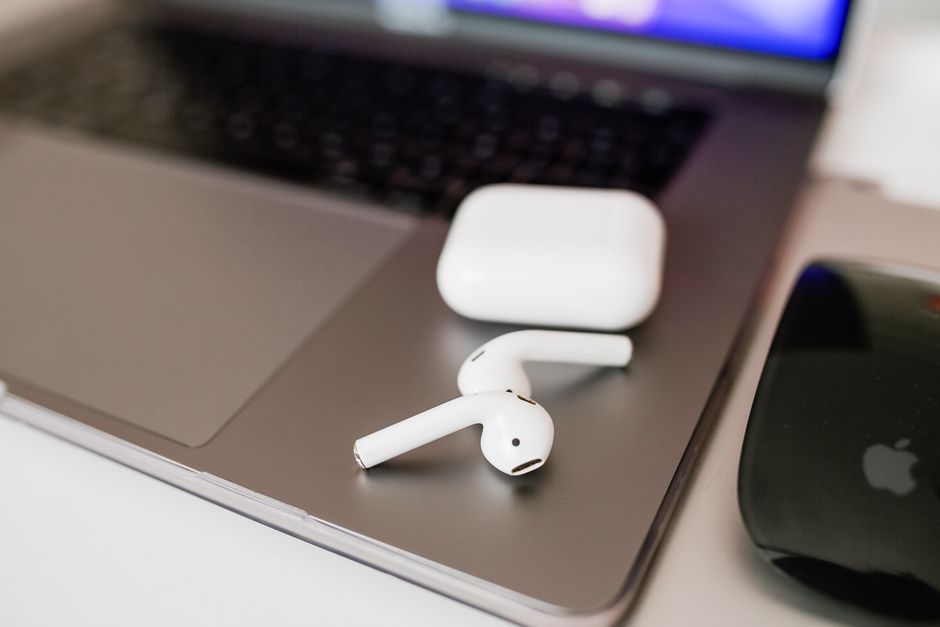
The steps are identical for standard AirPods and AirPods Pro. Charge the case first so it has enough power to complete the process.
- Put both earbuds in the case and close the lid for 30 seconds, then open it.
- Forget the device first: on your phone, open Bluetooth settings, tap the "i" next to your AirPods, and choose "Forget This Device."
- Open the lid with the AirPods inside and hold it near you.
- Press and hold the setup button on the back of the case for about 15 seconds.
- Watch the status light flash amber a few times, then flash white. That white flash means the reset is done.
Once the light flashes white, hold the open case next to your phone and follow the on-screen prompt to pair them fresh.
Reset AirPods Max
AirPods Max reset the same way in spirit, but the buttons are on the headphones themselves.
- Forget the headphones in your Bluetooth settings first.
- Press and hold both the noise control button and the Digital Crown together.
- Keep holding for about 15 seconds until the light flashes amber, then release.
- Reconnect by holding the AirPods Max close to your device.
Tip: If nothing happens when you hold the buttons, plug the AirPods Max in to charge for five minutes first. A fully drained set will not respond until it has a little power.
Reset vs. Reconnect: Which First
Not every problem needs a full reset. Try the lighter fix first and escalate only if it fails.
| Problem | Try First | If That Fails |
|---|---|---|
| Won’t connect once | Toggle Bluetooth off and on | Full reset |
| One earbud silent | Clean the mesh, recharge | Full reset |
| Switching between devices | Select AirPods manually | Full reset |
| Selling the AirPods | — | Full reset (required) |
Fix Problems Before You Reset
Sometimes a reset is overkill. Rule out these quick issues first so you do not have to pair everything again.
- Recharge the case. A case below a few percent will not pair or balance both earbuds.
- Clean the earbuds. Earwax in the speaker mesh muffles or silences one side. Wipe them with a dry, soft cloth.
- Toggle Bluetooth. Turn Bluetooth off, wait ten seconds, and turn it back on.
- Update your phone. An outdated system can break Bluetooth handoff between your devices.
Warning: Do not use water, alcohol, or sharp tools on the speaker mesh. Moisture and metal both damage the driver. A dry cloth or a soft, dry brush is all you should use.
After the Reset
When the reset finishes, the AirPods behave like new out of the box. Pair them to your main device first, then any others you use. If you had custom settings such as press-and-hold controls or a renamed device, set those again in Bluetooth settings.
If the AirPods still misbehave after a reset, the issue is likely hardware rather than software. At that point, check the warranty status and contact support rather than repeating the reset.
Frequently Asked Questions
Will resetting my AirPods delete anything? No. AirPods do not store music or files, so a reset only clears the pairing and settings. Your audio and data live on your phone and stay untouched.
Why do my AirPods keep disconnecting even after a reset? Persistent dropouts often point to interference or a low battery rather than a pairing fault. Keep your phone close, charge the case fully, and stay away from crowded wireless areas such as busy offices.
Do I need to reset each earbud separately? No. Both earbuds reset together from the case as a single pair. There is no way, and no need, to reset just one side on its own.
How do I reset AirPods before giving them away? Reset them as described, then remove them from your account in your device settings. This unpairs them fully so the new owner can set them up as their own without seeing your details.
For the vast majority of glitches, though, this one process solves it. Knowing how to reset AirPods means you can clear a stubborn connection problem yourself in under a minute, without a trip to a store.