How to Connect AirPods to a Laptop in a Few Steps
To connect AirPods to a laptop, open the charging case, hold the button on the back until the light blinks white, then pair the AirPods through your laptop’s Bluetooth settings. Here is how to connect AirPods to a laptop, step by step, on both Windows and macOS, along with fixes for the problems that usually get in the way.
AirPods are Bluetooth headphones, so any laptop with Bluetooth can use them. You lose a few Apple-only features outside the Apple ecosystem, such as automatic ear detection and instant switching, but audio and the microphone work fine. The pairing itself takes under a minute once you know where the buttons and menus are.
Put Your AirPods Into Pairing Mode
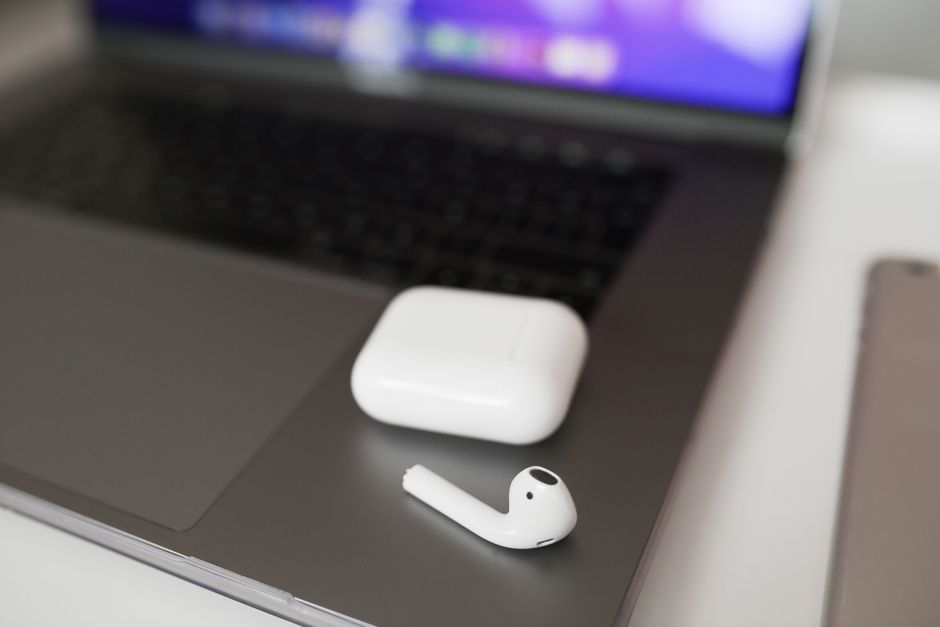
Every connection starts the same way, no matter which laptop you own. Your AirPods have to broadcast a signal before the laptop can find them.
- Place both AirPods inside the charging case and leave the lid open.
- Press and hold the setup button on the back of the case for about five seconds.
- Watch the status light on the front (or inside older cases) until it flashes white.
The blinking white light means the AirPods are discoverable. If the light stays amber or does not blink, close the lid, wait ten seconds, and hold the button again.
Tip: Keep the case open the entire time you pair. Closing the lid stops the AirPods from broadcasting and cancels pairing mode.
Connect AirPods to a Windows Laptop
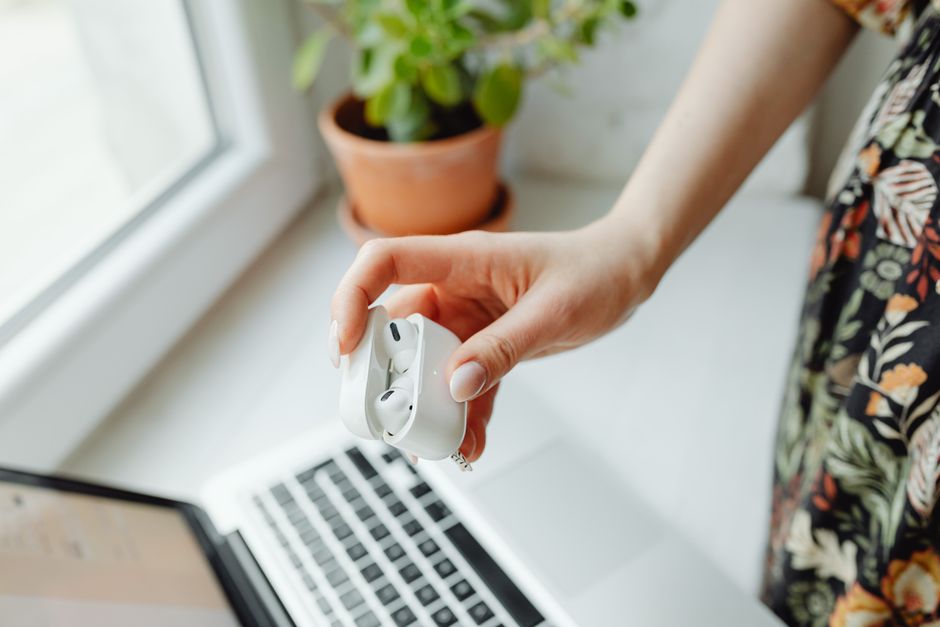
Windows treats AirPods like any other Bluetooth device, so the menu names are the only thing to learn.
- Open Settings and go to Bluetooth & devices.
- Turn Bluetooth on if the toggle is off.
- Click Add device, then choose Bluetooth from the list of device types.
- Select your AirPods when their name appears in the list.
- Wait for the Connected message, then close the window.
Once paired, your AirPods stay saved in the device list. To use them again later, open the same Bluetooth menu and click Connect, or reconnect straight from the sound output icon in the taskbar.
If the audio still plays through the laptop speakers, click the speaker icon near the clock and pick your AirPods as the output device. Windows sometimes pairs a device without switching the sound over automatically.
Connect AirPods to a Mac
On a Mac signed in to the same Apple ID as your iPhone, your AirPods may already appear in the sound menu with no pairing needed. If they do not, pair them manually.
- Open the Apple menu and choose System Settings.
- Click Bluetooth in the sidebar and make sure it is turned on.
- Put the AirPods in pairing mode using the case button as described above.
- Click Connect next to your AirPods when they show up under Nearby Devices.
After that, switch to your AirPods anytime from the Bluetooth or volume icon in the menu bar. A Mac remembers the connection, so day-to-day use is a single click.
Fix Common Connection Problems

Most failures come down to a weak signal, a low battery, or a device that is still connected somewhere else. Work through these checks before assuming your AirPods are broken.
| Problem | Likely cause | Fix |
|---|---|---|
| AirPods not showing up | Not in pairing mode | Hold the case button until the light blinks white |
| Connects but no sound | Wrong output selected | Choose AirPods in the sound output menu |
| Keeps dropping out | Distance or interference | Move closer, away from other wireless gear |
| Won’t pair at all | Still linked to a phone | Disconnect Bluetooth on the other device first |
A dead case battery is a quiet culprit. Give the AirPods ten minutes in a charging case before troubleshooting further.
Warning: If your AirPods are actively connected to your phone, the laptop often cannot grab them. Turn off Bluetooth on the phone during pairing.
When nothing works, reset the AirPods. Hold the case button for about 15 seconds until the light flashes amber, then white. A reset wipes existing pairings, so you connect from scratch, but it clears most stubborn glitches.
Get the Best Audio Quality
Bluetooth handles voice and music well, though a few settings sharpen the experience. Keep your laptop’s Bluetooth drivers updated, since outdated drivers cause stutter and dropouts on Windows especially.
Position matters more than people expect. Bluetooth range shrinks fast through walls and around other wireless devices, so keep the laptop within a few feet during calls. For the microphone, check that your AirPods are set as both the input and output device, otherwise the laptop may record from its built-in mic instead.
Frequently Asked Questions
Can I connect AirPods to any laptop? Yes. Any laptop with Bluetooth can pair with AirPods, including Windows, Mac, and most Chromebooks and Linux machines. You only miss Apple-exclusive shortcuts, not core sound or mic function.
Do I need iTunes or special software? No. AirPods connect through the built-in Bluetooth settings on your laptop. No extra downloads or Apple software are required to pair or play audio.
Why do my AirPods sound quiet or muffled on a laptop? This usually happens when the laptop uses a call-optimized audio profile. Close any app using the microphone, or reselect the AirPods as your output device to restore full quality.
Can I use AirPods with my phone and laptop at the same time? Not simultaneously in most cases. AirPods connect to one device at a time and must be disconnected from one before the other takes over, unless you are inside Apple’s automatic switching ecosystem.
How do I reconnect after the first pairing? Open your Bluetooth or sound menu and click your AirPods, or simply take them out of the case near a laptop they have paired with before. The saved connection makes reconnecting a one-click task.