How to Fix AirPods That Keep Cutting Out
To fix AirPods that keep cutting out, move your phone closer to reduce interference, clean the earbuds and case contacts, and reset the AirPods to clear a bad connection. Here is how to fix AirPods that keep cutting out, working from the quickest checks to a full reset, so you can find the cause without guessing.
Cutting out almost always comes from one of four things: wireless interference, a weak battery, dirt on the earbuds, or a glitchy pairing. Ruling them out in order gets most people back to steady audio in a few minutes.
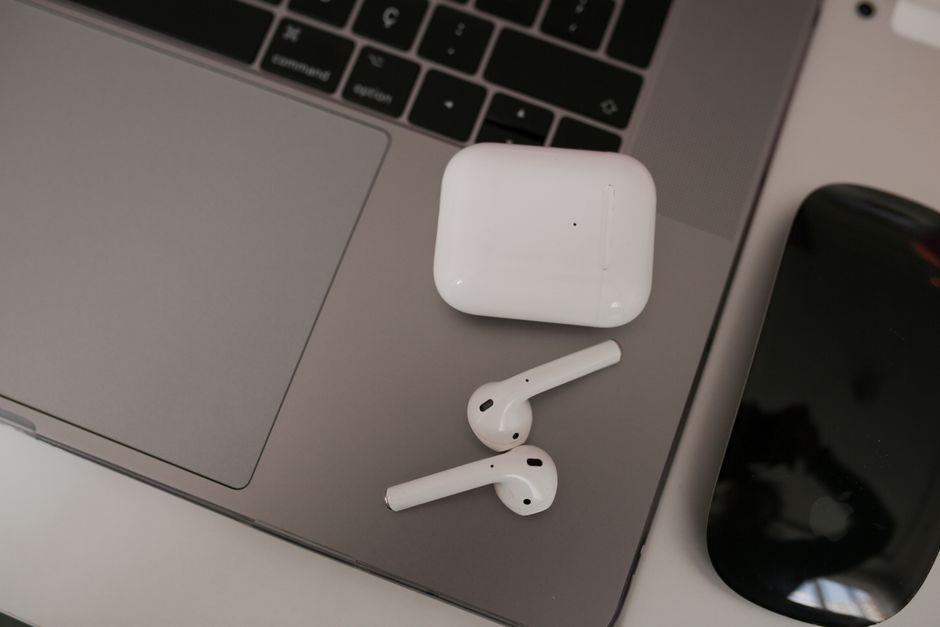
Start With Interference and Distance
Bluetooth is short range and easily crowded, so the fastest fix is often to change where your devices are. Do this before anything more involved.
- Keep your phone close. Put it in a front pocket or on the desk in front of you rather than in a back pocket or another room.
- Avoid crowded wireless areas. Busy offices, gyms, and transit hubs pack in dozens of signals that interrupt Bluetooth.
- Move away from a microwave or router. Both push out signals on the same band your AirPods use.
- Clear the line of sight. Your body absorbs the signal, so keeping the phone on the same side as the earbuds helps.
Note: Bluetooth range is only a few dozen feet in the open and far less through walls. If the audio drops the moment you set your phone down and walk off, distance is the cause.
Check the Battery Level
A low charge on either earbud or the case makes audio stutter and drop as the AirPods struggle to keep the link alive. This is a frequent, overlooked cause.
- Check the charge by opening the case near your phone or asking your voice assistant for the battery level.
- Charge the case if it is low, since a drained case cannot balance both earbuds.
- Charge both earbuds fully by leaving them in a powered case for a while.
- Watch one side dying first, which often points to an aging battery on that earbud.
If one earbud always dies well before the other even after a full charge, the battery has worn down and a fix will only go so far.
Clean the AirPods and Contacts
Earwax and grime build up on the mesh and on the charging contacts, which weakens both the audio and the connection. A careful clean often solves intermittent cutting out.
- Wipe each earbud with a dry, soft, lint-free cloth.
- Clean the speaker mesh gently with a dry, soft-bristled brush to lift out debris.
- Clean the case contacts, the small metal points where the earbuds sit, with a dry cloth or cotton swab.
- Let everything dry fully before placing the earbuds back in the case.
Warning: Never use water, alcohol, or sharp metal tools on the speaker mesh. Moisture and metal both damage the driver. A dry cloth or a soft, dry brush is all you should use.
Match the Cause to the Fix
If you are not sure where to start, this table points you to the likely cause based on the symptom.
| Symptom | Likely Cause | First Fix |
|---|---|---|
| Drops when phone is far | Interference or range | Keep phone close |
| Stutters at low battery | Weak charge | Charge case and earbuds |
| One side cuts out | Dirty mesh or contacts | Clean that earbud |
| Cuts out everywhere | Bad pairing | Reset the AirPods |
Reset the Bluetooth Connection
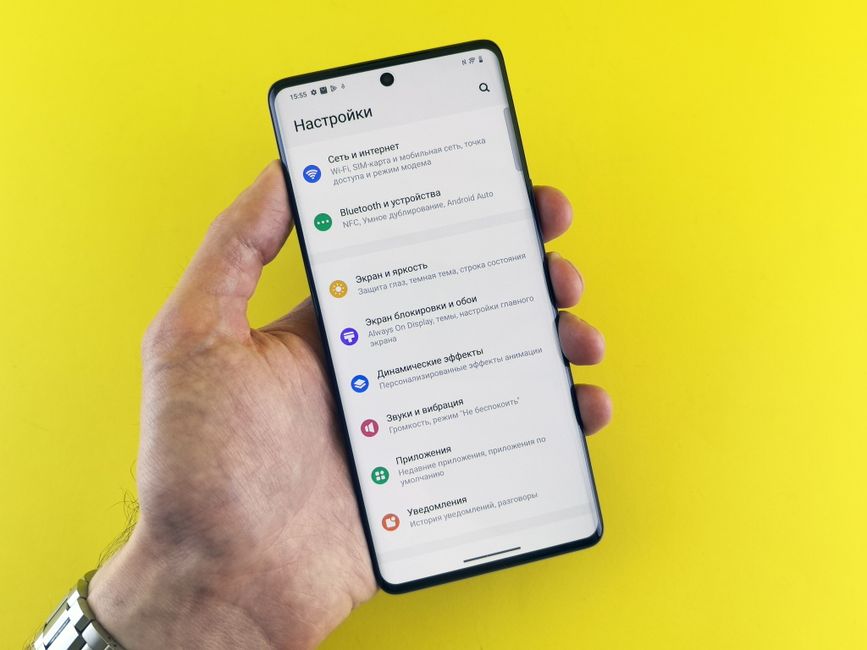
If cleaning and charging do not help, the pairing itself may be corrupt. Refreshing it clears a stuck connection without a full reset.
- Forget the device. In your Bluetooth settings, tap the "i" next to your AirPods and choose Forget This Device.
- Restart your phone to clear its Bluetooth cache.
- Reconnect the AirPods by opening the case next to your phone and following the prompt.
This alone fixes many cases where the audio drops on one specific device but works fine on another.
Reset the AirPods Fully
When nothing else works, a full reset returns the AirPods to factory state and clears the deepest software glitches.
- Put both earbuds in the case and close the lid for 30 seconds, then open it.
- Forget the device in your Bluetooth settings first.
- Press and hold the setup button on the back of the case for about 15 seconds.
- Watch the light flash amber, then white, which means the reset is complete.
- Pair them fresh by holding the open case next to your phone.
Tip: After a reset, pair the AirPods to your main device first and test audio there before adding any other devices. This isolates whether the problem was the AirPods or one particular phone or laptop.
When It Is Hardware, Not Software
If the AirPods still cut out after cleaning, charging, and a full reset, the issue is likely physical. A swollen or aged battery, water damage, or a failing driver will not respond to software fixes. At that point, check the warranty status and contact support rather than repeating the reset. Automatic ear detection can also cause odd pauses if the sensor misreads, so try turning that feature off as a final test before you assume the earbud is broken.
Frequently Asked Questions
Why do my AirPods keep cutting out in only one ear? That points to a dirty speaker mesh, blocked contacts, or a weak battery on that side. Clean the affected earbud and its spot in the case, then charge fully before deciding it is faulty.
Can a phone case or pocket cause AirPods to cut out? Yes. Keeping the phone in a back pocket or behind your body blocks the Bluetooth signal. Move the phone to a front pocket or a nearby surface and the dropouts often stop.
Does turning off automatic ear detection help with cutting out? It can. If the sensor misreads whether an earbud is in your ear, it may pause audio unexpectedly. Turning the feature off in settings rules that out as a cause.
Will resetting my AirPods delete anything? No. AirPods store no music or files, so a reset only clears the pairing and settings. Your audio and data stay on your phone untouched.
Once you know how to fix AirPods that keep cutting out, you can trace the drop to its real cause, whether it is distance, dirt, or a bad pairing, and get back to steady sound without a trip to a store.