How to Pair a Roku Remote
To pair a Roku remote, make sure the player is powered on, open the battery compartment, and hold the pairing button for about five seconds until the light starts flashing. Here is how to pair a Roku remote, step by step, whether you have a voice remote that connects over wireless or a simple remote that points straight at the screen.
The method depends on which remote you own. A voice or enhanced remote pairs wirelessly and needs a short setup, while a simple IR remote works the moment you add batteries. This guide covers both, plus what to do when the remote refuses to connect at all.

Know Which Roku Remote You Have
Before you pair anything, figure out which type you are holding. It changes every step that follows.
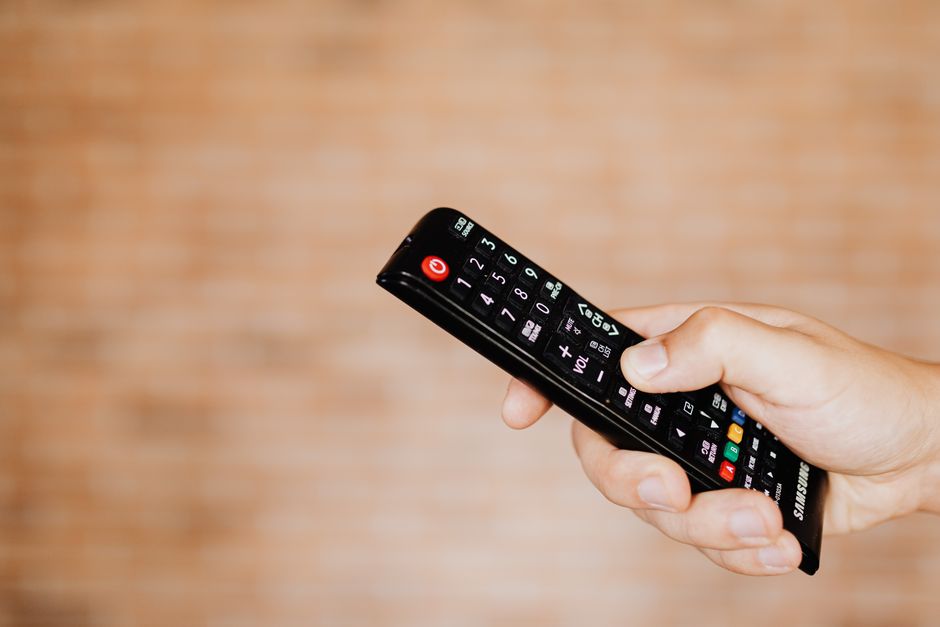
- Voice or enhanced remote: Has a pairing button inside the battery compartment, a microphone, and often volume and power buttons on the side. It connects wirelessly, so you do not have to point it at the TV.
- Simple or IR remote: Has no pairing button and no side buttons. It sends an infrared signal, so it must have a clear line of sight to the player.
If your remote has a pairing button tucked inside the battery bay, you have the wireless type and need to pair it. If there is no button, there is nothing to pair; just add fresh batteries.
Note: A simple IR remote never needs pairing. If it is not working, the problem is almost always dead batteries or a blocked signal path, not a lost connection.
Pair a Roku Voice or Enhanced Remote
This is the most common setup and the one people mean when they ask how to pair a Roku remote. Keep the remote close to the player during the process.
- Power on the Roku player and wait for the home screen to appear. The device must be fully booted before it can accept a new remote.
- Open the battery compartment on the back of the remote and insert fresh batteries.
- Find the pairing button inside the compartment or just below the batteries.
- Press and hold the pairing button for about five seconds until the status light begins to flash.
- Wait for the on-screen message. A pairing dialog appears and a progress bar fills as the remote connects.
- Let it finish. When the bar completes, the remote is paired and ready to use.
The whole process takes under a minute. Once paired, the remote remembers the player and reconnects on its own each time you turn the TV on.
When the Remote Will Not Pair
If the light never flashes or the on-screen prompt never appears, work through these fixes in order. Most pairing failures come down to power or battery issues.
- Replace the batteries. Weak batteries are the number one cause. Use a fresh pair rather than ones pulled from another device.
- Restart the Roku player. Unplug it from power, wait ten seconds, and plug it back in. Let it reach the home screen before you try again.
- Move closer. Hold the remote within a few feet of the player while it pairs.
- Hold the button longer. Press and hold the pairing button for a full ten seconds if five did not work.
- Remove interference. Move the player away from other wireless gear, a router, or a microwave that could crowd the signal.
Tip: A quick way to force a fresh pairing is to unplug the player, remove the remote batteries, wait ten seconds, reconnect power, then reinsert the batteries and hold the pairing button once the home screen loads.
Voice Remote vs. Simple Remote
If you are unsure why one remote pairs and another does not, this comparison clears it up.
| Feature | Voice / Enhanced Remote | Simple IR Remote |
|---|---|---|
| Pairing button | Yes, in battery bay | No |
| Needs line of sight | No | Yes |
| Setup step | Hold to pair | Add batteries only |
| Voice search | Yes | No |
| Reconnects on its own | Yes | Not applicable |
Pair a Roku Remote Without the Pairing Button
Some replacement or older remotes do not have a pairing button, yet they still connect wirelessly through the Roku system. In that case, use the free Roku mobile app as a stand-in remote to reach the settings menu, then add the physical remote from there.
- Install the Roku app on your phone and connect it to the same network as the player.
- Open the remote feature in the app and use it to navigate the menus.
- Go to Settings, then Remotes and devices to check pairing status or add a new remote.
The app also works as a full backup remote, which is handy while you wait for batteries or a replacement.
Warning: Do not pair a remote to the wrong player if you own more than one Roku device. Keep the remote right next to the unit you want it to control, since a nearby second player can grab the pairing instead.
After Pairing
Once your remote connects, test every button, including volume and power if your remote has them. If the volume buttons do nothing, run the remote setup again from Settings so the player can learn your TV brand. A newly paired remote holds its connection through restarts, so you should not need to repeat this unless you change the batteries or reset the device.
Frequently Asked Questions
Why does my Roku remote keep losing its pairing? Weak batteries are the usual cause. A remote that repeatedly drops off after working briefly almost always needs a fresh set. Interference from other wireless devices can also break the link, so keep the player in the open.
How long does it take to pair a Roku remote? Under a minute in most cases. After you hold the pairing button, the on-screen progress bar usually fills within ten to twenty seconds.
Can I use one remote for two Roku devices? No. A wireless Roku remote pairs to a single player at a time. To control a second device, use its own remote or the Roku mobile app.
Do I need the internet to pair a Roku remote? No. Pairing happens directly between the remote and the player, so it works even if the player is offline. You only need the network for the mobile app method.
Learning how to pair a Roku remote takes just a few minutes, and once you know the difference between the wireless and simple types, you can fix a dead remote yourself without a support call.