How to Reset a Bluetooth Speaker
To reset a Bluetooth speaker, turn it on, then press and hold the power and Bluetooth buttons together for several seconds until it beeps or the light flashes, which clears its paired devices and settings. Here is how to reset a Bluetooth speaker, step by step, to fix stubborn pairing, audio, and power problems in one move.
A reset wipes the speaker’s memory of past devices and returns it to the state it had out of the box. It is the fix to reach for when the speaker will not pair, connects to the wrong phone on its own, or acts glitchy no matter what you try.
When You Should Reset a Bluetooth Speaker
A reset is powerful but not always needed. Do it when the simpler fixes have already failed.
- It won’t pair with your phone or laptop anymore.
- It connects to the wrong device automatically and ignores the one you want.
- Audio cuts out or the controls stop responding.
- You are selling or giving it away and want to clear your devices from it.
Note: A reset clears paired devices and custom settings, not firmware. It will not fix a dead battery, water damage, or a blown speaker driver, which are hardware problems.
Try These Quick Fixes First
Before a full reset, rule out the small issues that mimic a broken speaker. These take seconds and often solve the problem on their own.
- Charge the speaker. A low battery causes dropouts and refuses new pairings.
- Power-cycle it. Turn the speaker off, wait ten seconds, and turn it back on.
- Forget it on your phone. Remove the speaker from your phone’s Bluetooth list, then pair again fresh.
- Move closer. Keep the speaker within a few feet of your device while connecting.
- Disconnect other devices. A speaker linked to another phone nearby may keep grabbing that connection.
If none of these restore normal behavior, move on to the reset.
Reset a Bluetooth Speaker: The General Method
Most Bluetooth speakers reset with a button combination, though the exact one varies by brand. This approach works for the majority of models.
- Turn the speaker on and make sure it has some charge.
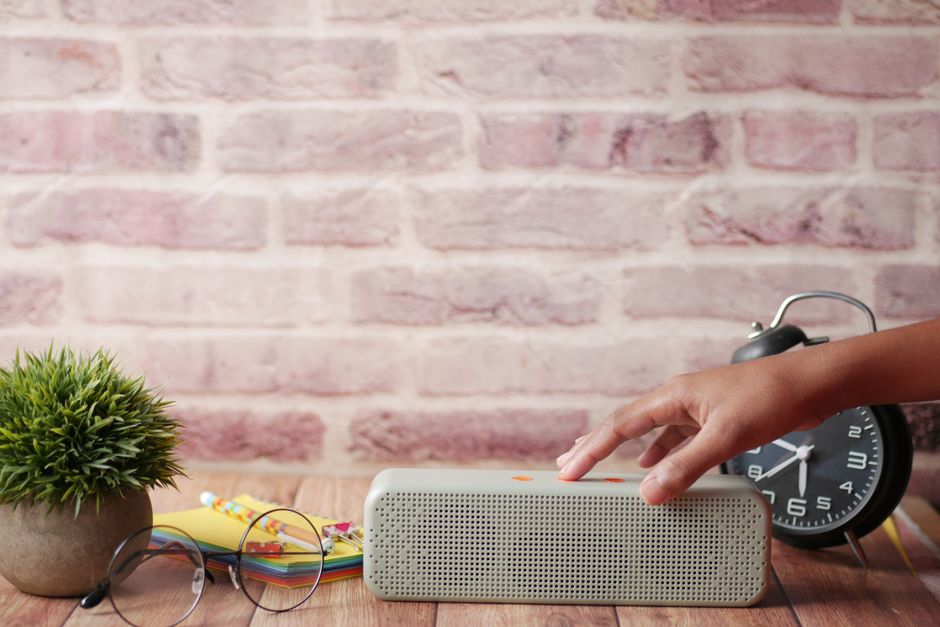
- Find the button combo. The most common is holding the power and Bluetooth buttons at the same time.
- Press and hold both for about five to ten seconds.
- Watch for a signal. The speaker usually beeps, plays a tone, or flashes its light to confirm the reset.
- Release the buttons once you see or hear that confirmation.
After the reset, the speaker forgets every paired device and enters pairing mode as if it were new.
Common Reset Button Combinations
Brands differ, so if the standard combo does not work, try one of these patterns. Check your speaker’s manual for the exact steps.
| Button Combo | What It Usually Does |
|---|---|
| Power + Bluetooth | Full reset on many models |
| Volume down + Bluetooth | Clears paired devices |
| Volume up + power | Resets on some rugged speakers |
| Hold Bluetooth alone | Enters pairing, not a full reset |
Tip: If you do not know the combo and have lost the manual, search the exact model name plus the word reset. Manufacturers publish the precise button sequence for each speaker on their support pages.
Pair the Speaker After a Reset
Once reset, the speaker starts fresh and needs to be paired again from scratch.
- Turn the speaker on. It should enter pairing mode automatically and flash its light.
- Open Bluetooth on your phone and start a device search.
- Select the speaker from the list of found devices.
- Confirm the connection and play a track to test the audio.
Since the reset cleared old pairings, only the devices you connect from now on will be stored.
Warning: A reset removes every paired device, including ones you still use. You will have to re-pair each phone, tablet, and laptop afterward, so only reset when the simpler fixes have failed.
When a Reset Does Not Help
If the speaker still misbehaves after a reset, the cause is likely hardware or firmware. A battery that drains in minutes, distorted sound at any volume, or a speaker that will not turn on points to a physical fault. Check whether a firmware update is available through the maker’s app, since an outdated version can cause bugs a reset cannot clear. If the speaker is still under warranty and the trouble persists, contact support rather than resetting it over and over.
After the Reset
With the speaker reset and re-paired, take a moment to set it up the way you like. Pair your main phone first, then any secondary devices. If the speaker uses a companion app for equalizer settings or multi-speaker pairing, open it and reapply your preferences, since the reset cleared them. From here the speaker behaves like new and holds only the devices you choose to connect.
Frequently Asked Questions
Will resetting my Bluetooth speaker delete my music? No. A Bluetooth speaker stores no music or files. It only holds a list of paired devices and settings, so a reset clears those and nothing else. Your music stays on your phone.
What is the most common way to reset a Bluetooth speaker? Holding the power and Bluetooth buttons together for several seconds is the most common method. The speaker usually beeps or flashes to confirm. Exact combos vary, so check your model’s manual.
Why does my speaker keep connecting to the wrong phone? It is auto-connecting to a device it remembers. A reset clears that memory, or you can simply turn off Bluetooth on the other phone or forget the speaker on it.
Do I need to reset my speaker before selling it? Yes, it is a good idea. A reset removes your paired devices and any saved settings so the new owner starts clean and cannot auto-connect to your phone.
Knowing how to reset a Bluetooth speaker lets you clear a stubborn pairing or audio glitch in seconds, and once you learn your model’s button combo, you can fix it yourself any time it acts up.