How to Connect a PS4 Controller to a Phone the Right Way
To connect a PS4 controller to a phone, put the DualShock 4 into pairing mode by holding the PlayStation and Share buttons until the light bar flashes, then select the controller in your phone’s Bluetooth menu. Here is how to connect a PS4 controller to a phone, step by step, on both Android and iPhone, plus what to do when pairing fails.
The DualShock 4 uses standard Bluetooth, so almost any modern phone can detect it. You do not need the console nearby, and you do not need a cable once pairing is done. The only real requirement is a charged controller and a phone running a recent version of Android or iOS.
Put the DualShock 4 Into Pairing Mode
Pairing mode is the state where the controller broadcasts itself to nearby devices. The DualShock 4 only does this when you trigger it manually.
- Turn the controller off first if it is connected to a console. Hold the PlayStation button, then choose to power it down.
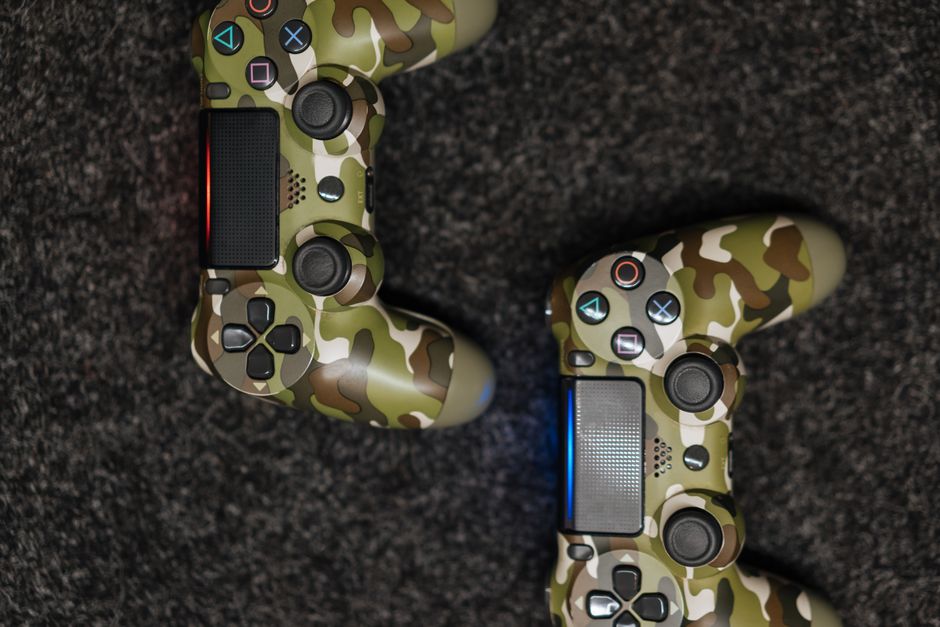
- Hold the Share and PlayStation buttons together for about five seconds. The Share button sits to the left of the touchpad.
- Watch the light bar. When it starts a rapid double flash, the controller is discoverable.
Tip: If the light bar glows a steady color instead of flashing, it already paired with another device. Release the buttons and start again.
Keep the controller within a few feet of your phone during this step. A weak signal makes pairing slower and less reliable.
Connect on an Android Phone
Android treats the DualShock 4 as a generic Bluetooth gamepad, so setup lives in the system settings.
- Open Settings, then tap Connected devices or Bluetooth, depending on your phone.
- Make sure Bluetooth is switched on, then tap Pair new device.
- Wait for an entry such as Wireless Controller to appear in the list.
- Tap that entry to pair. The light bar turns a solid color once the link is active.
Most Android games with controller support will recognize the pad right away. If a game ignores it, check that game’s own input settings for a controller toggle.
Connect on an iPhone
Apple added native DualShock 4 support several versions ago, so an iPhone handles it cleanly.
- Open Settings, then tap Bluetooth.
- Confirm Bluetooth is on and that the Other Devices section is visible.
- Put the controller into pairing mode as described above.
- Tap the controller when it appears, usually listed as a wireless controller.
Once connected, you can navigate parts of the iOS interface with the pad and play any game that lists controller support. Apple Arcade titles tend to work without extra setup.
Android vs iPhone: What to Expect
Both platforms pair the same hardware, but the day to day experience differs in small ways. This table sums up the practical points.
| Factor | Android | iPhone |
|---|---|---|
| Setup location | Bluetooth settings | Bluetooth settings |
| Native support | Broad, varies by maker | Built in and consistent |
| Touchpad as mouse | Rare | Limited |
| Reconnect speed | Usually fast | Usually fast |
Neither option is clearly better for every user. If you already own the phone, the controller will adapt to it rather than the other way around.
Fix Common Pairing Problems
Most failures trace back to three causes: a drained battery, a controller still bound to a console, or Bluetooth interference.
- Charge the controller for at least 30 minutes before trying again. A low battery can stop the light bar from flashing.
- Reset the controller if it refuses to enter pairing mode. Press the small recessed button on the back near the L2 shoulder with a pin, then try the button combo again.
- Remove old pairings from your phone’s Bluetooth list, then pair fresh. A stale entry often blocks a clean connection.
- Move away from other devices. Wireless headphones and crowded Wi-Fi bands can crowd the signal.
Warning: A controller connected to a phone will not connect to your PS4 at the same time. You must re-pair it with the console afterward using a USB cable.
If none of this works, test the controller on a different phone. That quickly tells you whether the fault is the pad or the handset.
Frequently Asked Questions
Does connecting a PS4 controller to a phone need a special app? No. Both Android and iPhone pair the DualShock 4 through the built in Bluetooth menu. An app is only useful for button remapping in specific games.
Can I charge the controller from my phone? Some Android phones support charging over a USB cable with the right adapter, but this is not reliable. Charge the controller from a wall adapter or console instead.
Why does the controller disconnect after a few minutes? That usually points to a weak battery or power saving settings on the phone. Charge the pad fully and disable aggressive battery optimization for your game.
Will every mobile game recognize the controller? No. Only games that list controller support will respond. Check the game’s description or settings before you expect full input mapping.
Can I use a PS5 DualSense controller the same way? Yes, the pairing steps are nearly identical. Hold the PlayStation and Create buttons until the light bar flashes, then pair from Bluetooth settings.
Once you know how to connect a PS4 controller to a phone, the process takes under a minute each time. Keep the controller charged, clear out stale Bluetooth entries now and then, and the pad will reconnect to your phone with little fuss.