How to Reset a Smart TV
There are two ways to reset a smart TV: a soft reset, where you unplug the TV for about a minute to clear glitches without deleting anything, and a factory reset from the settings menu, which erases apps, accounts, and preferences. Here is how to reset a smart tv both ways, starting with the gentle option — it fixes most freezing, lag, and app crashes on its own.
Start With a Soft Reset
A soft reset (also called a power cycle) restarts the TV’s software completely, which the standby button alone does not do. Modern TVs never really turn off; standby keeps the system running in the background, so glitches survive until you cut power properly. This is how to reset a smart TV without losing any apps or settings.
- Unplug the TV from the wall while it is on or in standby.
- Wait about sixty seconds. This lets internal components fully discharge.
- Hold the TV’s power button for a few seconds while unplugged, if you can reach it, to drain any remaining charge.
- Plug the TV back in and turn it on with the remote or the power button.
Do this before any factory reset. A frozen screen, a stuck app, choppy streaming, or a remote that stops responding are all classic soft-reset problems, and you lose nothing by trying.
Soft Reset vs. Factory Reset: What Each One Does
| Soft reset (restart) | Factory reset | |
|---|---|---|
| What it clears | Temporary glitches, stuck memory | Everything: apps, accounts, settings |
| Your data | Untouched | Erased |
| Time needed | Two minutes | Ten to twenty minutes with setup |
| When to use | Freezes, lag, app crashes | Persistent faults, selling the TV |
A smart tv factory reset is the nuclear option. It returns the TV to the state it shipped in, so you will need to reconnect Wi-Fi, reinstall apps, and sign back in to every streaming service afterward.
Warning: A factory reset signs you out of everything and deletes downloaded apps. Make sure you know your streaming passwords before you start, or you will be doing password resets for the rest of the evening.
Factory Reset From the Settings Menu
Menu names shift between brands and model years, but how to reset a smart TV to factory settings looks similar everywhere: open Settings, look for a General, System, or Support section, and find the entry called Factory Reset, Reset, or Reset to Initial Settings.
- Open Settings with your remote.
- Find the reset entry under the General, System, Support, or Device Preferences section, depending on the platform.
- Confirm the reset when the TV asks.
- Enter the PIN if prompted. If you never set one, try the common factory defaults such as 0000 or 1234, or check the manual.
- Wait for the TV to restart into the initial setup screen.
On TVs running a streaming platform such as Google TV, Roku, or Fire TV, the reset option usually sits inside the system or device section of settings rather than under picture or sound. If you cannot find it, the on-screen settings search — where available — gets you there fastest.
Reset a Smart TV Without the Remote
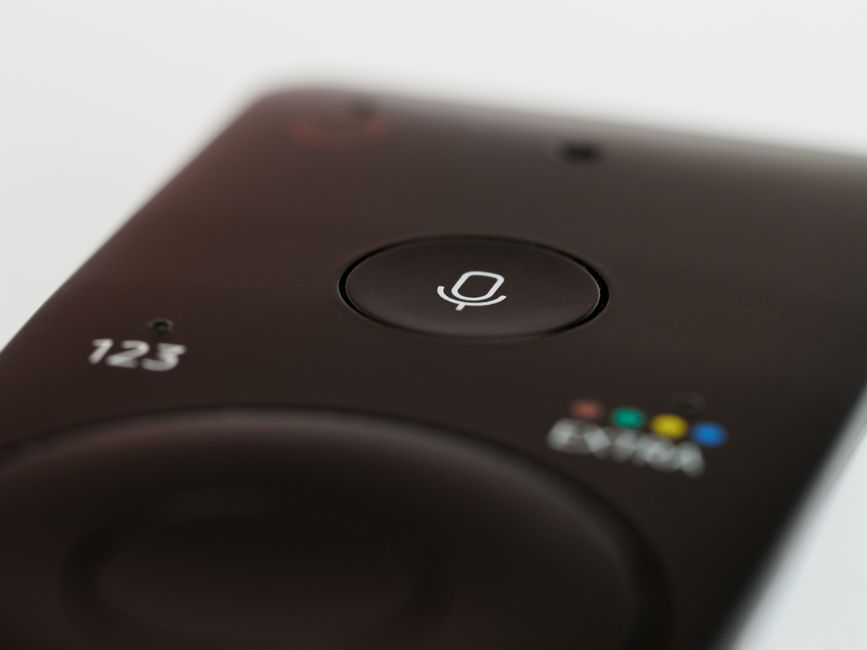
Lost or dead remote? You still have options to restart smart tv hardware and even reach the reset menu.
- Use the physical buttons on the TV. Most sets hide a power button and sometimes a small joystick under the front edge, behind the logo, or on the back near a corner. The joystick can navigate menus on many models.
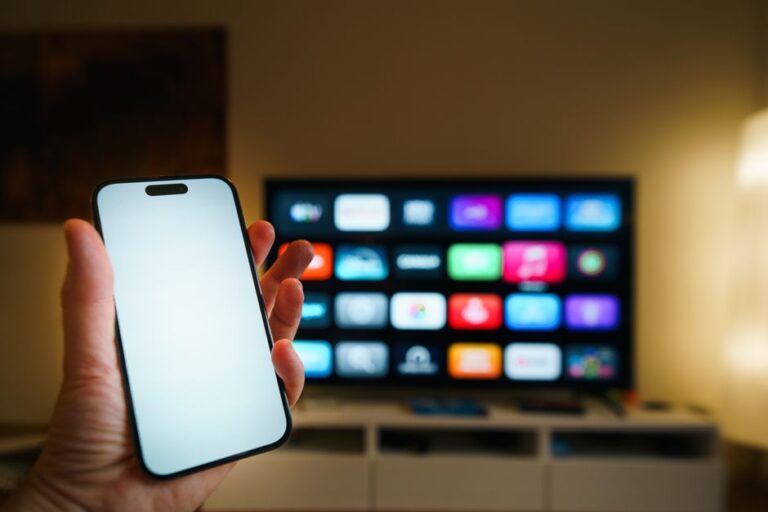
- Use the manufacturer’s remote app. Most major TV brands offer a phone app that works as a full remote once the phone and TV share a Wi-Fi network.
- For a soft reset, skip the remote entirely — pulling the plug for a minute needs no controls at all.
Tip: Some TVs also accept a standard HDMI-CEC signal, meaning a connected device’s remote (a streaming stick or game console controller) can navigate basic TV menus.
Set the TV Up Again Afterward
After a factory reset the TV boots into first-time setup. Reconnect to Wi-Fi, sign in to your TV platform account, and reinstall your streaming apps. Two extra steps are worth the time: check for a software update in the settings, since a fresh update often fixes whatever forced the reset, and redo any picture settings you had tuned, because those were wiped too.
If the original problem returns even after a full smart tv factory reset and a software update, the fault is likely hardware or an external device — think failing HDMI cables, an overheating streaming stick, or a router issue — rather than the TV’s software.
Frequently Asked Questions
Does unplugging a smart TV reset it? It performs a soft reset, which restarts the software without deleting anything. It does not perform a factory reset — that only happens through the settings menu.
How often should I restart my smart TV? Whenever it misbehaves, and occasionally otherwise. Because standby never fully shuts the system down, a monthly power cycle keeps things running smoothly.
Will a factory reset delete my streaming subscriptions? No. Your accounts live on the streaming services’ servers. The reset only signs you out on the TV; sign back in and everything is where you left it.
What if the TV freezes during the factory reset? Leave it alone for a while first — resets can look stuck while working. If nothing changes after twenty minutes or so, unplug the TV for a minute, plug it back in, and try the reset again.
Can I reset a smart TV that will not turn on at all? No reset helps a TV with no power. Check the outlet and the power cable at both ends, and try another socket. If the TV shows no standby light with known-good power, it needs repair.