How to Connect a Laptop to a TV Wirelessly
To connect a laptop to a TV wirelessly, put both devices on the same Wi-Fi network, open the screen mirroring feature on your laptop, and select your TV from the list of nearby displays. Here is how to connect a laptop to a TV wirelessly on both Windows and Mac, using the tools already built into your system.
The right method depends on what you own. Windows laptops use Miracast, Macs use AirPlay, and any laptop can cast through a Chromecast or a smart TV app. Pick the path that matches your gear and you can be watching within a couple of minutes.
Check What Your Devices Support
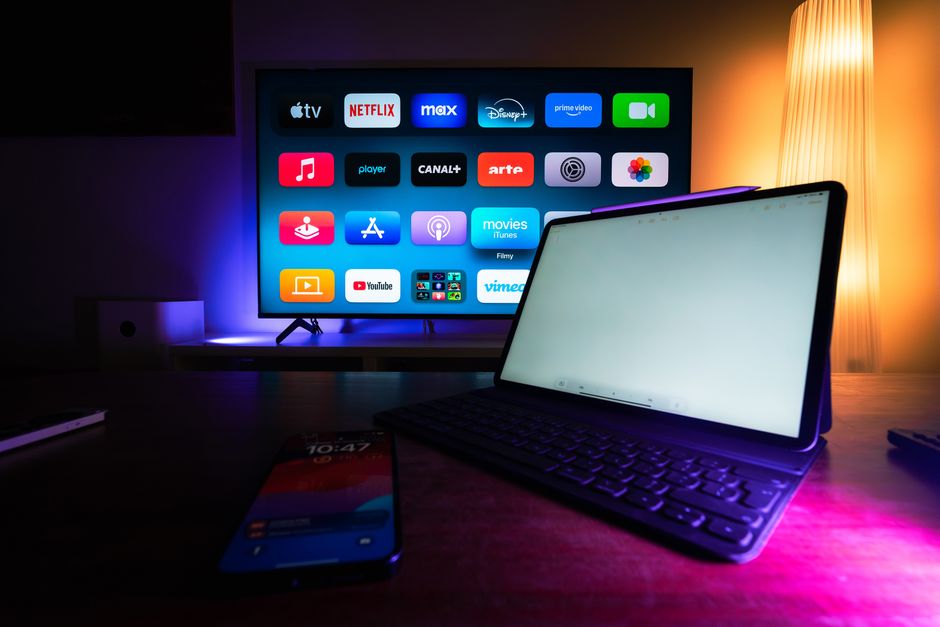
Wireless screen sharing only works when both ends speak the same standard. Confirm this first to save yourself a frustrating search for a menu that is not there.
- Windows laptop: Look for Miracast support, which most laptops from the last several years include.
- Mac: Uses AirPlay, which works with Apple TV and many recent smart TVs.
- Smart TV: Check whether it lists screen mirroring, Miracast, or AirPlay in its settings.
- Chromecast: Works with the Chrome browser and Google Cast from any laptop.
Note: Both the laptop and the TV must be connected to the same Wi-Fi network. A mismatched network is the single most common reason a TV never shows up in the list.
Connect a Windows Laptop to a TV Wirelessly
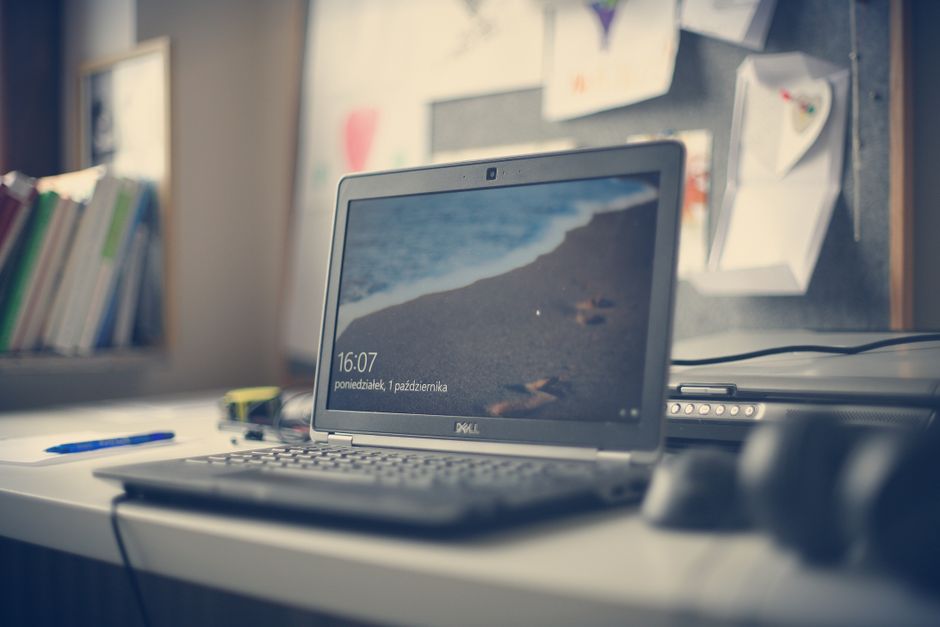
Windows uses a feature called Cast, built on Miracast, to send your screen to a compatible TV. Turn on screen mirroring on the TV before you start.
- Enable screen mirroring on the TV. Open its input or settings menu and select the mirroring or Miracast option so it becomes discoverable.
- Open the Windows action panel by pressing the Windows key plus K to bring up the Cast menu.
- Wait for your TV to appear in the list of available displays.
- Select your TV and confirm any prompt that shows on the TV screen.
- Choose how to display. Once connected, set the screen to duplicate or extend from your display settings.
The laptop screen now appears on the TV. Duplicate mode mirrors everything, while extend mode gives you a second workspace.
Connect a Mac to a TV Wirelessly
Macs use AirPlay, which is quick and reliable with an Apple TV or an AirPlay-enabled smart TV.
- Turn on the TV and make sure it supports AirPlay or has an Apple TV attached.
- Open Control Center from the menu bar on your Mac.
- Click Screen Mirroring and wait for your TV to appear.
- Select your TV from the list.
- Enter the code if the TV displays one, then confirm the connection.
Your Mac screen mirrors to the TV instantly. You can switch between mirroring your display and using the TV as a separate screen in the AirPlay menu.
Which Wireless Method to Use
If you have more than one option, this table helps you pick the easiest route for your setup.
| Your Setup | Best Method | Notes |
|---|---|---|
| Windows + smart TV | Miracast (Cast) | Built in, no extra app |
| Mac + Apple TV | AirPlay | Fastest and most stable |
| Any laptop + Chromecast | Google Cast | Cast a tab or the desktop |
| Older TV, no smart features | Streaming dongle | Add a Chromecast or similar |
Cast Through Chrome or a Streaming Device
If your TV lacks built-in mirroring, a small streaming device fills the gap. A Chromecast plugs into an HDMI port and lets any laptop cast through the Chrome browser.
- Plug in the streaming device and set it up on your Wi-Fi network.
- Open the Chrome browser on your laptop.
- Click the three-dot menu and choose Cast.
- Pick your device and select whether to cast a single tab or the whole desktop.
This route works the same on Windows, Mac, and Chromebook, which makes it a dependable fallback.
Tip: For smooth video, cast over a 5 GHz Wi-Fi network when you can. It carries more data with less lag than the older 2.4 GHz band, which reduces stutter during playback.
Fix a Wireless Connection That Drops
If the picture freezes, lags, or the TV disappears from the list, work through these steps. Most issues trace back to the network or interference.
- Confirm the same network. Re-check that both devices sit on the exact same Wi-Fi name.
- Restart both devices. Reboot the laptop and power-cycle the TV to clear temporary faults.
- Move closer to the router. A weak signal causes the stutter and dropouts you see during video.
- Reduce interference. Move away from other heavy wireless traffic and close bandwidth-hungry apps.
- Update your software. Install pending system and graphics updates on the laptop and firmware updates on the TV.
Warning: Streaming high-motion video wirelessly can lag on a congested network. For gaming or fast action where every frame counts, a direct HDMI cable still beats wireless for responsiveness.
After You Connect
Once the screen appears on the TV, adjust the resolution and scaling in your display settings so text and video fill the screen cleanly. If audio still plays from the laptop, set the TV as your sound output device. Your laptop remembers the TV, so future connections take only a click or two.
Frequently Asked Questions
Do I need Wi-Fi to connect a laptop to a TV wirelessly? In most cases, yes. Miracast, AirPlay, and casting all rely on a shared network. Some Miracast setups create a direct link without a router, but a shared Wi-Fi network is the most reliable path.
Why is there a delay between my laptop and the TV? Wireless mirroring always adds a small lag as the screen is encoded and sent over the air. A crowded network makes it worse. Move closer to the router and close other streaming apps to reduce it.
Can I connect any laptop to any TV wirelessly? Not always. Both devices must support a shared standard. If your TV has no mirroring feature, a cheap streaming dongle adds it to any TV with an HDMI port.
Will the sound play through the TV too? Usually yes, but if it does not, open your sound settings and select the TV as the output device. Screen mirroring sends audio and video together once that is set.
Knowing how to connect a laptop to a TV wirelessly turns any screen into a bigger display for movies, slideshows, or a presentation, with no cables to hunt for or plug in.