How to Connect a Soundbar to a TV
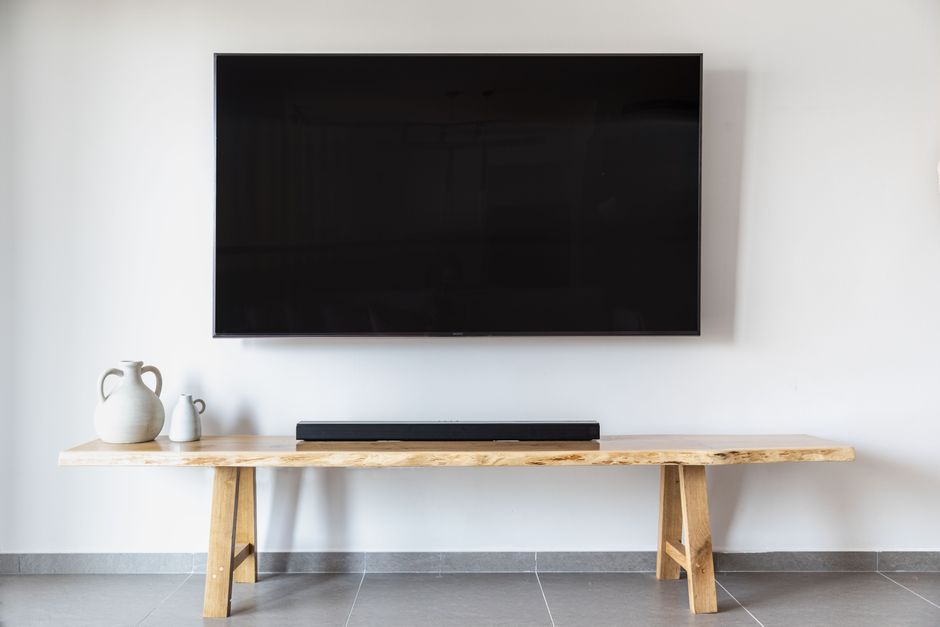
To connect a soundbar to a TV, plug an HDMI cable into the TV’s HDMI ARC port and the soundbar’s HDMI-out port, then set the TV audio output to the external speaker. That single connection carries sound from every source on your TV to the soundbar, so you only wire it once.
Most soundbars support three connection types: HDMI ARC, optical, and Bluetooth. HDMI ARC is the best option on almost any modern TV because it passes higher-quality audio and lets one remote control the volume.
Check Which Ports You Have
Before you buy a cable, look at the back of both devices. The label next to the port tells you what it supports.
- HDMI ARC (or eARC): usually one HDMI port marked "ARC." This is your first choice.
- Optical (TOSLINK): a small square port with a plastic flap, often labeled "Optical Out" or "Digital Audio."
- Bluetooth: no cable at all, handy if your soundbar and TV both support it.
Tip: If your HDMI ARC port is already used by a streaming box, move that box to another HDMI input and free the ARC port for the soundbar.
Connect a Soundbar to a TV With HDMI ARC
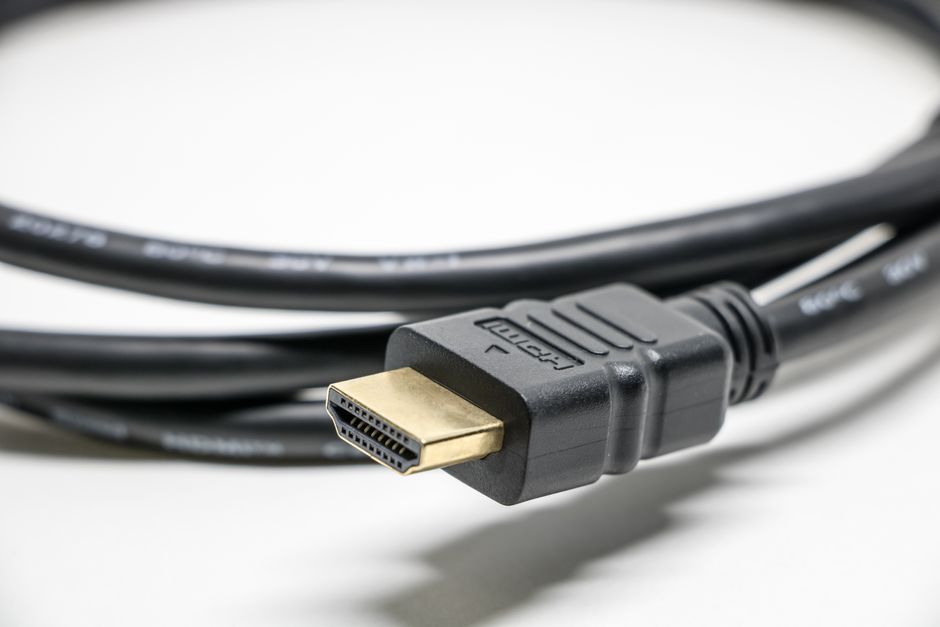
This is the cleanest setup and the one to try first.
- Power off both the TV and the soundbar before plugging anything in.
- Connect the HDMI cable from the TV port labeled "HDMI ARC" to the soundbar port labeled "HDMI OUT (ARC)."
- Turn both devices on, then open the TV’s sound settings.
- Set audio output to "External Speaker," "Audio System," or "Receiver" instead of "TV Speakers."
- Enable HDMI-CEC on the TV (each brand names it differently, such as Anynet+, Bravia Sync, or Simplink). This lets the TV remote control soundbar volume.
Play any video and you should hear sound through the soundbar. If the TV remote now changes the soundbar volume, CEC is working.
Connect With an Optical Cable
Use this when your TV has no ARC port or the ARC port is broken.
- Remove the plastic caps from both ends of the optical cable.
- Insert one end into the TV’s "Optical Out" and the other into the soundbar’s "Optical In." The plug only fits one way.
- Switch the soundbar input to "Optical" or "D.IN" using its remote.
- Set the TV audio output to optical or digital audio.
The one trade-off: optical does not carry the newest surround formats, and the TV remote usually will not control the soundbar’s volume.
Connect Over Bluetooth
Bluetooth removes cables entirely but can drift slightly out of sync with the picture.
- Put the soundbar in pairing mode (hold the Bluetooth button until it flashes).
- Open the TV’s Bluetooth menu and scan for devices.
- Select the soundbar from the list and confirm the pairing.
Note: Not every TV can send audio out over Bluetooth. If your TV only receives Bluetooth, use HDMI ARC or optical instead.
Which Connection Should You Use
Here is how the three methods compare so you can pick the right one for your setup.
| Connection | Audio Quality | Remote Controls Volume | Cable Needed |
|---|---|---|---|
| HDMI ARC | Highest | Yes (with CEC) | HDMI |
| Optical | Good | No | Optical |
| Bluetooth | Compressed | Sometimes | None |
For most people, HDMI ARC is the right answer. Reach for optical only when ARC is unavailable, and treat Bluetooth as a backup for casual listening.
Fix Common Problems
If you connected everything and still hear nothing, work through these checks in order.
- No sound at all: confirm the TV audio output is set to the external system, not "TV Speakers."
- Wrong input: press the source button on the soundbar remote until it matches the cable you used.
- Volume buttons do nothing: turn on HDMI-CEC on the TV and reconnect the HDMI cable.
- Audio lags behind video: look for an "Audio Delay" or "Lip Sync" setting and nudge it until speech matches lips.
Warning: Do not run both the TV speakers and the soundbar at once. Doubled audio creates a slight echo. Always mute the internal speakers when the soundbar is active.
Get the Best Sound
Once the soundbar works, a few small adjustments make a real difference. Place the bar directly below or above the screen and keep it clear of cabinet walls that muffle the sound. If it came with a wireless subwoofer, sit the sub on the floor near the front of the room and let it pair automatically.
Turn off any extra TV audio processing like "virtual surround" when using the soundbar, since the bar handles that itself. Then set the soundbar to a neutral or "movie" mode and adjust bass to taste.
Connecting a soundbar to a TV takes only a few minutes once you know which port to use. Start with HDMI ARC, fall back to optical, and keep Bluetooth for when you want zero cables. With the internal speakers muted and CEC enabled, one remote runs the whole setup.